

Model: T1410-USRB
4-Port HDMI KVM Switch for 4 PCs 1 Monitor
*Need a different power plug? Contact us.
Pairs well with
Free US Shipping! Ships within 5-7 business days.
30-Day Hassle-Free Returns & Purchase Guarantee
1-Year Warranty
Secure Payment
4-Port HDMI KVM Switch for 4 PCs 1 Monitor
If you have any questions, you are always welcome to contact us. We'll get back to you as soon as possible, within 24 hours on weekdays.
-
Free US Shipping · Fast Delivery
Delivery typically arrives in 5–7 business days.
Details are available in our Shipping Policy. -
30-Day Returns · Quality Guaranteed
Returns are accepted within 30 days for peace of mind.
See our Returns & Warranty Policy for details. -
Secure & Trusted Payments
All transactions are protected with industry-standard security.
-
Customer Support
Questions about your order? Feel free to Contact Us.
Overview
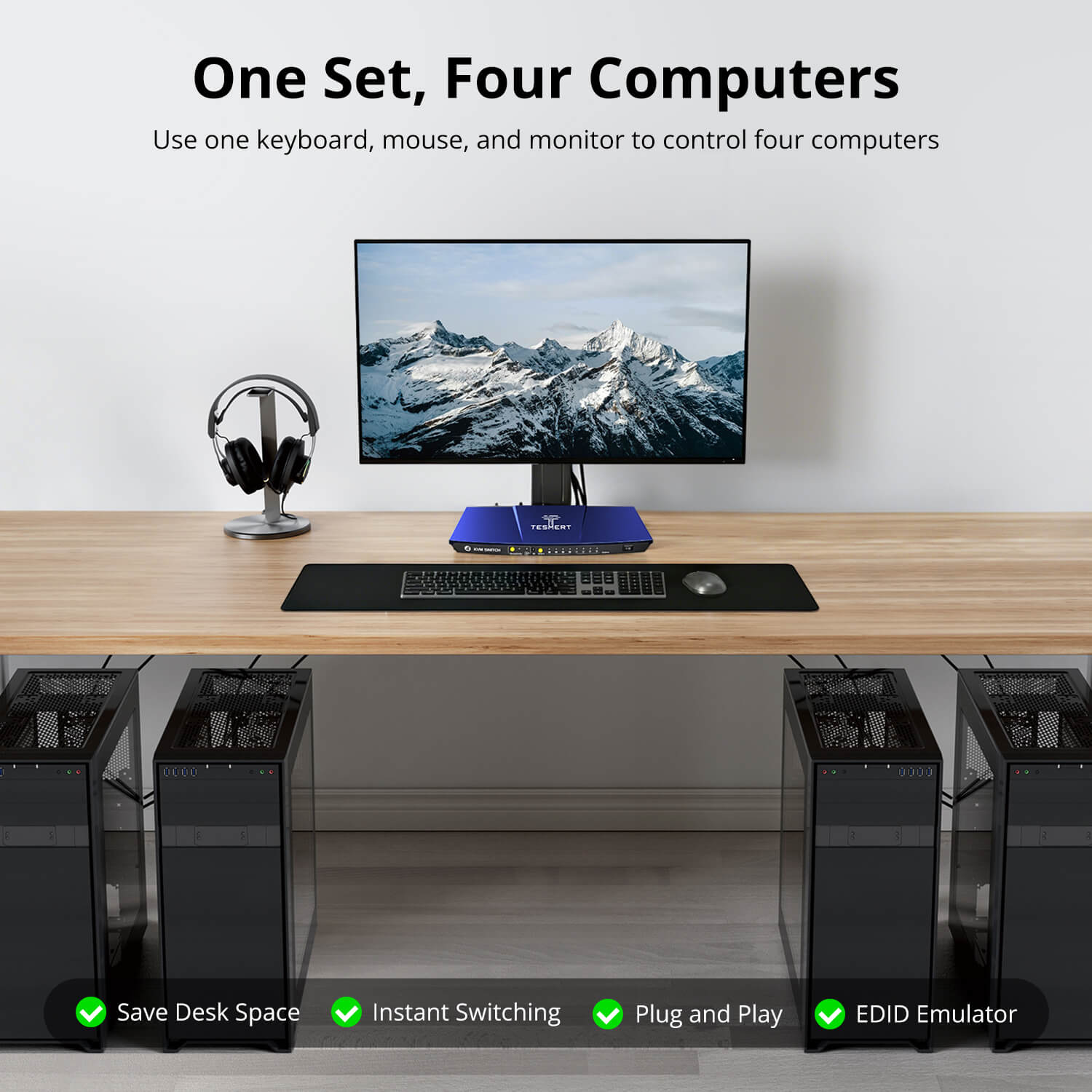
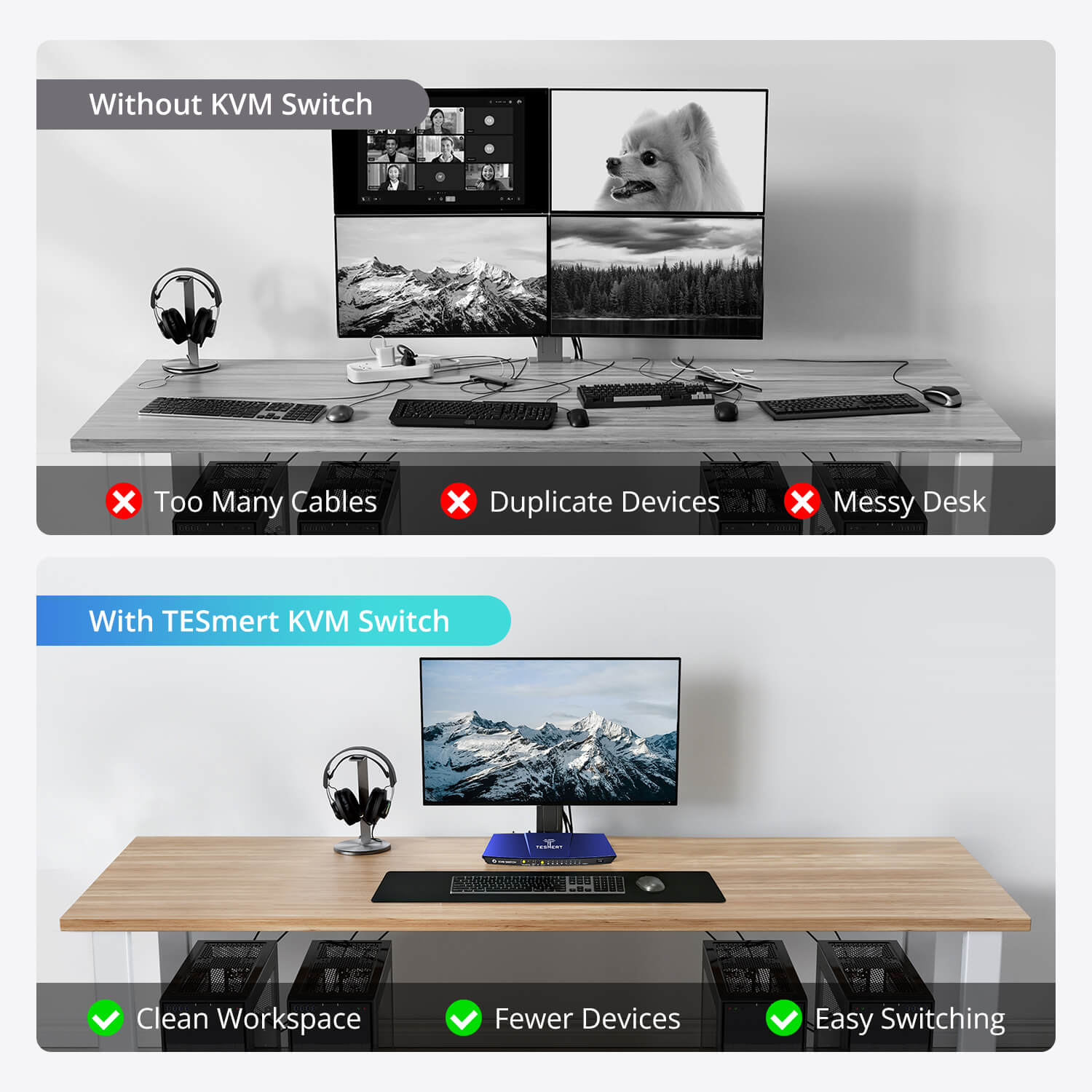
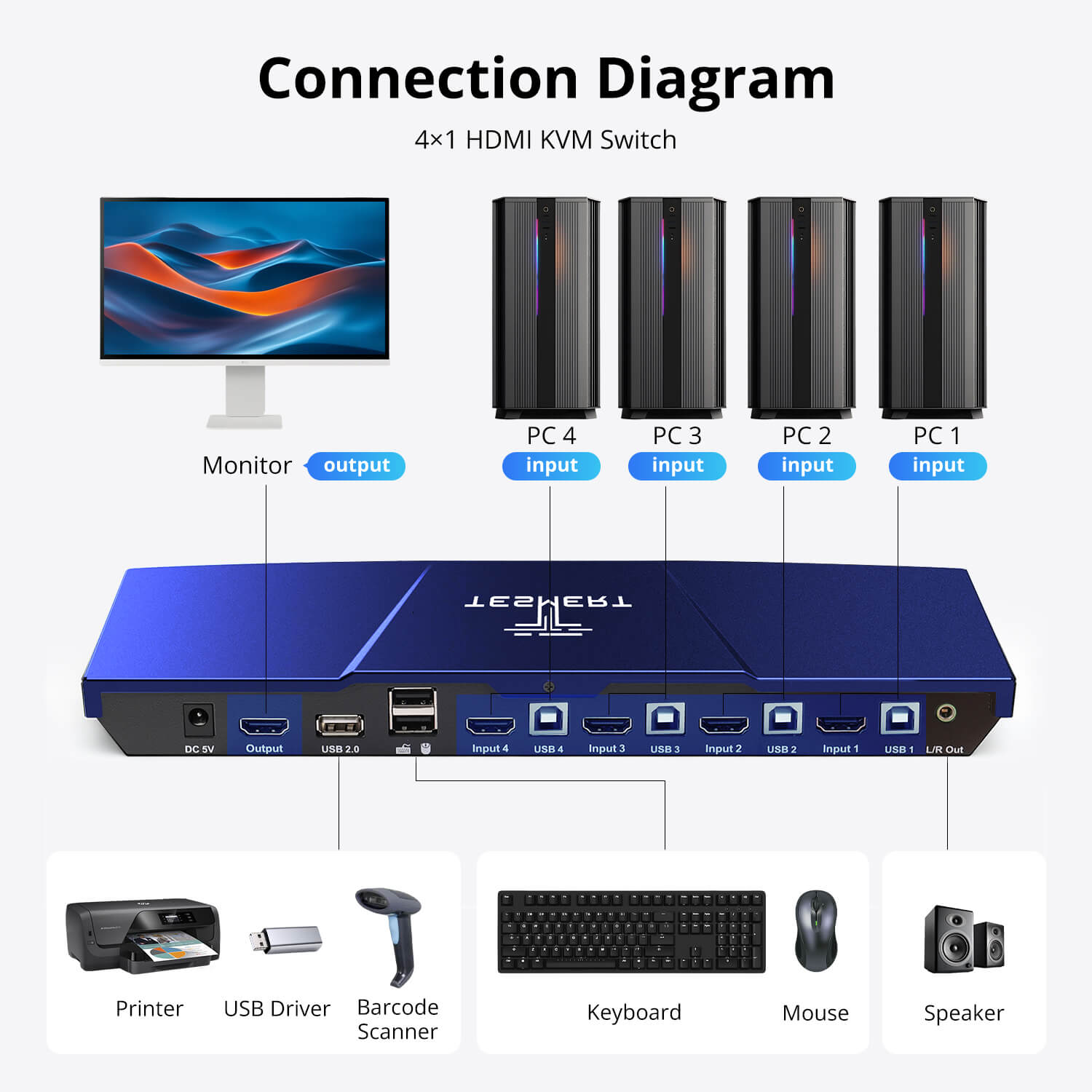
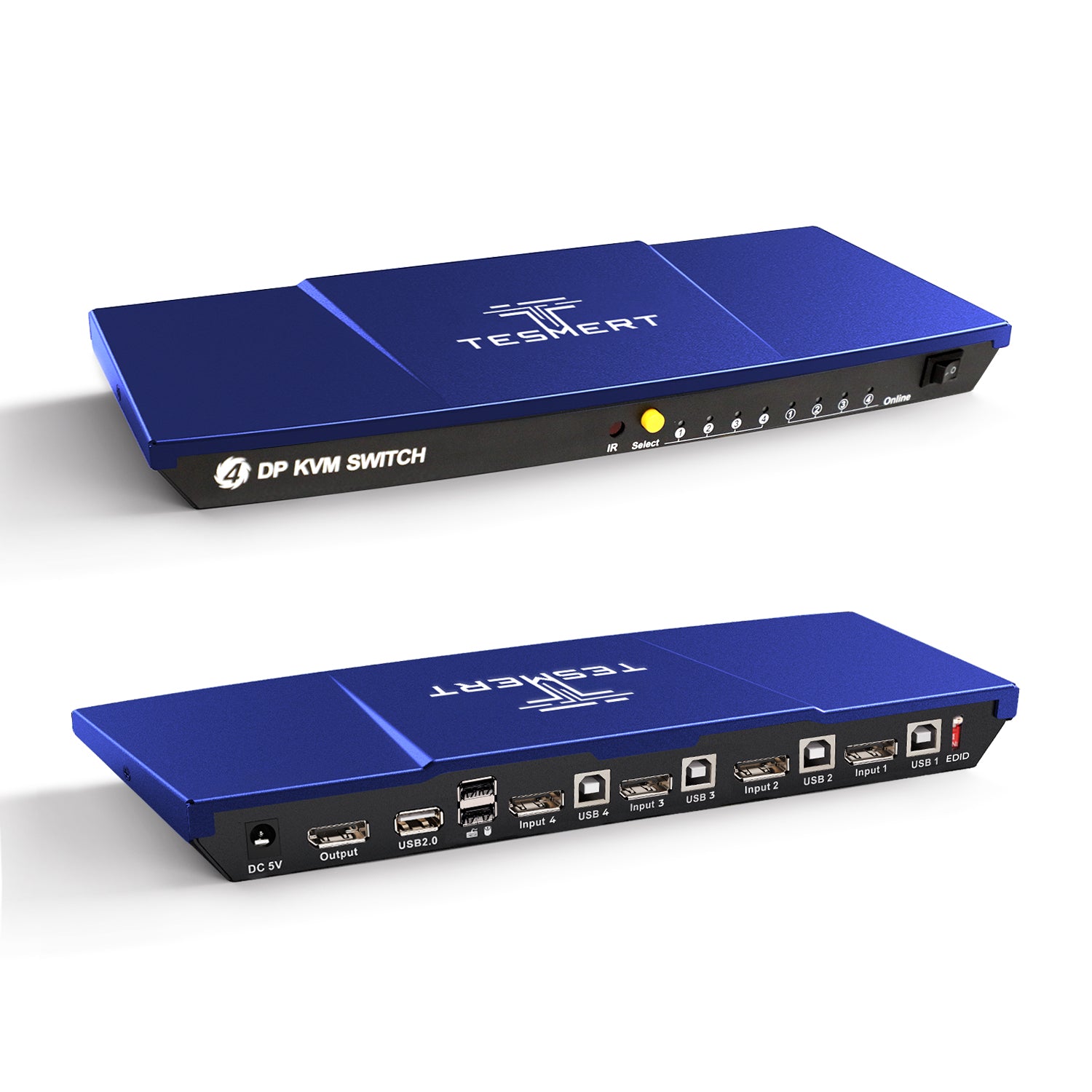
Designed for users who manage multiple computers from a single workspace, this 4-in-1-out HDMI KVM switch lets four HDMI computers share one monitor, keyboard, mouse, USB peripherals, and speaker output. Ideal for offices, IT workstations, test environments, and multi-system setups.
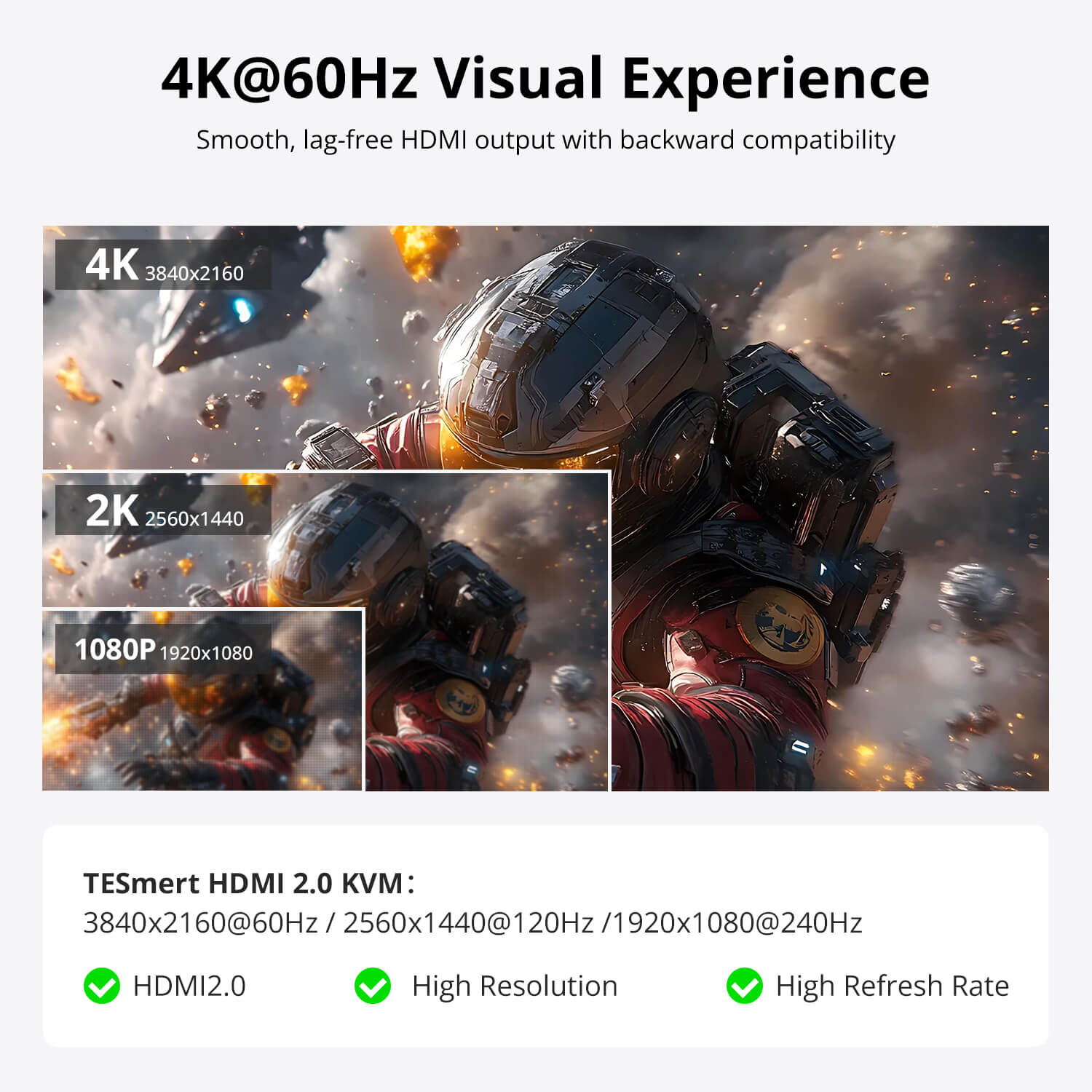
- Up to 4K@60Hz Resolution
Enjoy sharp text, clear images, and smooth performance for everyday work. From spreadsheets and web browsing to monitoring multiple systems, T1410 delivers a reliable 4K viewing experience. - Share USB Devices & Audio
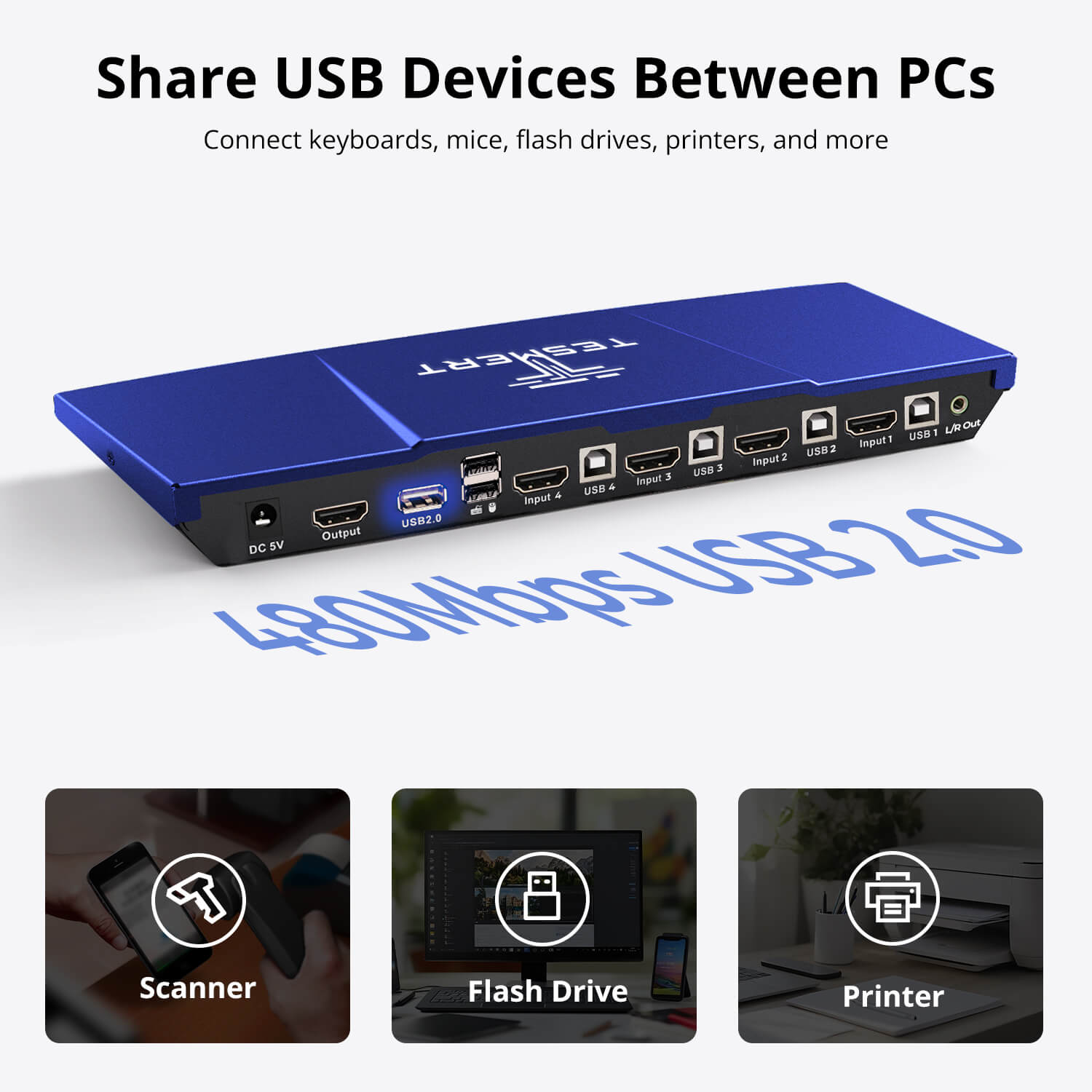
Keep your workspace organized by sharing USB peripherals and speaker output between four computers. Connect devices such as USB drives, printers, barcode scanners, and other USB accessories while reducing cable clutter. - 5 Ways to Switch
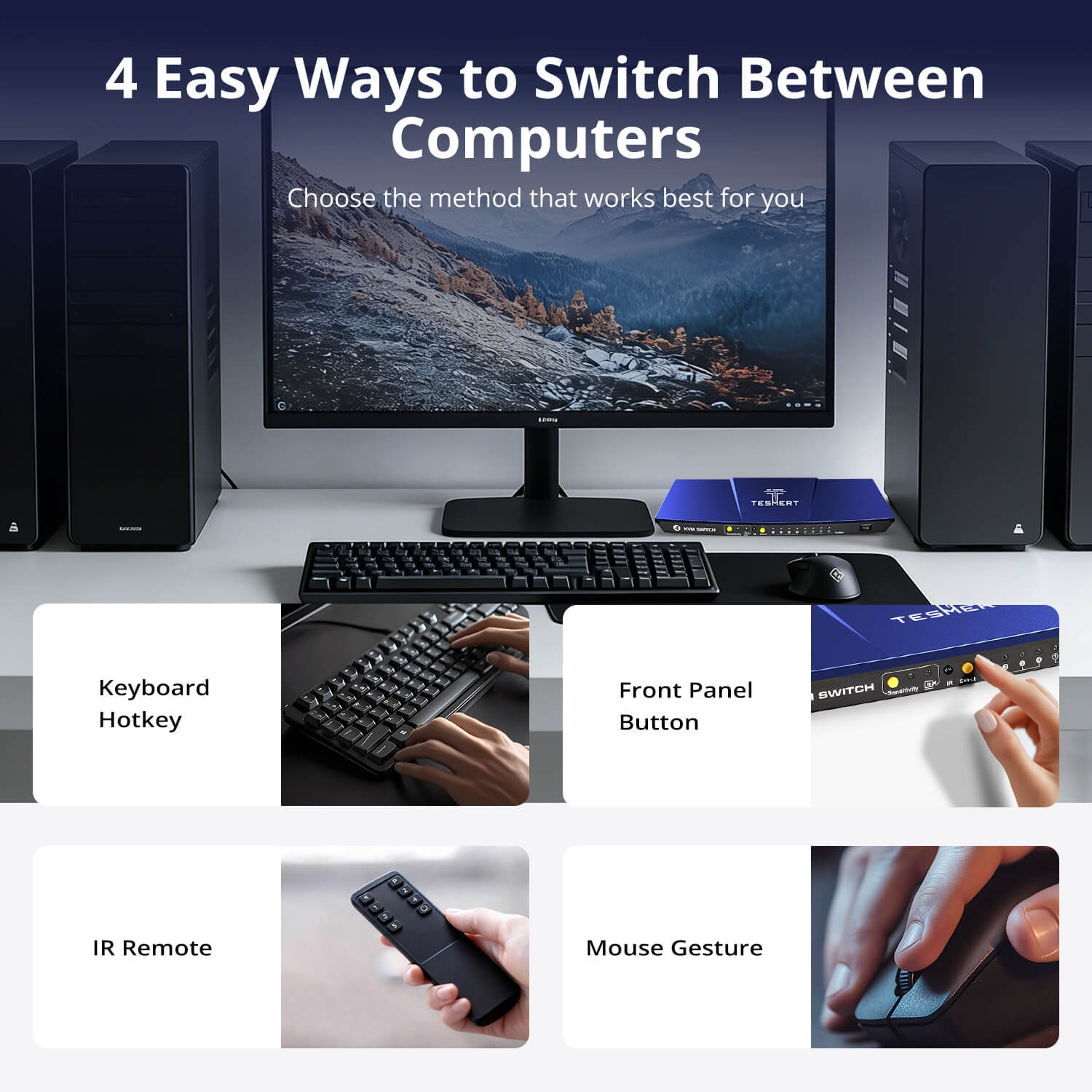
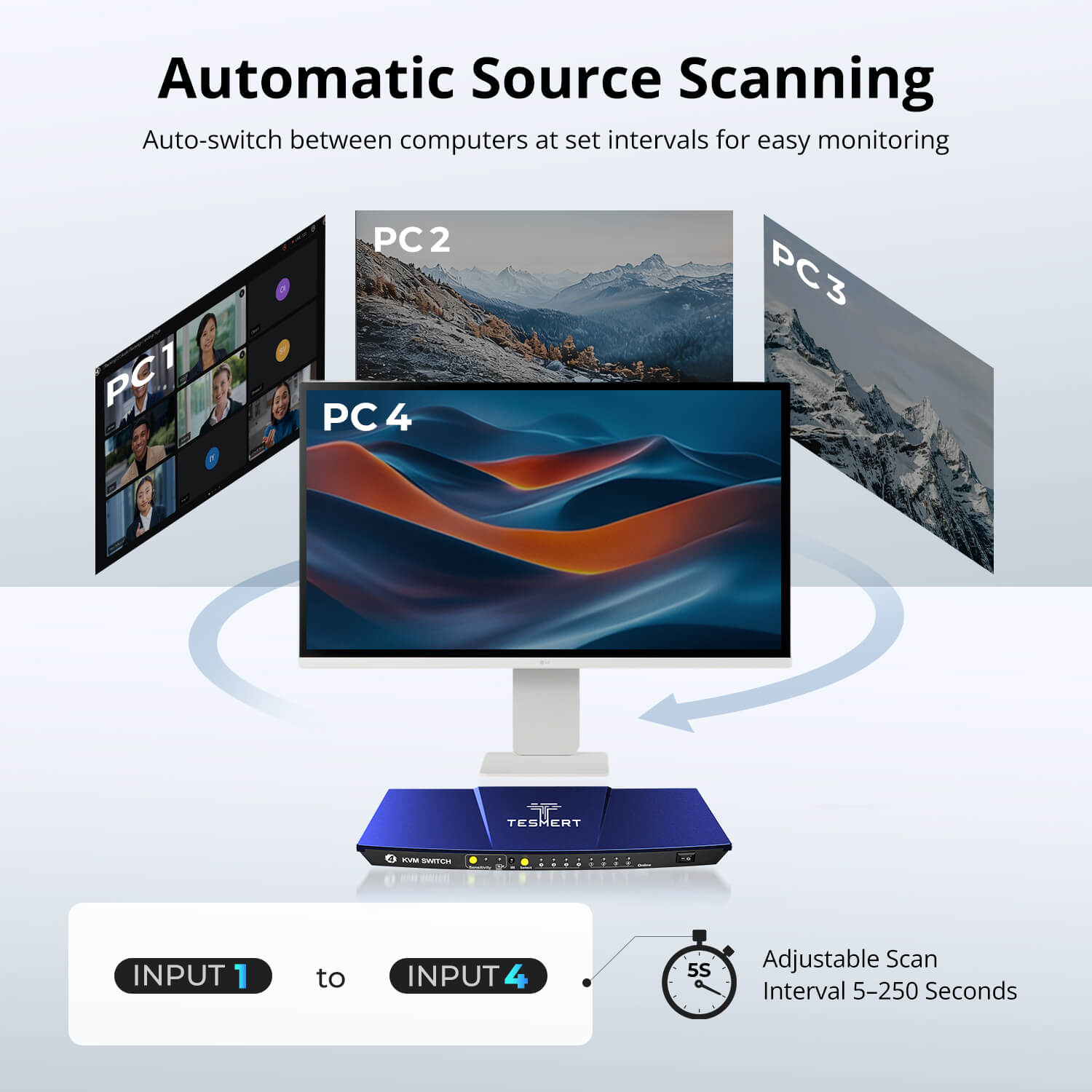
Switch computers the way you prefer using the front-panel button, keyboard hotkeys, mouse gestures, IR remote control, or Auto Scan mode—no software installation required. - Stable Display Settings
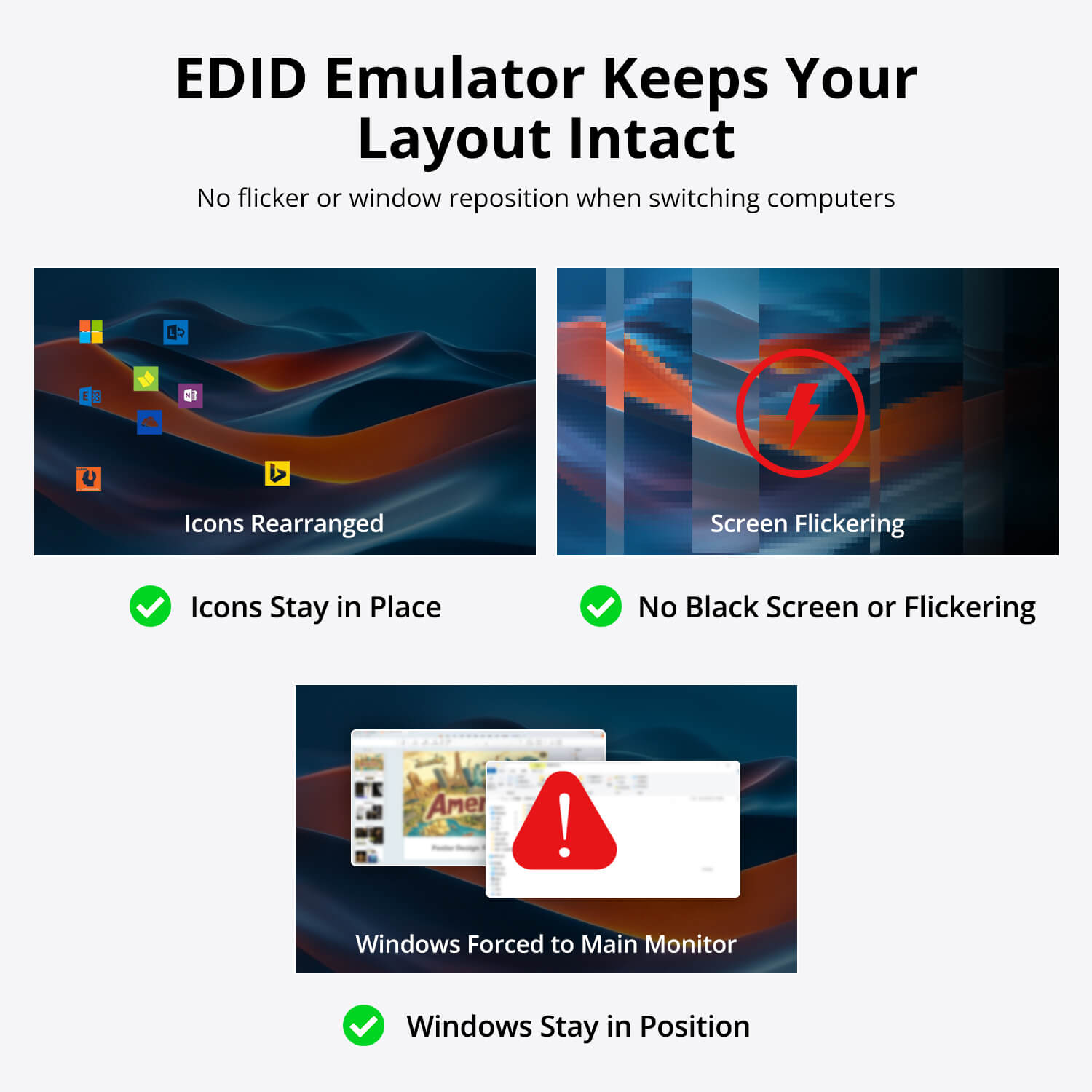
Built-in EDID emulation helps prevent monitor re-detection, resolution changes, and window rearrangement when switching between computers. - Enhanced Keyboard & Mouse Compatibility
Keyboard and mouse pass-through technology supports a wider range of wired, wireless, gaming, and specialty input devices for a smoother switching experience.
Technical Details
Specifications
Connections
- Computer Inputs
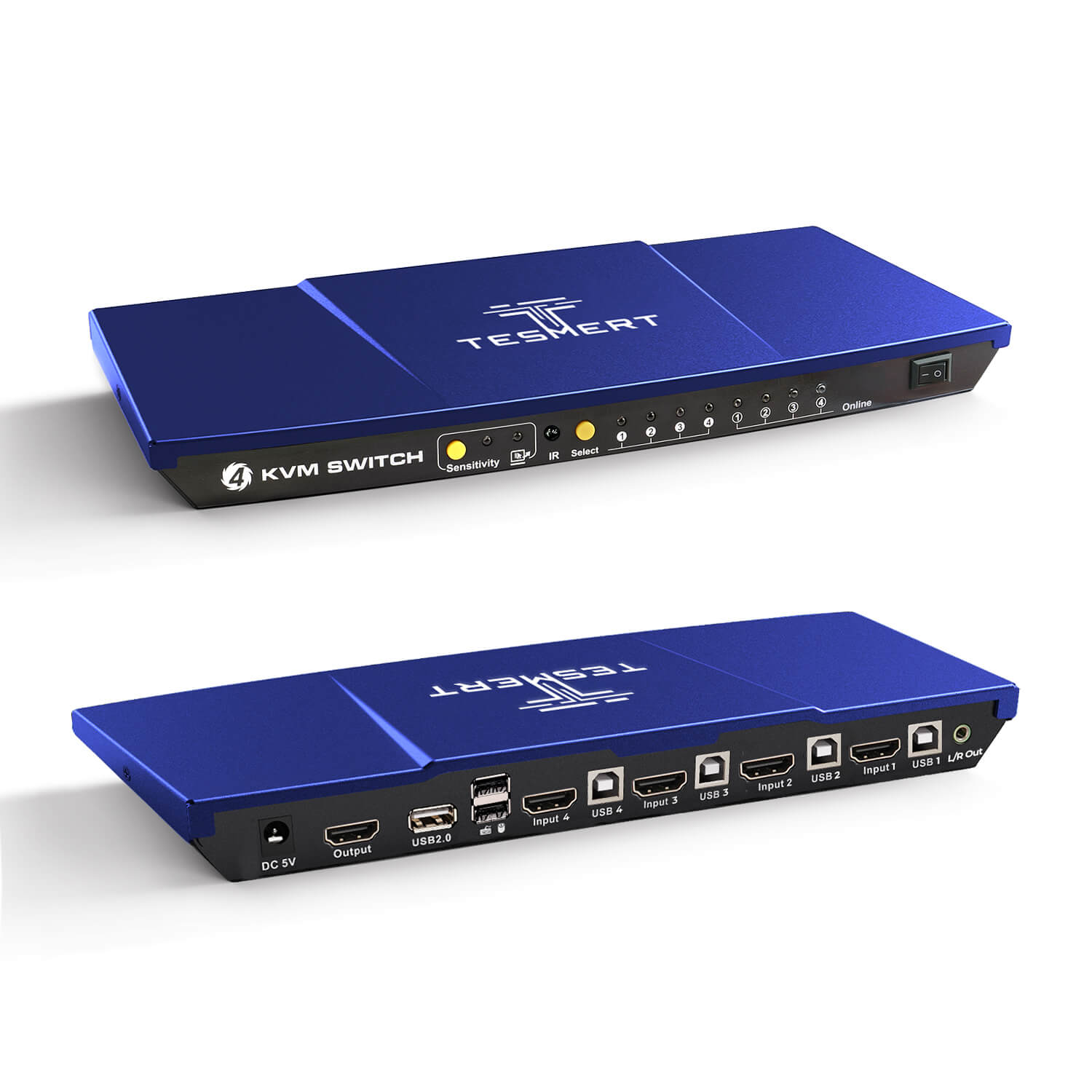
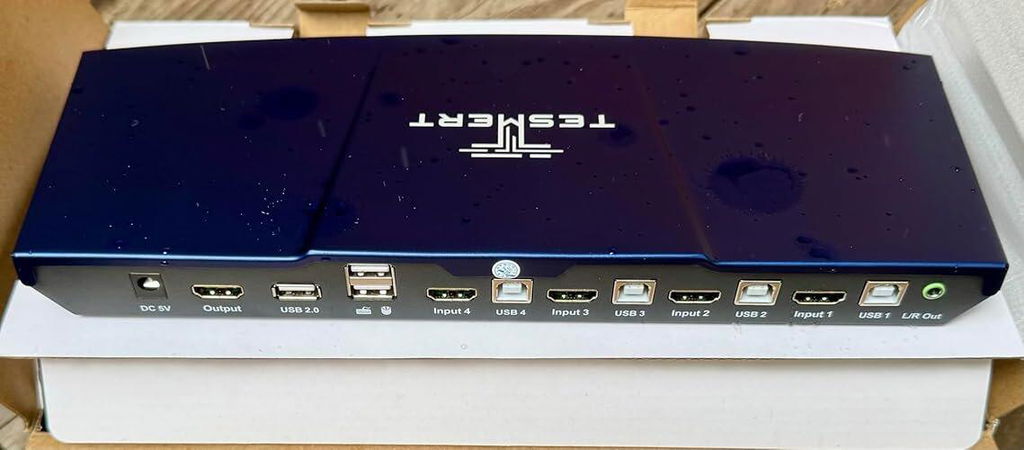
• 4 × HDMI 2.0 + USB-B - Display Output
• 1 × HDMI 2.0 - Shared Connections
• 2 × Dedicated USB Ports for Keyboard and Mouse
• 1 × USB 2.0 Hub Port
• 1 × L/R Audio Output
Display Support
- 3840 × 2160 @ 60Hz
- 2560 × 1440 @ 120Hz
- 1920 × 1080 @ 240Hz
System Compatibility
Windows, macOS, Linux (including Ubuntu, Debian, and Fedora), Raspberry Pi OS.
Other Features
- Plug and Play
- Customizable Hotkeys
Physical Specifications
- Aluminum Alloy Top Cover + Steel Base
- Dimensions: 290 × 120 × 30 mm
- Weight: 500 g
Power
DC 5V Power Adapter
Notes
For the best compatiblity, it is better to turn on keyboard and mouse pass through mode. In this mode, the keyboard and mouse are dynamically mapped to computer, so you are able to use special keyboard and mouse that with multimedia keys or other customized keys.
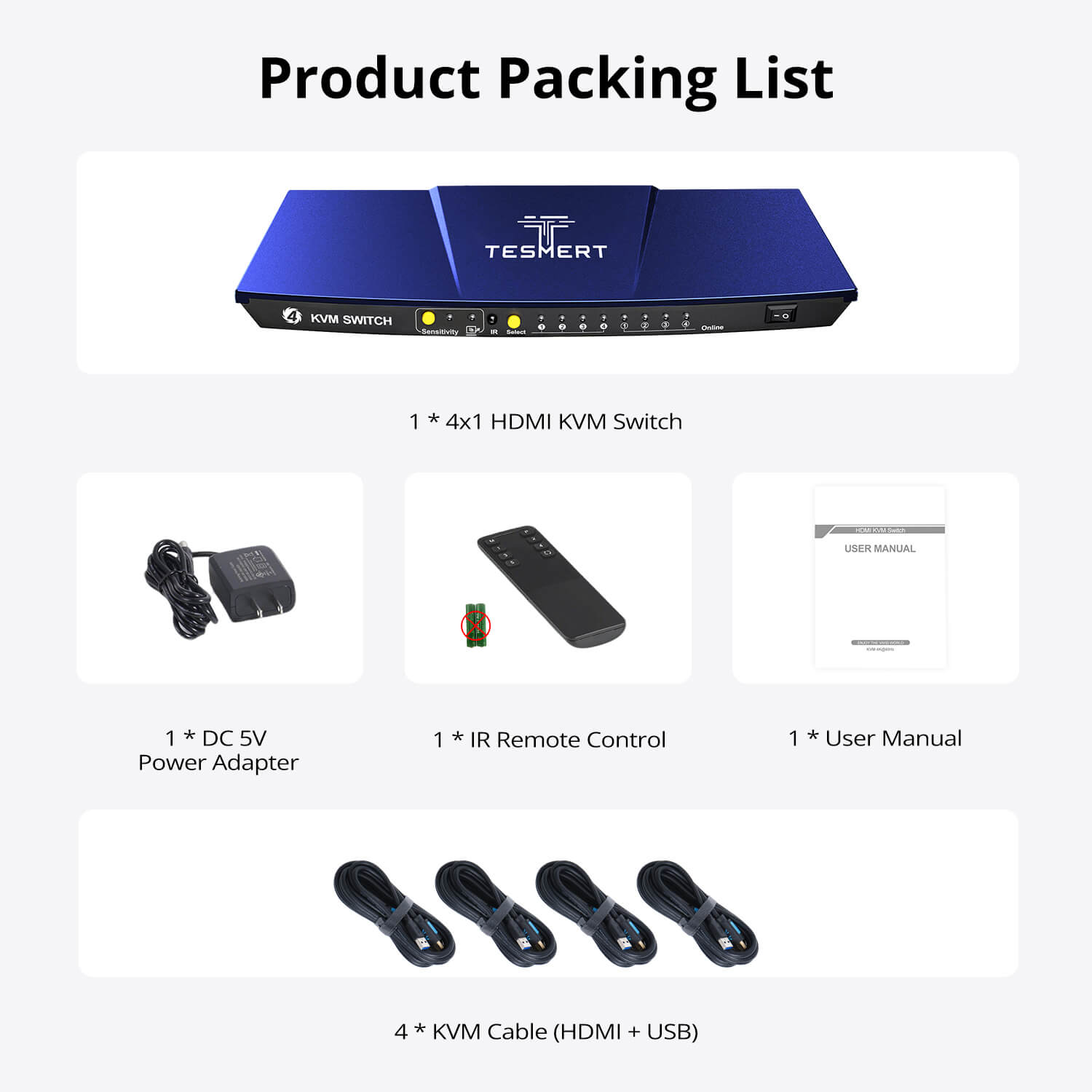
Included in the Box

1 * T1410 HDMI KVM Switch

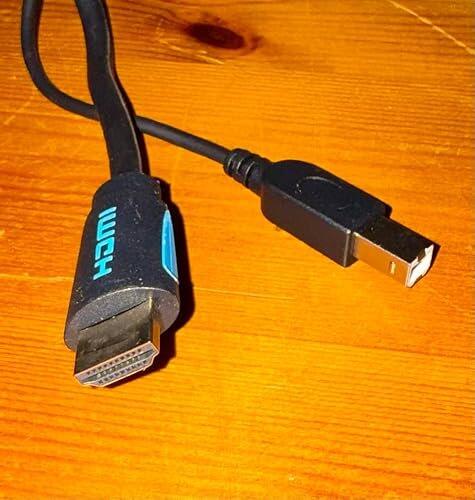
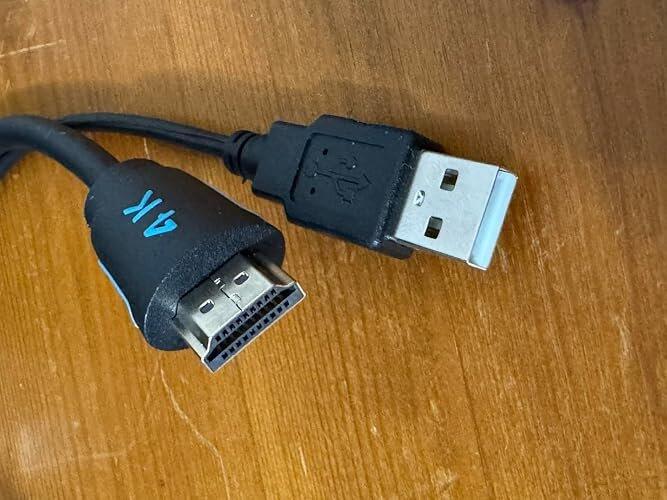
4 *HDMI + USB KVM Cables (1.5m)

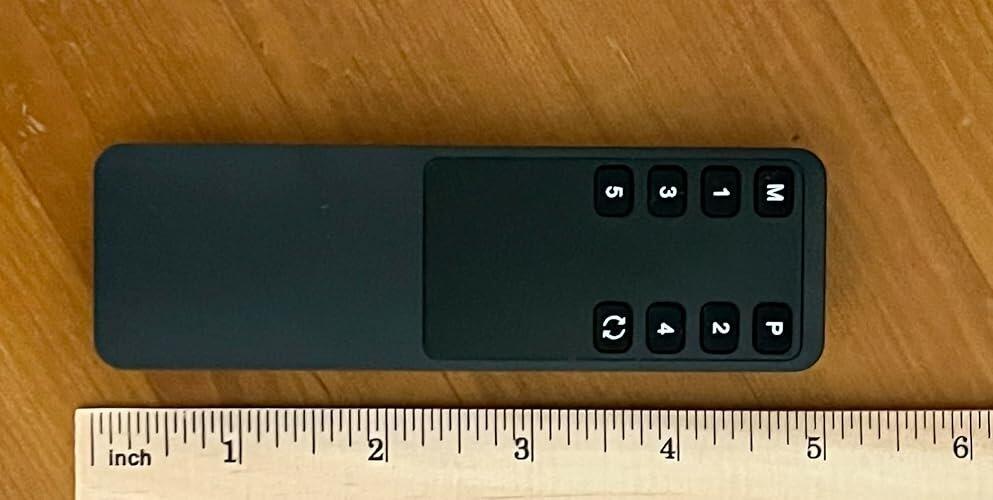
IR Remote Control

DC 5V Power Adapter

User Manual


Customers praised this 4-port HDMI KVM switch for its exceptional value, crisp 4K display, and seamless switching between computers. Shoppers highlighted the "rock solid" performance, stable connections, and quick setup. The multiple switching options (hotkeys, remote, front buttons) and EDID feature earned praise for maintaining consistent display settings.
The switch arrived well protected, with a printed setup guide. The build quality is high and the appearance is suitable for a home setup where something other than another black box is wanted, as well as normal office use. This width is such that it fits in neatly under many common monitor or laptop stands which are roughly 14" to 15" wide with four legs.
The on/off switch is conveniently located at the front instead of rear, and there are cutouts underneath for air flow, and four rubber-like feet to prevent marking the surface where it sits.
The setup guide includes basic information on the ports and operation, but also the details of keyboard hotkeys and on using the mouse for switching. Setup is simple and involves connecting the cables and power lead. All connectors are seated firmly in the case and cables fit tightly and securely. The remote control needs two AAA 1.5V batteries (not supplied) and is simple to open and close.
Switching time is consistently on the order of 5 seconds or so, meaning that as you change the input channel the screen output screen is black for several seconds before the display appears. This seems a long time but is in line with other HDMI KVM switches I have seen. When it appears it the new output display is instantly solid and steady with no flickering. The short video demonstrates the switching time with 2 laptops. 1 mini PC and 1 Raspberry Pi with differing input resolutions, connected in a very simple setup (no extended displays). Switching in the video is via the remote control.
Excluding connectors the signal cables are approximately 56" long and the power cable 48". The HDMI and USB cables are housed together apart from several inches at each end. This makes for neater cable runs but does mean that if your HDMI and USB ports are not close together at the computer end (e.g. a laptop where the HDMI and USB-A ports are on different sides) an extender cable will be needed for one of the two.
So far I have used the switch with two Windows 11 Pro, one Windows 11 Home, one Raspberry Pi (standard Pi OS) and one Fedora laptop. All have worked without any problems at all. I also swapped out the monitor shown for a higher quality 4k one, and video and audio quality are good as expected. The EDID functionality works, and a Canon printer also works on the systems where it's configured.
The auto-switching mode is controlled via the keyboard and is not accessible from the remote, is simple to activate and worked successfully,
Overall, it's a simple and well made switch, has a very easy setup procedure and arrives with good instructions for anyone who has not used a similar device previously. Everything needed to get up and running is included (with possible of exception of extender cables if your HDMI and USB ports are far apart), and two batteries for the remote that is if needed. So far it has been working flawlessly, and is easy to recommend.
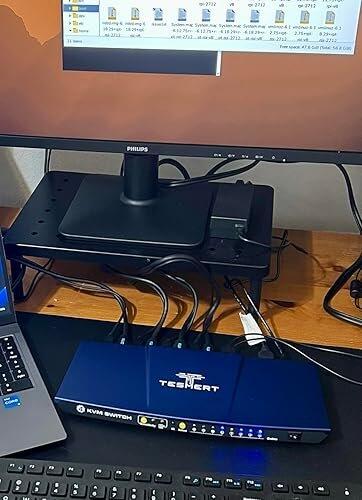
This KVM switch has made my desk setup much easier to manage. I can use one monitor, keyboard, and mouse across four computers without constantly moving cables around. Switching has been smooth, and the picture stays sharp at 4K. The EDID feature is especially helpful because the display settings stay more consistent when moving between machines.
I also like having several ways to switch inputs. The front buttons are easy, the hotkeys are convenient, and the remote is nice when the unit is tucked farther back on the desk. USB sharing has worked well for basic peripherals, and the audio output is a nice bonus. Overall, it is a very practical upgrade for a multi computer setup.
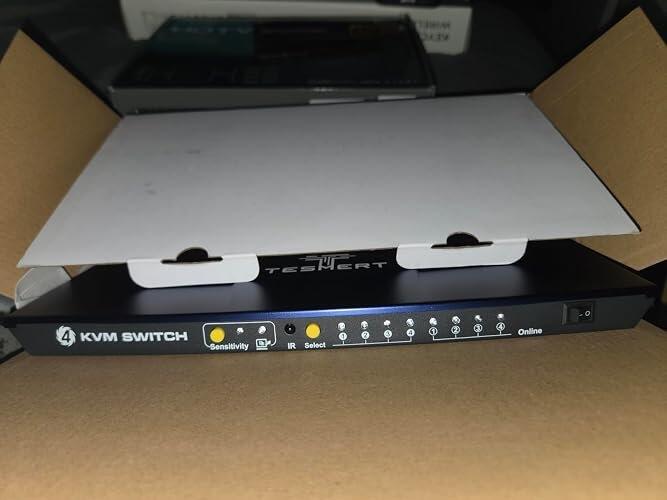
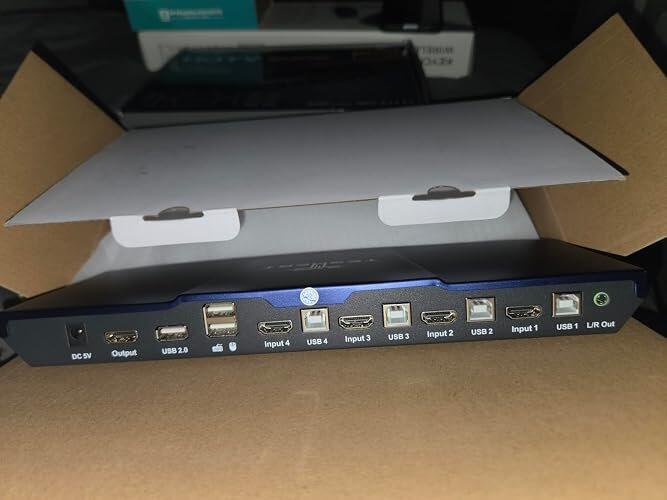
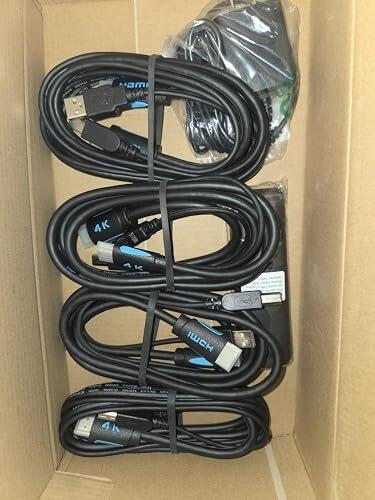
I've used KVM switches that cost quite a bit more, and this one honestly surprised me. The picture is crisp, USB devices switch quickly, and moving between four computers feels seamless. If you're looking for a dependable 4-port HDMI KVM without spending a fortune, this is an easy recommendation.
Installation couldn't have been easier. Everything was clearly labeled, and I was up and running in just a few minutes. Once everything was connected, I basically forgot about it because it just works. That's exactly what I want from a KVM switch.
One thing that really impressed me is how stable the display stays after switching. My monitor no longer flashes or rearranges my windows every time I move to another computer. It may sound like a small thing, but if you're switching all day, it makes a huge difference.
I have a work PC, a personal desktop, and two mini PCs for testing, so this was exactly what I needed. The hotkeys make switching effortless, and I love that I can also use the front buttons or the remote depending on where I'm sitting. My desk is finally organized again.
I honestly can't believe how much functionality you get for the price. I was expecting to make a few compromises with an $85 KVM, but this one has been rock solid. Switching between four PCs is quick, video stays stable, and I haven't had any issues after several weeks of daily use. Excellent value.
Finally! A product that works right out of the box and works well. This HDMI KVM switch makes managing multiple machines a breeze. No drivers no additional equipment needed. Just plug it in using the included cables and your off.
I've tried multiple KVM switches over the last few months and have been disappointed in many. Not so with this one. It holds stable connections , Switching between machines is straight forward and responsive. You can use the button on the front or use the Included IR remote. All transitions were quick and flicker free. The form factor is also attractive and low profile. The blue case color is also nice. Mine sits out in the open so it doesn't have the black boxy look suggesting it should be in a data closet rather than out in the open where everyone can see it. Another nice feature is it actually has l/r out port for external sound. Great idea
Would I buy again- Yes
I honestly didn’t expect much at this price point, but the T1410 HDMI KVM Switch really surprised me. It feels way more premium than a sub-$100 product should—solid aluminum build, clean switching, and everything included right out of the box.
Hotkeys and the remote both work smoothly, and switching between PCs is fast with no glitches or screen issues afterward. Video stays stable every time.
For the price, the value is honestly hard to beat.
I bought the TESmert T1410 HDMI KVM Switch to manage four different computers on a single monitor setup, and it’s been a huge improvement for my workspace.
I currently use it with my work laptop, personal PC, mini PC, and a test machine, and switching between them is quick and effortless. The 4K@60Hz output looks sharp and stable for everyday office work, browsing, and video playback. I haven’t noticed any signal dropouts or screen flickering during normal use.
One of my favorite things about this KVM is the multiple switching options. Depending on what I’m doing, I can switch using the front panel button, keyboard hotkeys, the IR remote, or even mouse gestures. The hotkey switching feels especially convenient when multitasking between systems throughout the day.
Setup was straightforward, and the compact design keeps my desk much cleaner compared to constantly swapping cables. The included remote is also a nice bonus when the KVM is placed under the desk or beside a monitor arm.
If you need an affordable and reliable 4-port HDMI KVM for managing multiple computers with one monitor, keyboard, and mouse, this is a great choice for home office, IT workstations, or simple multi-PC setups.
Product comparison
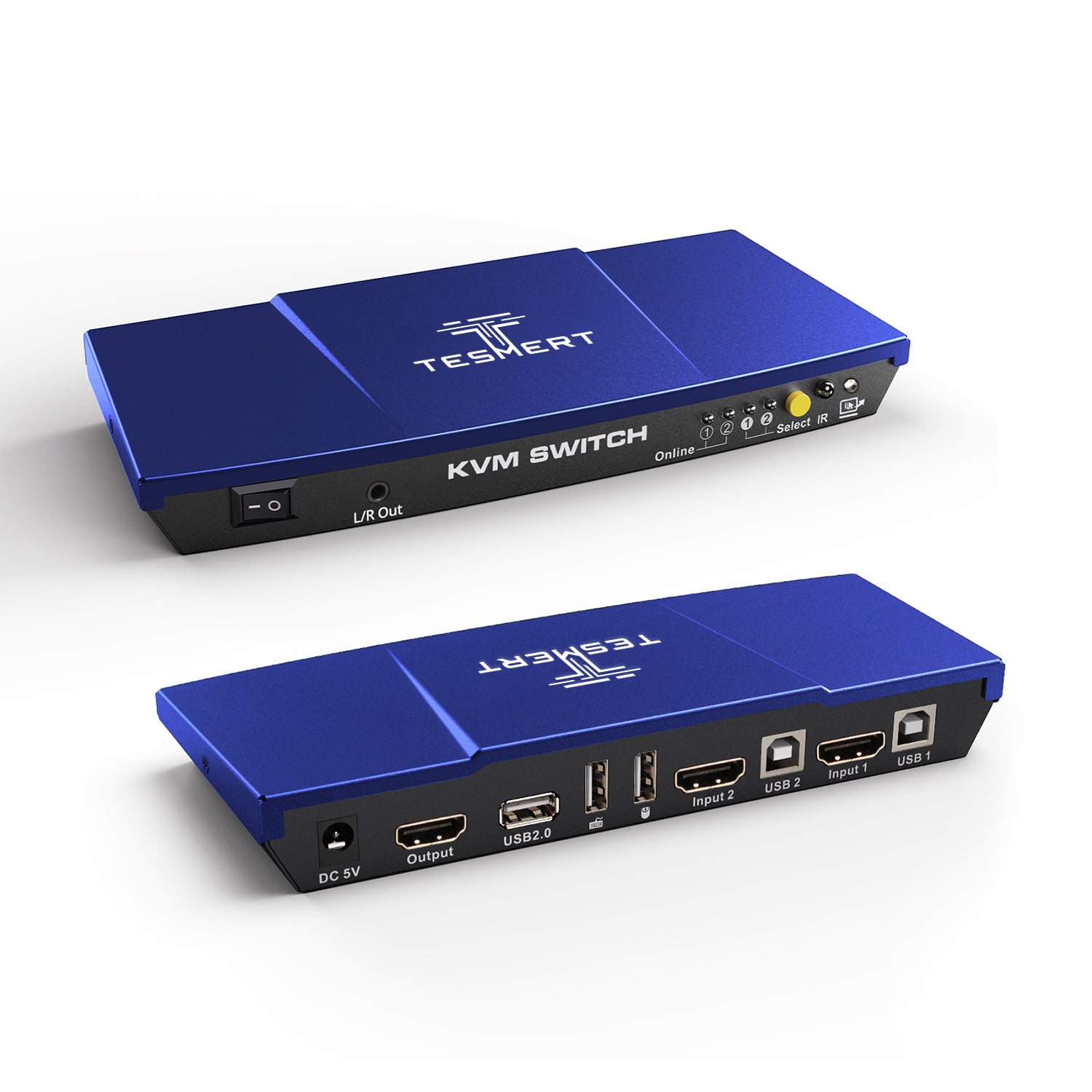
Amount of Computers
4
Amount of Computers
2
Amount of Computers
4
Amount of Monitors
1
Amount of Monitors
1
Amount of Monitors
1
Video Type
HDMI 2.0
Video Type
HDMI 2.0
Video Type
DisplayPort 1.4
Max Resolution
4K60Hz
Max Resolution
4K60Hz
Max Resolution
5K120Hz/4K144Hz
EDID Emulation
YES
EDID Emulation
YES
EDID Emulation
YES
Special Features
USB-A 2.0 Sharing Port * 1
Hot Plug
Passthrough Mode
L/R Out
Special Features
USB-A 2.0 Sharing Port * 1
Hot Plug
Passthrough Mode
L/R Out
Special Features
USB-A 2.0 Sharing Port * 1
Hot Plug
Passthrough Mode
Will switching between computers move my windows or reset my display settings?
No. T1410 features built-in EDID emulation, which helps each connected computer maintain a stable connection to your monitor even when it's not the active source. This helps reduce monitor re-detection, resolution changes, and window rearrangement, allowing you to switch between computers without rebuilding your desktop.
Can I control four computers with one monitor, keyboard, and mouse?
Yes. T1410 lets you control up to four HDMI computers using a single monitor, keyboard, mouse, speakers, and shared USB devices. It's ideal for IT workstations, home labs, software testing, server management, and users who regularly switch between multiple computers.
Each computer requires an HDMI connection for video and a USB connection for keyboard, mouse, and USB sharing.
Will my keyboard, mouse, and wireless receiver work?
Yes. T1410 is compatible with most standard wired and 2.4 GHz wireless keyboards and mice, including combo USB receivers.
For the best compatibility, connect your keyboard and mouse to the dedicated keyboard and mouse ports. Most wireless receivers will switch automatically with the selected computer.
Some gaming peripherals, programmable keyboards, or devices that rely on proprietary software may have limited functionality depending on the hardware and operating system.
How do I switch between computers?
T1410 offers five convenient switching methods:
- Front-panel button
- Keyboard hotkeys
- Mouse gesture
- IR remote control
- Auto Scan mode
Whether the KVM is on your desk or mounted out of reach, you can choose the switching method that best fits your workflow. The mouse gesture feature lets you switch computers without taking your hands off the mouse.
Which USB devices can I share?
T1410 is designed for sharing everyday USB peripherals, including:
- Keyboards
- Mice
- Wireless receivers
- USB flash drives
- Printers
- Barcode scanners
- Other standard USB 2.0 devices
The built-in L/R audio output also lets you share external speakers between all connected computers without reconnecting cables. For high-bandwidth devices such as external SSDs or capture cards, we recommend connecting them directly to your computer for the best performance.
Do I need to install any drivers or software?
No. T1410 is a true plug-and-play KVM switch. Simply connect your computers using the included HDMI and USB cables, then connect your monitor, keyboard, and mouse. No drivers or software installation is required on Windows, macOS, Linux, or ChromeOS, and other operating systems.