


Model: T5410-USRB
4-Port HDMI/USB-C KVM Switch for 4 Computers & 1 Monitor
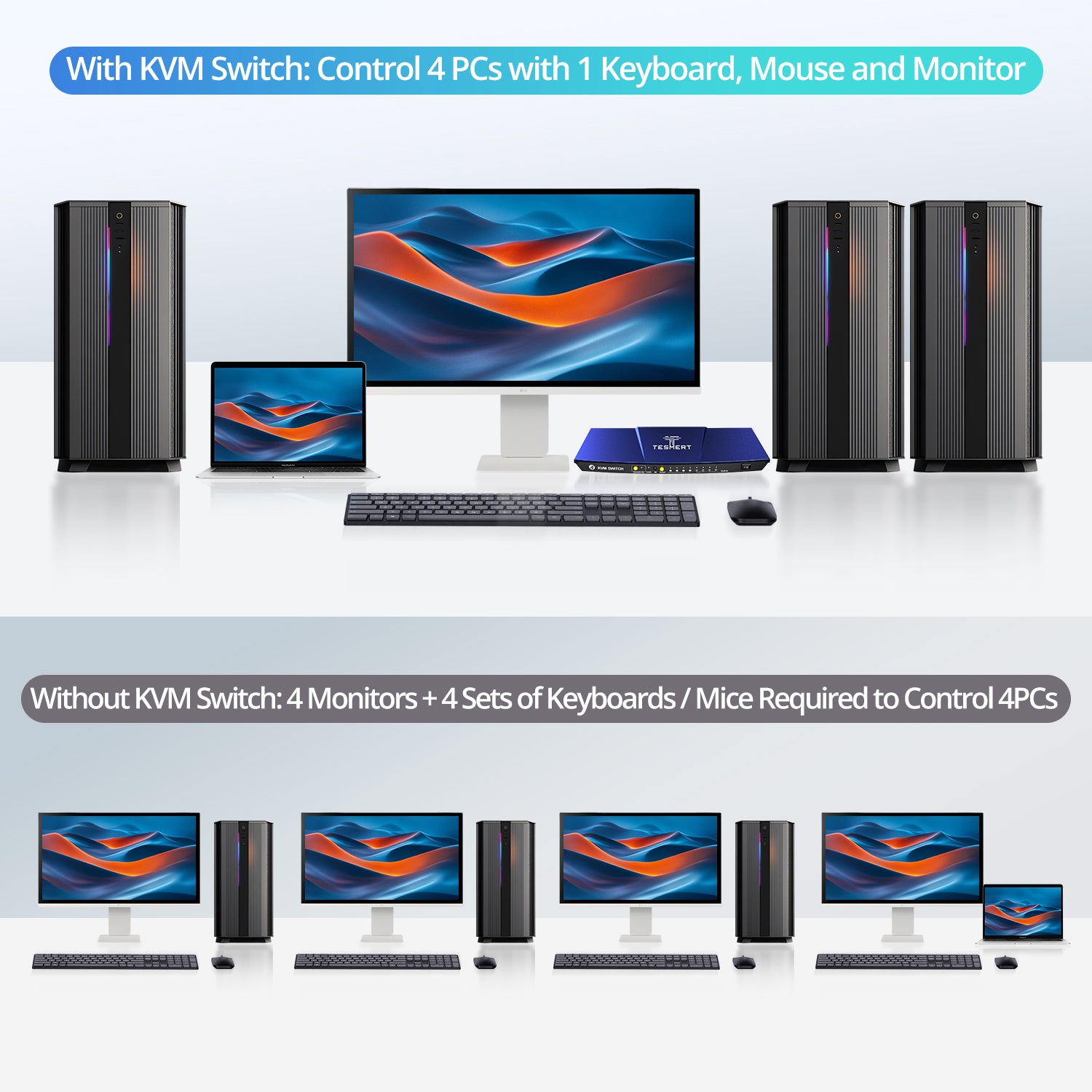
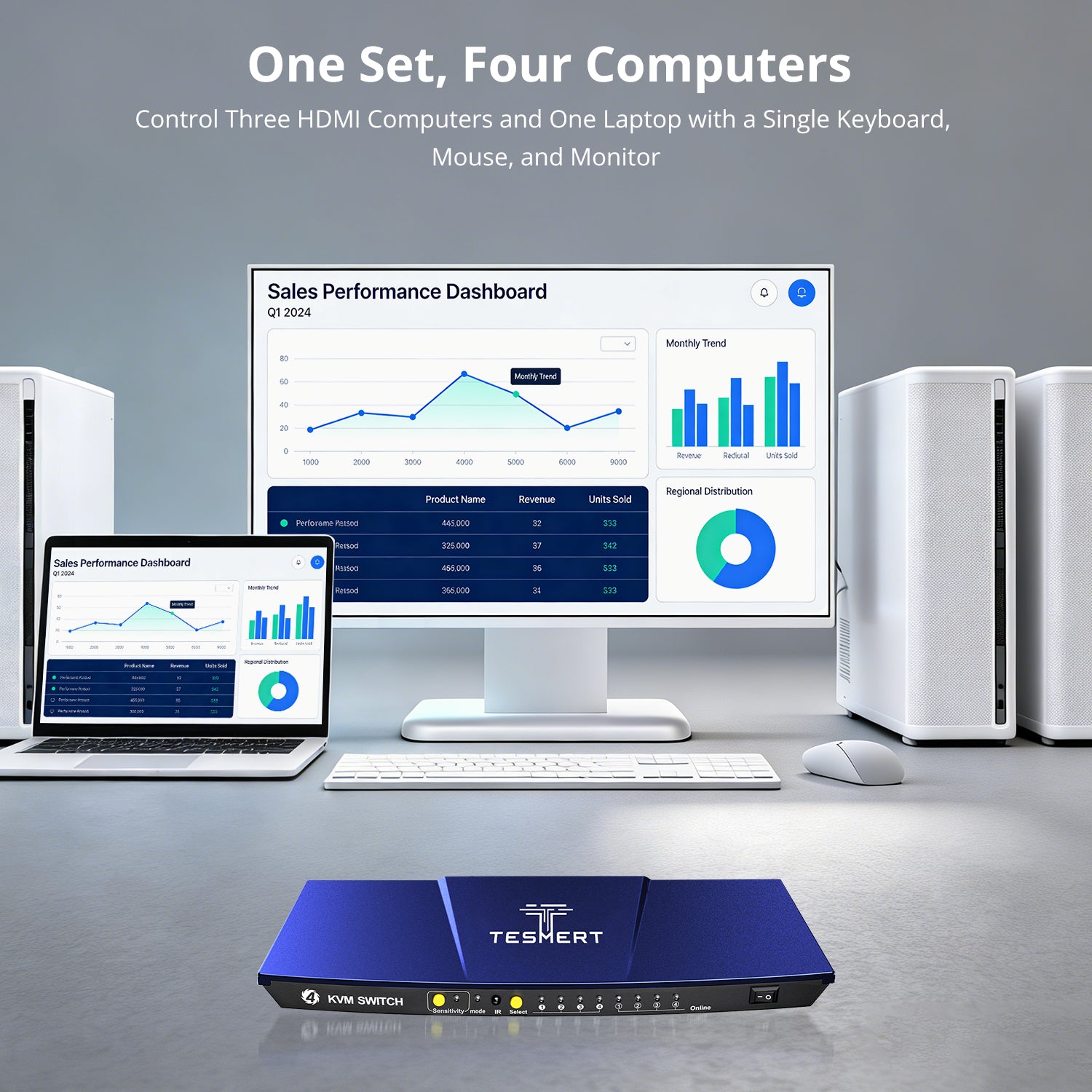
Control three HDMI computers and one USB-C laptop from one HDMI monitor, keyboard, and mouse while sharing USB peripherals and analog L/R audio.
• HDMI + USB-C Hybrid Setup: Connect three HDMI computers and one USB-C laptop to one single-monitor workstation.
• One-Cable USB-C Video & Data: Input 1 supports DisplayPort Alt Mode video and USB 2.0 data through a single reversible USB-C connection.
• Up to 4K@60Hz 4:4:4: Supports up to 3840 × 2160 @ 60Hz with 4:4:4 color for clear, detailed video output.
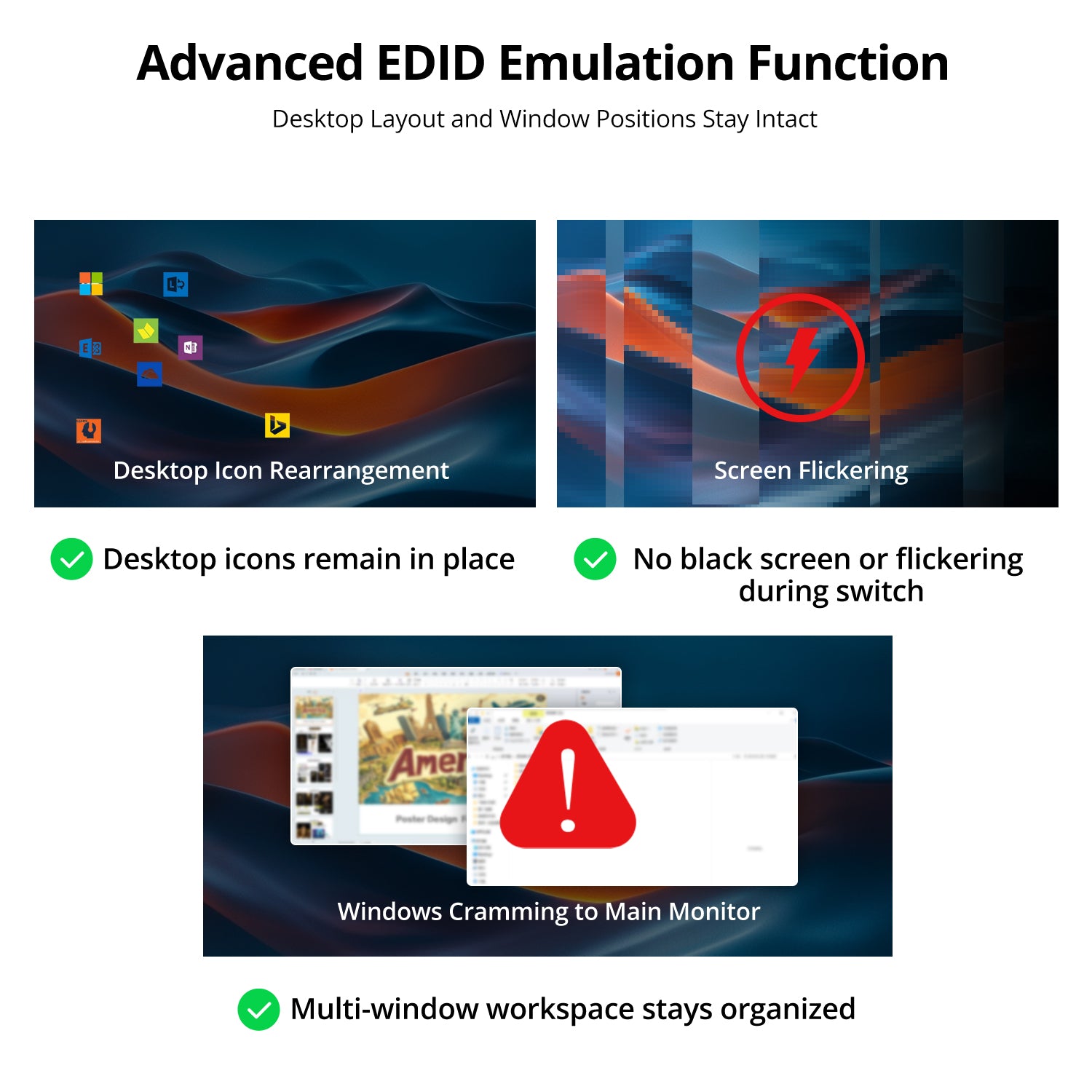
• EDID Emulation: Built-in EDID emulators help keep windows in place and reduce display re-detection when switching between computers.
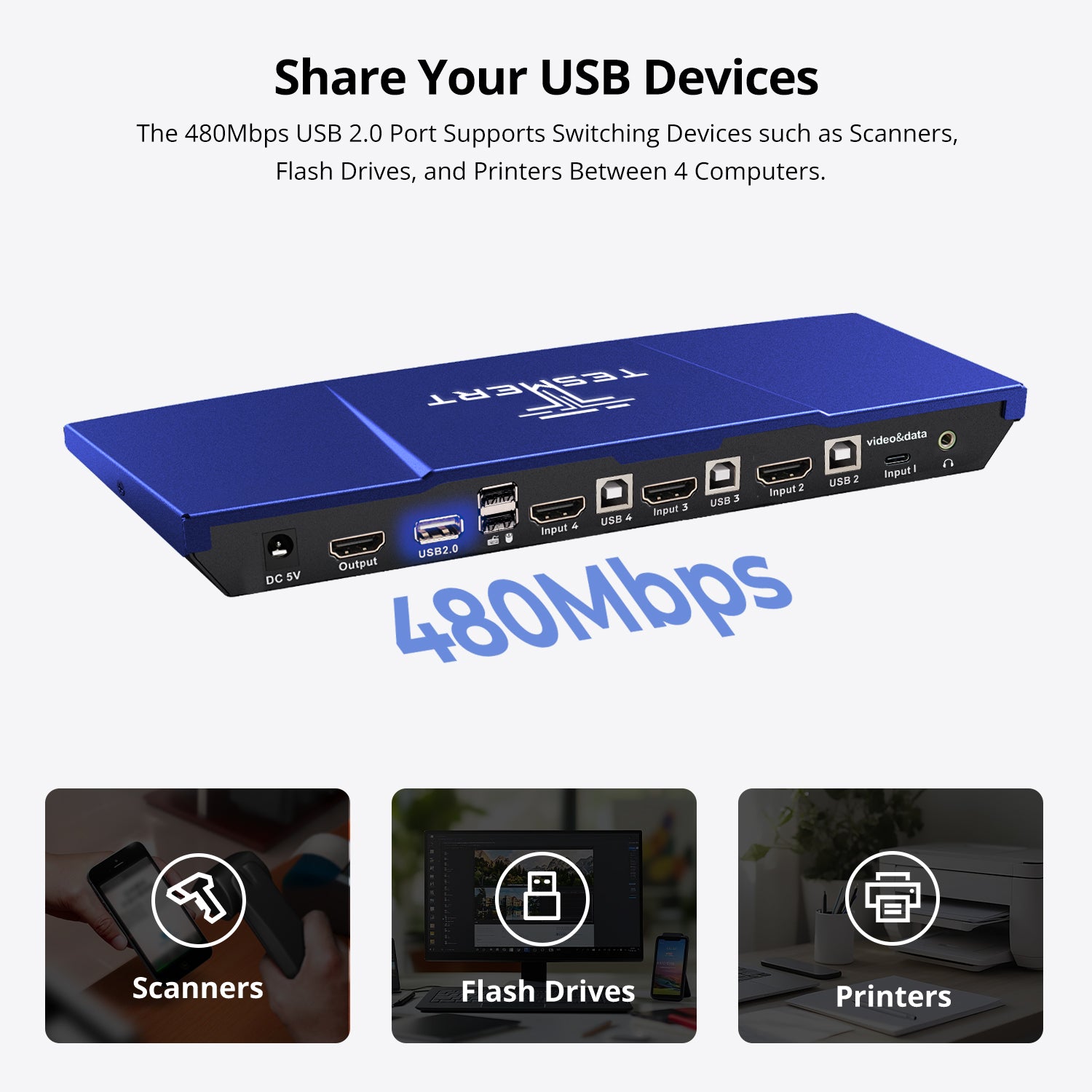
• Shared USB & Audio: Connect USB 2.0 peripherals such as USB drives, printers, and barcode scanners, with analog L/R audio output.
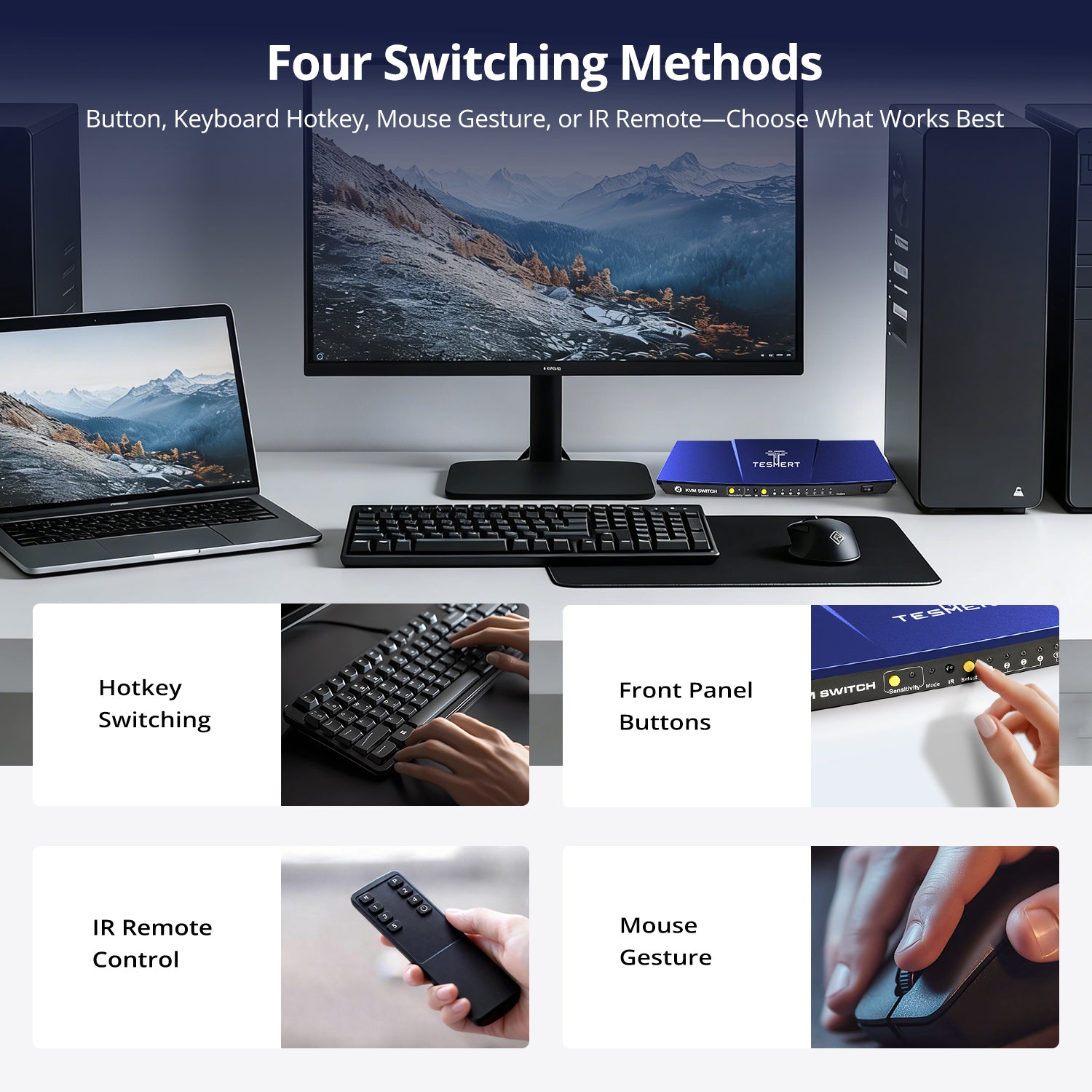
• Flexible Switching & Auto Scan: Switch using the front-panel button, included IR remote, keyboard hotkeys, or mouse-gesture control, with Auto Scan for automatic source cycling.
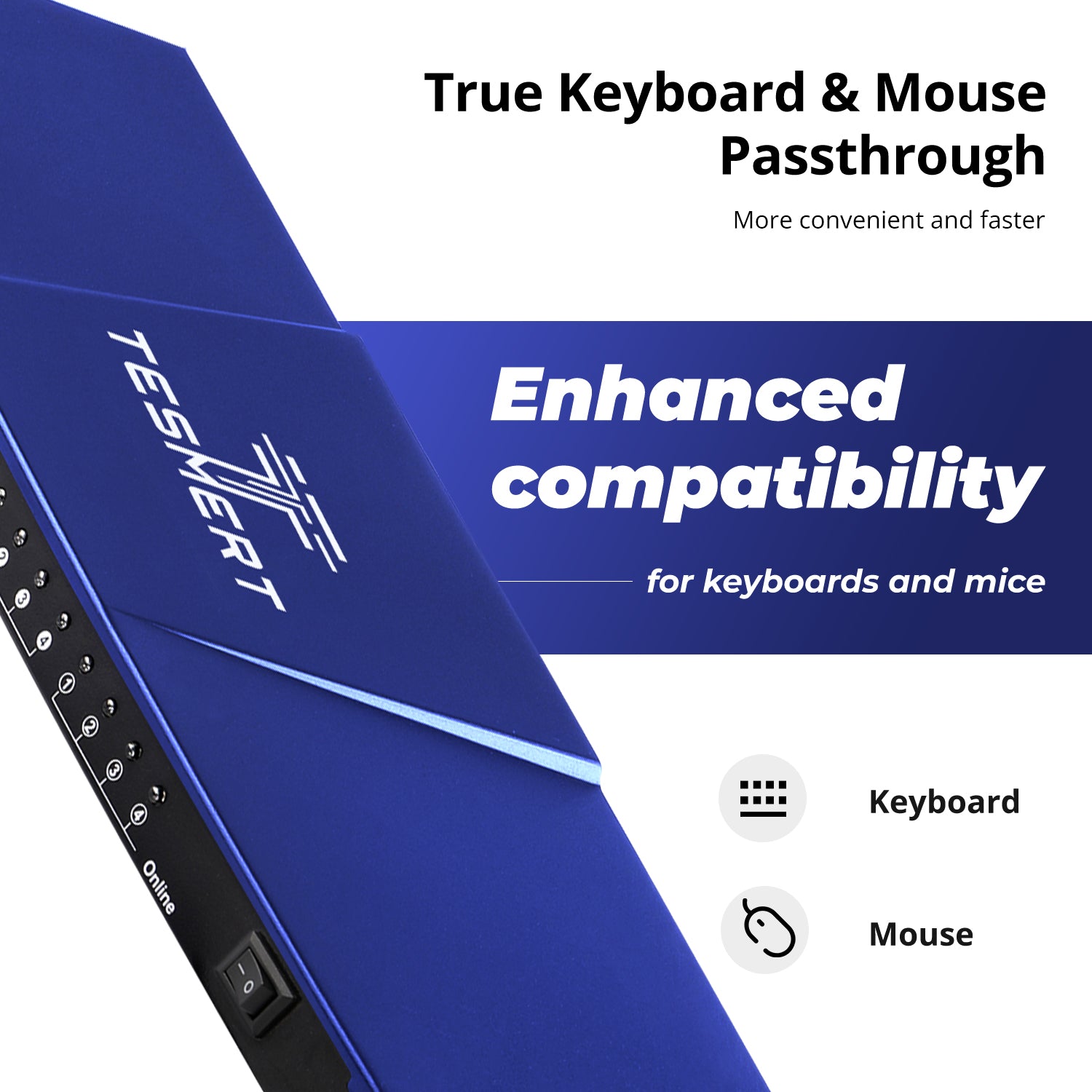
• Keyboard & Mouse Pass-through: Supports wired USB keyboards and mice and wireless models that use a USB receiver. Bluetooth keyboards and mice are not supported.
*Need a different power plug? Contact us.
Pairs well with
Free US Shipping! Ships within 3-7 business days.
30-Day Hassle-Free Returns & Purchase Guarantee
1-Year Warranty
Secure Payment
4-Port HDMI/USB-C KVM Switch for 4 Computers & 1 Monitor
If you have any questions, you are always welcome to contact us. We'll get back to you as soon as possible, within 24 hours on weekdays.
-
Free US Shipping · Fast Delivery
Delivery typically arrives in 5–7 business days.
Details are available in our Shipping Policy. -
30-Day Returns · Quality Guaranteed
Returns are accepted within 30 days for peace of mind.
See our Returns & Warranty Policy for details. -
Secure & Trusted Payments
All transactions are protected with industry-standard security.
-
Customer Support
Questions about your order? Feel free to Contact Us.
Overview
Designed for hybrid workspaces, this 4-in-1-out KVM switch lets a USB-C laptop and three HDMI computers share one monitor, keyboard, mouse, USB peripherals, and speakers from a single workstation. Ideal for home offices, mixed-device setups, IT environments, and users who work across multiple systems.
Single-Cable USB-C Connectivity
Connect a compatible USB-C laptop with a single cable for video and USB data transmission, helping reduce cable clutter and simplify your workspace.
Up to 4K@60Hz Resolution
Enjoy sharp text, clear images, and smooth performance for everyday work. From spreadsheets and web browsing to video meetings and multitasking, T5410 delivers a reliable 4K viewing experience.
Share USB Devices & Audio
Keep your workspace organized by sharing USB peripherals and speaker output between connected systems. Connect devices such as USB drives, printers, barcode scanners, and other USB accessories without constantly reconnecting cables.
5 Ways to Switch
Switch computers using the front-panel button, keyboard hotkeys, mouse gestures, IR remote control, or Auto Scan mode—no software installation required.
Stable Display Settings
Built-in EDID emulation helps prevent monitor re-detection, resolution changes, and window rearrangement when switching between computers.
Enhanced Keyboard & Mouse Compatibility
Keyboard and mouse pass-through technology supports a wider range of wired, wireless, gaming, and specialty input devices for a smoother switching experience.
Technical Details
Specifications
Connections
- Computer Inputs
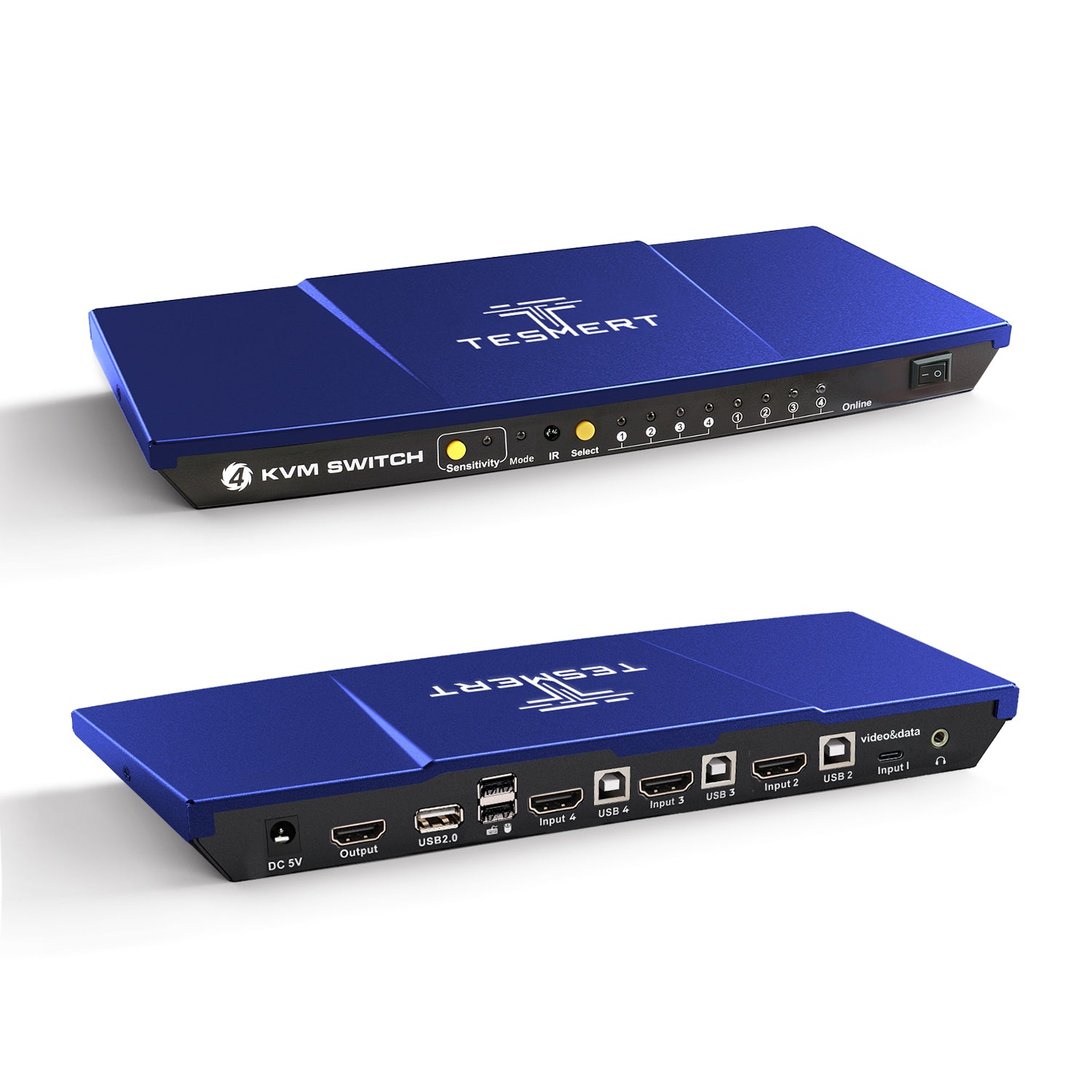
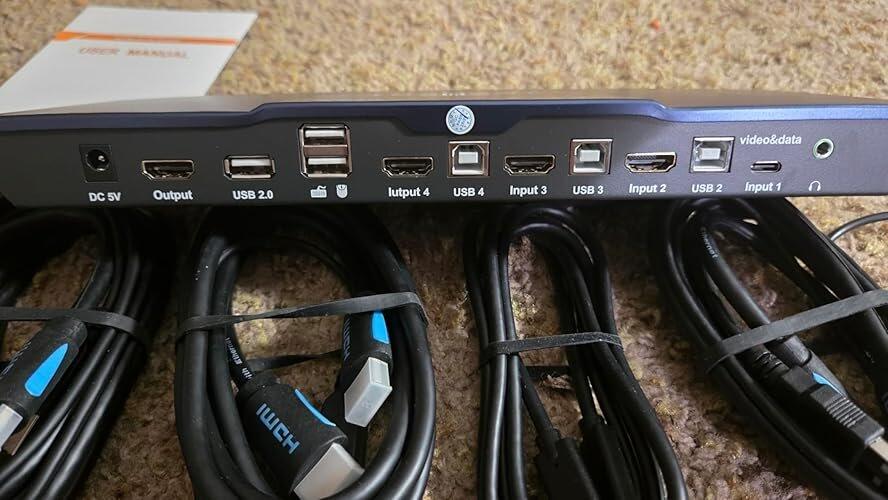
• 1 × USB-C (Video + USB Data)
• 3 × HDMI 2.0 + USB-B - Display Output
• 1 × HDMI 2.0 - Shared Connections
• 2 × Dedicated USB Ports for Keyboard and Mouse
• 1 × USB 2.0 Hub Port
• 1 × L/R Audio Output
Display Support
- 3840 × 2160 @ 60Hz
- 2560 × 1440 @ 120Hz
- 1920 × 1080 @ 240Hz
System Compatibility
Windows, macOS, Linux (including Ubuntu, Debian, and Fedora), Raspberry Pi OS.
Other Features
- Plug and Play
- Customizable Hotkeys
Physical Specifications
- Aluminum Alloy Top Cover + Steel Base
- Dimensions: 290 × 120 × 30 mm
- Weight: 500 g
Power
- DC 5V Power Adapter
Notes
For the best compatiblity, it is better to turn on keyboard and mouse pass through mode. In this mode, the keyboard and mouse are dynamically mapped to computer, so you are able to use special keyboard and mouse that with multimedia keys or other customized keys.
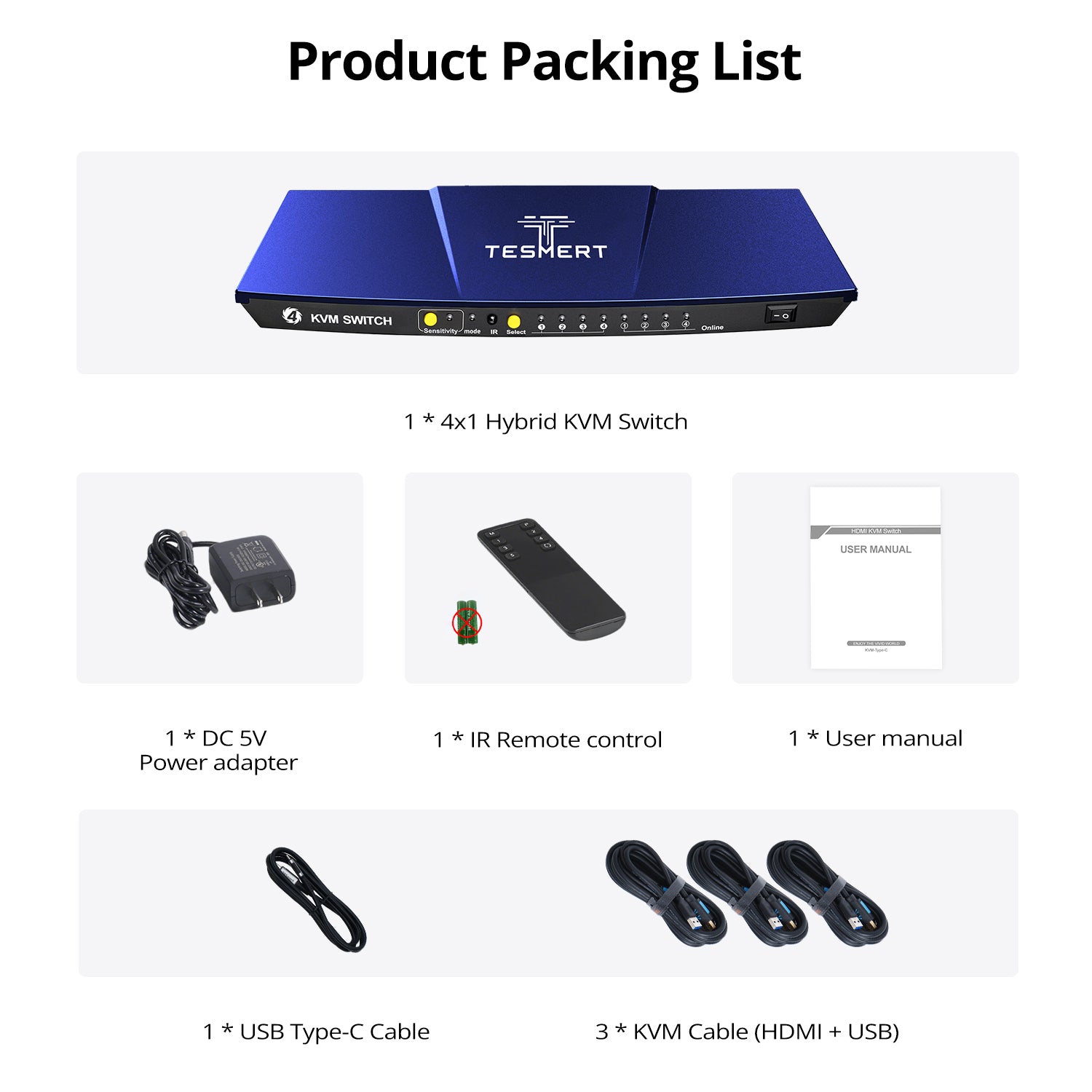
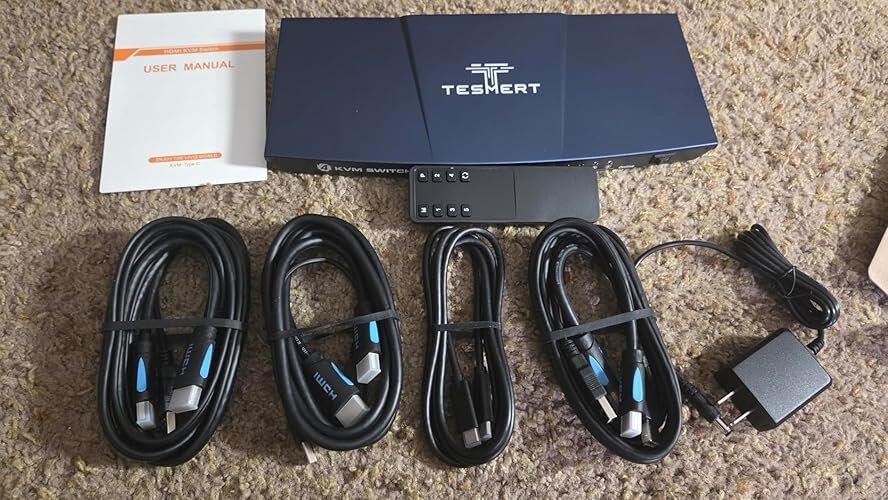
Included in the Box

1 * T5410 KVM Switch

1 * USB Type-C Cable (1.5m)

3 * HDMI + USB KVM Cables (1.5m)

IR Remote Control

DC 5V Power Adapter

User Manual


Customers praised this 4-port switch for enabling seamless management of multiple computers with one monitor, keyboard, and mouse. "This switch is awesome. It does the most critical thing a switch should do which is to preserve your desktop settings." The EDID emulation prevents resolution resets, and 4K@60Hz support delivers sharp visuals. Fast switching via buttons, hotkeys, or remote is appreciated.
KVM Switches - Keyboard Video Mouse - are what any tech person needs when they want to easily be able to switch systems while using the same monitor, keyboard and mouse. I really like that this switch supports a full 4k @60Hz which allows for great pictures and using systems with enhanced video capabilities. Using a USB-C connection allows for maximum bandwidth. I especially like that this switch supports EDID emulation which helps prevent resolution changing when you are switching systems. Another great feature of this switch is that there are 4 ways to switch between systems - Keyboard shortcuts, mouse, infrared remote (remote not included) and the physical switches on the device. This allows you to switch between systems without having to actually be within reach of the switch. Another great feature of this KVM switch is that it has an extra USB port for things like scanners/printers etc, as well as a speaker port. These added features really make the value of this switch as it handles just about everything you need to be an office warrior.
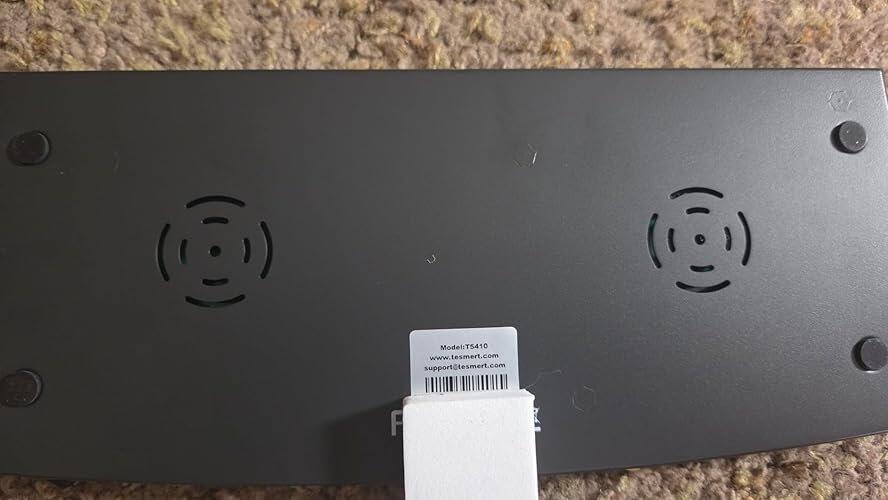
This switch is awesome. It does the most critical thing a switch should do which is to preserve your desktop settings when switching between systems.
That said, The keyboard and mouse USB slots are USB1, so if you use a fancy programmable keyboard like me, you'll have to plug that into the single USB v2 slot, which works fine. 👍
I'm loving this switch. Here's what stands out to me:
✅ #1 Most important; this switch has EDID or desktop emulation which keeps your desktop arrangement live when jumping between systems.
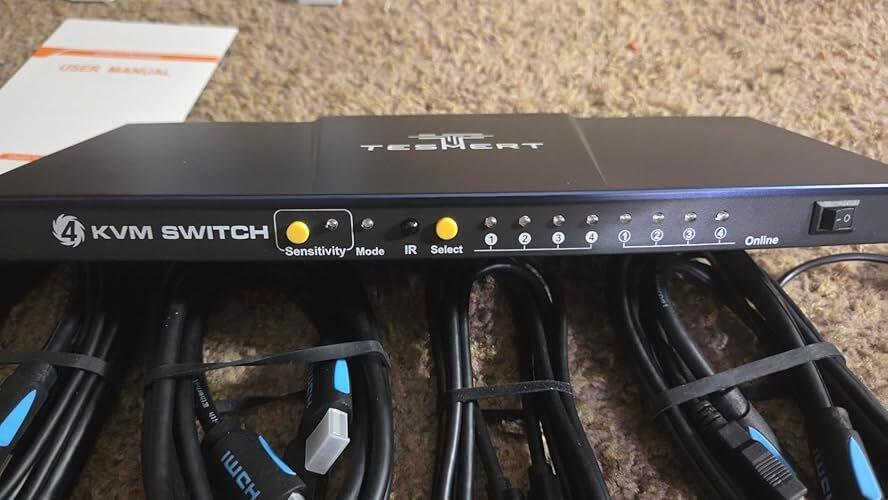
✅ Has multiple switching methods. I prefer the button but having keyboard and remote options is also great.
✅ Transitions are fast and regardless of what switching method you use.
✅ The unit is very stable. It has weight to it and decent rubberized feet so it doesn't slide around. This is important when you have all these cables plugged into it trying to drag it out of position.
✅ I love that this has a usb2 port that also switches when swapping. I had to use this for my fancy keyboard and it's just as efficient as the dedicated keyboard usb ports.
✅ The whole setup worked perfect on my Linux, Win10, and Win11 machines.
✅ The switch was easy to setup
✅ I really like the unit is cable management friendly with its combined usb + HDMI cables. This helped me clean up a lot of my cables.
☑️ The power adapter isn't as slim-line as I would like. It has a fat profile that is good for direct wall outlets stacked vertically but this is a space hog on a horizontally oriented surge suppressor. Not a huge deal but I wish it was taller and narrow.
☑️ I would have loved if they just made all the outlets USB2. My keyboard requires USB2 and many other peripherals may need this as well. Now I have to use USB1 for a jump drive.
I'm really loving this switch so far but if there are any changes in my opinion or its quality, I'll be sure to report back in. 🤞 I hope you found my notes, pictures and video useful. Be well! ❤️🔥
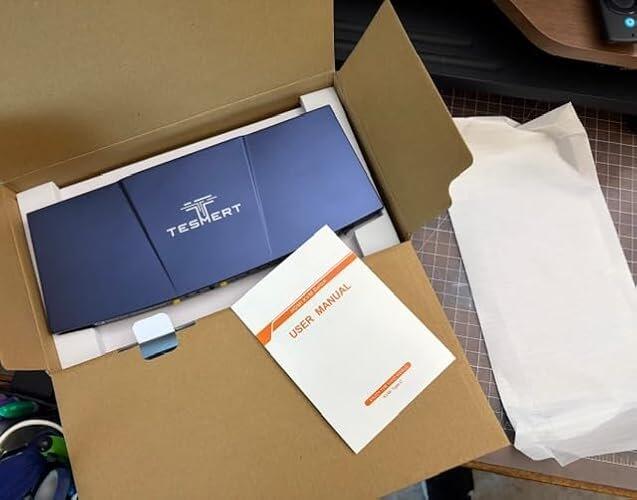
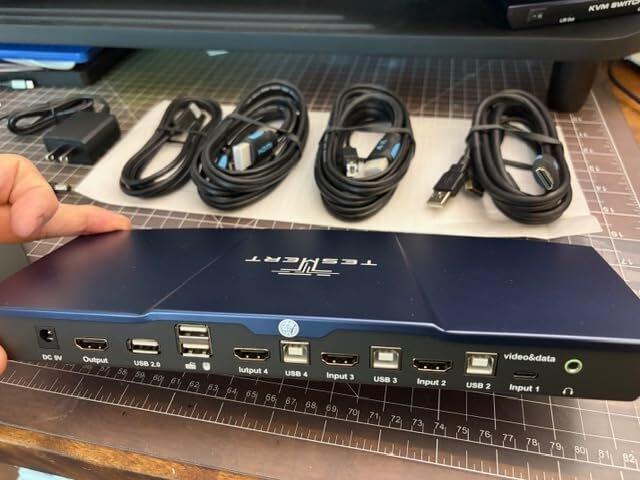
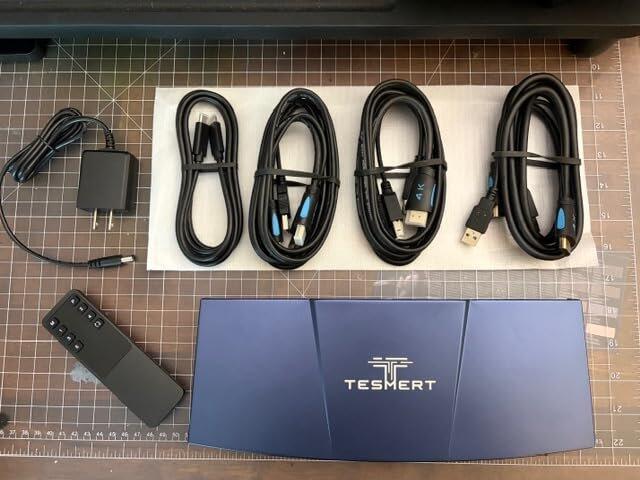
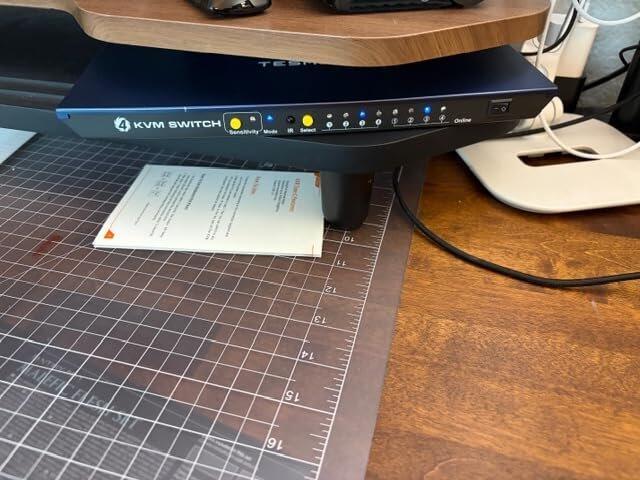
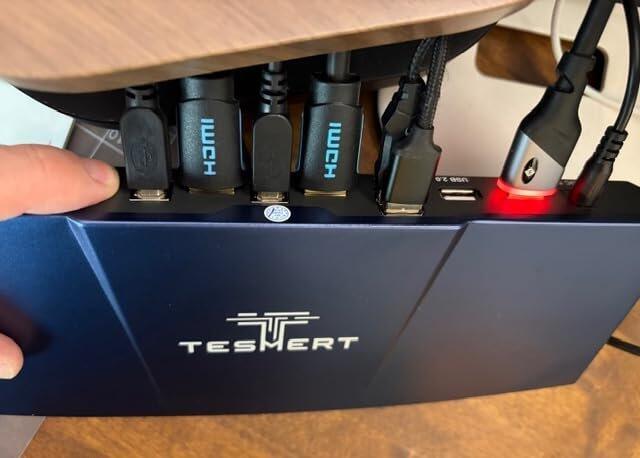
I wasn't sure what to expect at this price, but this KVM has been a pleasant surprise. The USB-C connection works exactly as advertised, setup was straightforward, and the display stays stable every time I switch computers. It's hard to find this combination of features without spending a lot more.
I work from a company laptop but also have multiple personal PCs on the same desk. Before this, I was constantly swapping cables or changing monitor inputs. Now everything is handled with one button or a hotkey, and it's made my workflow so much smoother. Definitely worth it.
I've been using this daily for work, and it's been flawless. Switching between my laptop and desktop systems is quick, and I haven't had any issues with my keyboard, mouse, or speakers. It's one of those products that quietly does its job without getting in the way.
I looked at several hybrid KVMs before buying this one, and most of them were much more expensive. This one does exactly what I needed without breaking the bank. My laptop connects with one USB-C cable, all my USB devices switch correctly, and the video has been stable from day one.
I looked at several hybrid KVMs before buying this one, and most of them were much more expensive. This one does exactly what I needed without breaking the bank. My laptop connects with one USB-C cable, all my USB devices switch correctly, and the video has been stable from day one.
This was the perfect solution for my setup. I use a USB-C work laptop along with three desktop PCs, and being able to connect the laptop with a single cable is incredibly convenient. Everything switches smoothly, and my desk is finally free of cable clutter. Couldn't be happier.
This TESMERT USB-C HDMI KVM Switch is a solid, professional-grade solution for managing multiple systems. The build quality is impressive, featuring a sturdy metal enclosure that stays put on the desk.
Pros:
EDID Emulation: This is the standout feature. It maintains your desktop icons and window sizes when switching between PCs, eliminating the usual frustration of windows resizing or moving.
Versatile Inputs: The combination of three HDMI ports and one USB-C port is perfect for a mix of desktop towers and a modern laptop.
Fast Switching: Transitions are smooth and responsive, whether using the front-panel buttons, keyboard hotkeys, or the infrared remote.
Included Cables: It comes with all necessary cables (HDMI, USB-B, and USB-C), which simplifies the setup process right out of the box.
This switch makes using multiple computers on one monitor easy. Switching is fast and picture quality is good. Solid build with the cables included. Handy setup tool. Little on the bulky side, overall I'm pretty happy with this!
I appreciate that the three HDMI ports support EDID. EDID (Extended Display Identification Data) acts like a virtual monitor telling the connected computer which resolutions and screen settings to use, which makes the computer think that a monitor is always connected. Constant monitor emulation solved a problem with my previous cable-swapping solution because a couple of my servers would not reboot without a monitor attached. I do not have a 4K monitor, but the switch worked quite well with my Full HD (1920x1080) display, and the keyboard and mouse also worked perfectly.
This 4-computer KVM switch is basically designed for people trying to centralize a full workstation setup into one monitor, keyboard, and mouse. The big appeal is convenience: instead of constantly swapping cables, you can switch between up to four PCs (including a USB-C laptop and HDMI desktops) from a single hub.
The 4K@60Hz support is pretty standard for this category and is good enough for productivity, coding, general office work, and even light creative use. The EDID emulation is one of the more important features here—it helps keep each computer “thinking” a monitor is always connected, which prevents annoying resolution resets when switching inputs. That’s something more budget switches often struggle with.
The switching options are also very flexible. You can toggle via buttons, IR remote, hotkeys, mouse gestures, or even auto-scan mode. That’s convenient if you like quick switching between systems without touching cables.
The USB-C input is a nice inclusion, but it’s important to note that it typically supports video and data only, not laptop charging, so it won’t replace a dock on its own.
These 4-port 4K60 KVMs usually sit in the mid-range of the market. Comparable models from similar brands often land roughly in the $100–$200 range depending on ports, USB handling, and included cables.
So the value really comes down to how much you need true multi-PC switching. If you’re actively managing several machines daily, it’s a genuine workflow upgrade. If it’s occasional use, it can feel like a lot of hardware and complexity for something simpler solutions could handle.
Overall, it is powerful and very feature-rich for multi-computer setups, but best suited for users who genuinely need four-system switching and are okay with a bit of setup tuning to get everything stable.
This KVM switch is really cool and works perfectly. I can easily switch between 4 computers with one monitor, keyboard, and mouse. The 4K@60Hz quality is sharp and it includes all the cables. Super handy for my setup. You don't have to sacrifice speed with this KVM. Great value for nerds like me. It's easy to connect, made of steel and looks like it will last a long time.
This switch device was ordered so that I could switch between all computers with only one monitor. I have 2 computers, a mini computer, and a printer. First, let me say that I am not a "genius" with regard to combining computer hardware, and thus was a little hesitant about ordering this device. However, after receiving, the instructions were read & followed closely, and all of my computers were linked through this device.
All of the computers have good connectivity through the device, and so far there have not been any issues. It is easy to switch between computers. I have somewhat limited space on my desk, but the device is smallish, and really does not impact the area. Also, I found there were no issues with regard to compatibility between the device and all of the other hardware that has been connected.
My only real issue is that there are 4 USB, and only one of the is a USB 2.0 port. I don't really have a feel for other devices of similar use, and thus don't know if the price for this switch is good or not. Regardless, the unit works properly, and as such I would order it again.
Struggled in the past using other budget KVM switches. After using it, I'd consider the TESMERT to be a "pro-level" premium device.
Using in a recording studio scenario that's for Audio and Video projects. My faithful but aging Mac Mini is about to be retired. Using this with the Mini, a Macbook pro, occasional Windows machine, and pending M5 Studio arrival. While making the transition, got a long list of projects and plug-ins that need to be referenced back and forth through my large monitor /keyboard/trackball setup.
The TESMART is noticeably high quality, with solid switching. No glitchy video. So far has been 100% reliable in my short term use. I'm about to get more ambitious adding my USB hubs and Audient audio interface. Plus using keystrokes that can be issued from a streamdeck.. But wanted to tell of my progress thus far. Wil report on the more complex set- up later. In the little time I've used it so far, has ben awesome.
Thoughtfully came with nice cables, making it ready to install out of the box. Not that it's the most important thing - but worth noting: the unit with it's metal enclosure also looks sleek, professional and compact in the studio. I like the blue. Huge difference from the plastic KVMs I've used before. Great indicator lights which are easy to see in it's native horizontal position. Sits on the desk without moving around.
As I find myself needing to switch between laptop, desktop and occasional client computers, this has proved to be a worthwhile investment that I look forward to exploring more.
The best testament I can give any device is if it stays out of my way and does what it's supposed to. That it does. Highly recommended, and easily 5 stars.
This 4-computer KVM switch is basically designed for people trying to centralize a full workstation setup into one monitor, keyboard, and mouse. The big appeal is convenience: instead of constantly swapping cables, you can switch between up to four PCs (including a USB-C laptop and HDMI desktops) from a single hub.
The 4K@60Hz support is pretty standard for this category and is good enough for productivity, coding, general office work, and even light creative use. The EDID emulation is one of the more important features here—it helps keep each computer “thinking” a monitor is always connected, which prevents annoying resolution resets when switching inputs. That’s something more budget switches often struggle with.
The switching options are also very flexible. You can toggle via buttons, IR remote, hotkeys, mouse gestures, or even auto-scan mode. That’s convenient if you like quick switching between systems without touching cables.
Where these kinds of KVMs get more mixed is consistency and polish. Even in similar TESmart-style devices, users often report occasional quirks like input lag, USB device detection issues, or firmware sensitivity depending on connected hardware. Some setups run smoothly, while others need tweaking or specific cable arrangements to behave reliably.
The USB-C input is a nice inclusion, but it’s important to note that it typically supports video and data only, not laptop charging, so it won’t replace a dock on its own.
Build-wise, it feels like professional-grade consumer hardware rather than industrial equipment. It’s fine for a desk setup, but not something I’d expect to be ultra rugged long-term if it’s being switched constantly every day.
These 4-port 4K60 KVMs usually sit in the mid-range of the market. Comparable models from similar brands often land roughly in the $100–$200 range depending on ports, USB handling, and included cables.
So the value really comes down to how much you need true multi-PC switching. If you’re actively managing several machines daily, it’s a genuine workflow upgrade. If it’s occasional use, it can feel like a lot of hardware and complexity for something simpler solutions could handle.
Overall, it is powerful and very feature-rich for multi-computer setups, but best suited for users who genuinely need four-system switching and are okay with a bit of setup tuning to get everything stable.
Product comparison
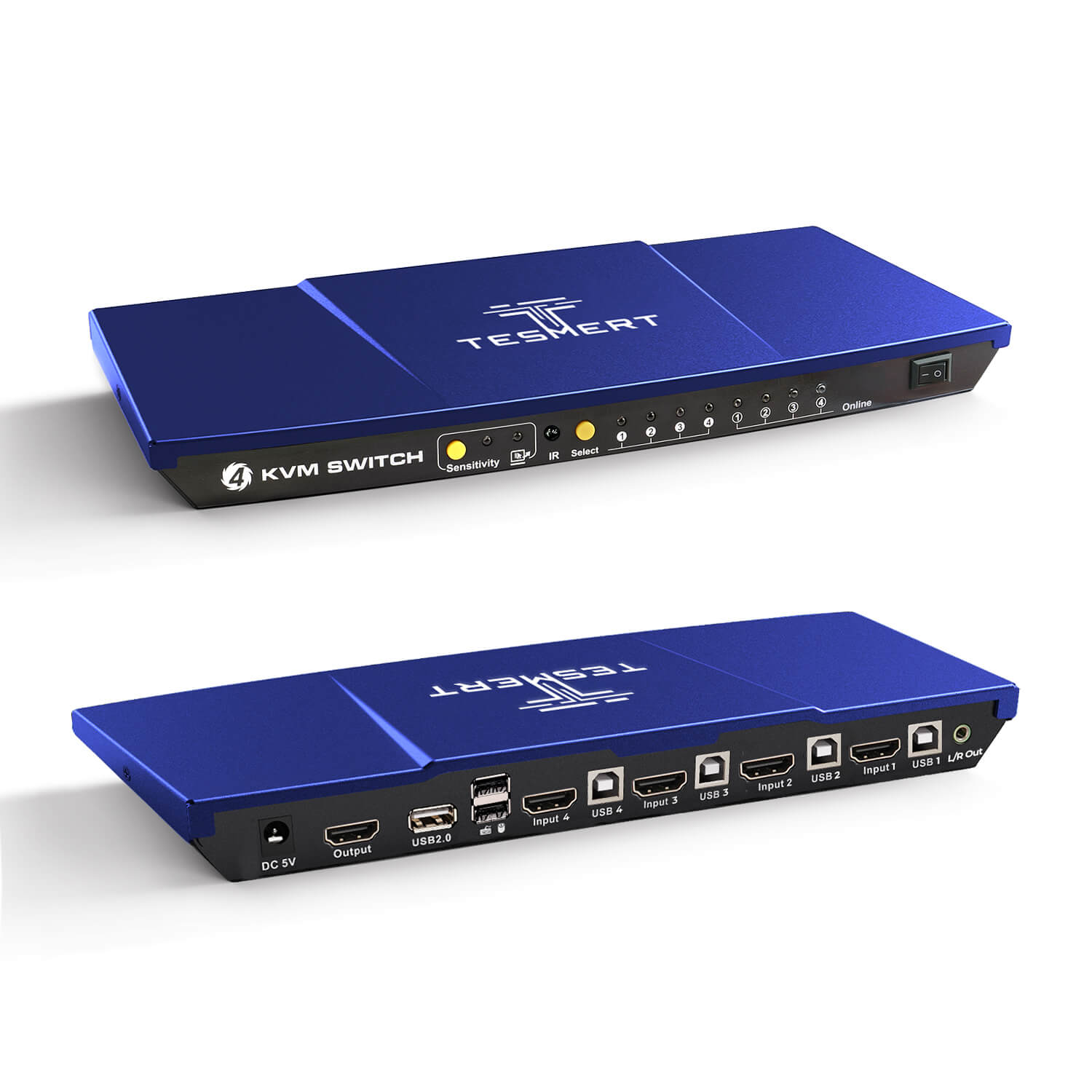
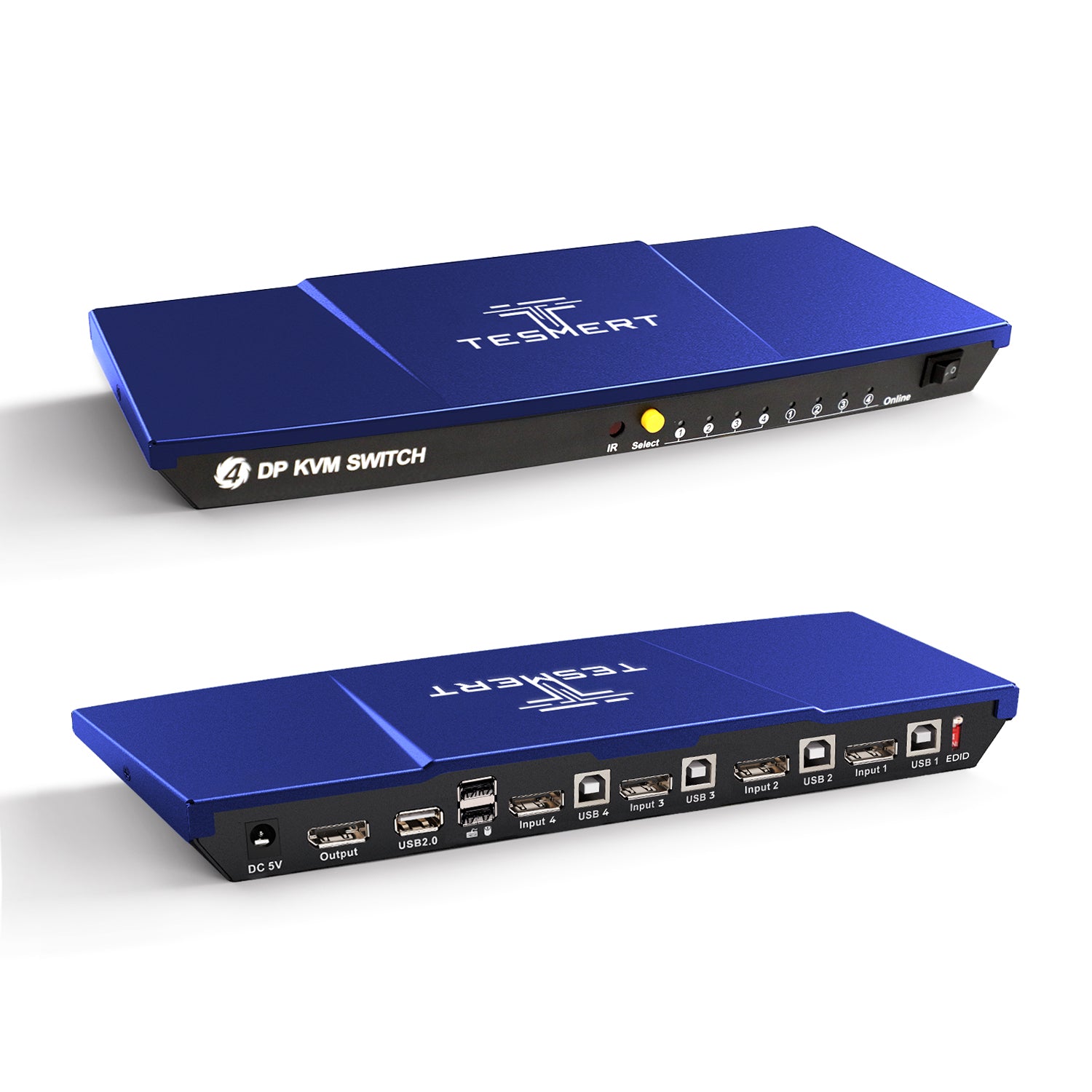
Amount of Computers
4
Amount of Computers
4
Amount of Computers
4
Amount of Monitors
1
Amount of Monitors
1
Amount of Monitors
1
Video Type
HDMI2.0 + USB-C
Video Type
HDMI 2.0
Video Type
DisplayPort 1.4
Max Resolution
4K60Hz
Max Resolution
4K60Hz
Max Resolution
5K120Hz/4K144Hz
EDID Emulation
YES
EDID Emulation
YES
EDID Emulation
YES
Special Features
USB-A 2.0 Sharing Port * 1
Hot Plug
Passthrough Mode
L/R Out
Special Features
USB-A 2.0 Sharing Port * 1
Hot Plug
Passthrough Mode
L/R Out
Special Features
USB-A 2.0 Sharing Port * 1
Hot Plug
Passthrough Mode
Is T5410 compatible with my computer setup?
T5410 is designed for a mixed-device workstation with:
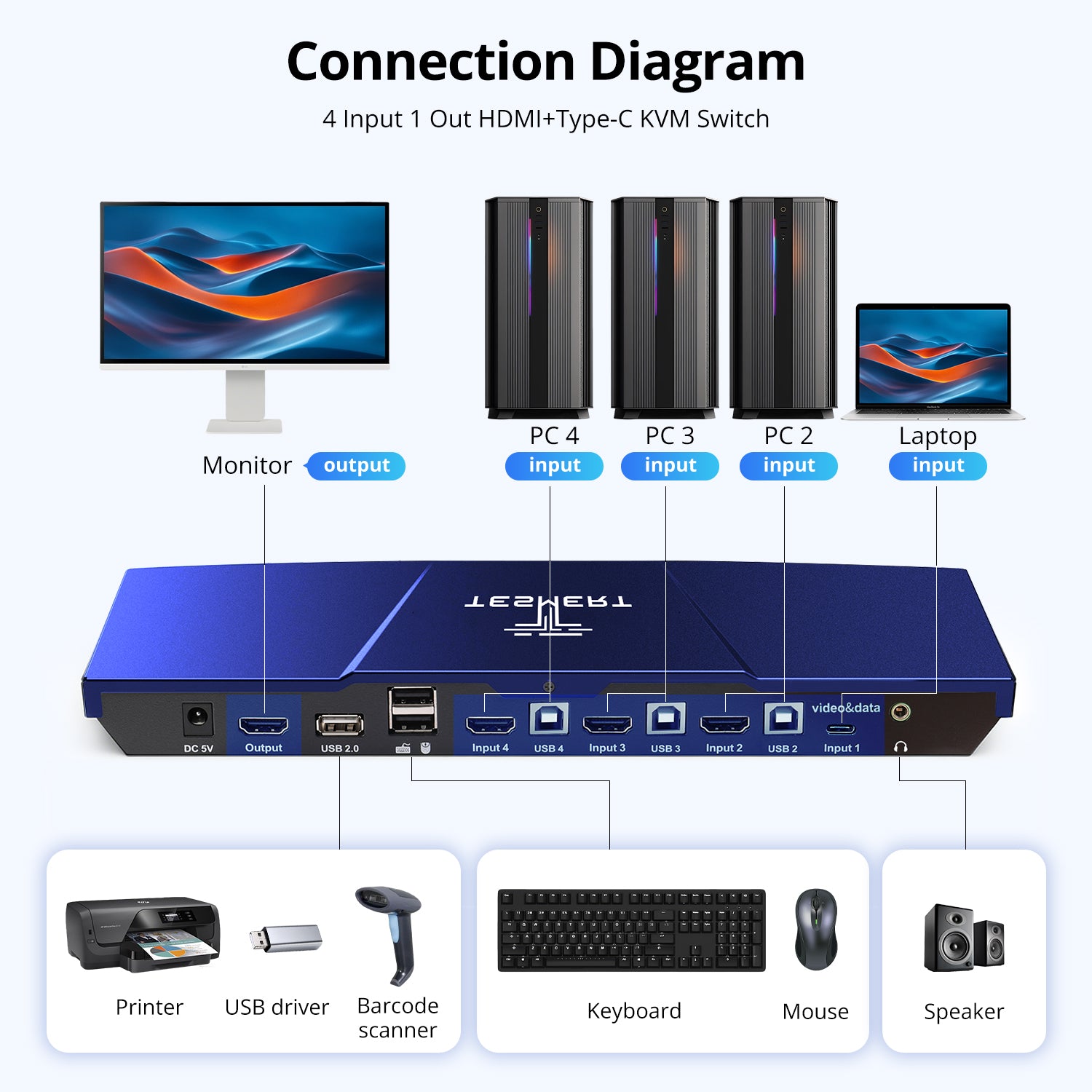
- 1 USB-C laptop or computer
- Up to 3 HDMI desktop computers, mini PCs, or other HDMI sources
- 1 HDMI monitor
Input 1 is a dedicated USB-C input, while Inputs 2–4 use HDMI for video and USB-B for keyboard, mouse, and shared USB control. Input 1 cannot be converted into a fourth HDMI input with a basic cable.
If all four of your computers use HDMI, an HDMI-only 4-port KVM may be a better fit. The T5410 is specifically designed for users combining one USB-C computer with three HDMI systems.
What does the USB-C port support, and will it charge my laptop?
The USB-C port on Input 1 carries:
- DisplayPort Alt Mode
- USB data
It does not support USB Power Delivery and cannot charge the connected laptop. Connect the laptop's own charger separately when charging is needed.
The laptop's USB-C port must support both video output through DisplayPort Alt Mode and USB data transmission. USB-C ports that support charging only or data only will not work with this KVM.
Will my windows and display settings stay in place when I switch computers?
T5410 includes built-in EDID emulation, which helps every connected computer continue detecting a valid monitor when it is not the active source. This reduces:
- Resolution changes
- Monitor re-detection
- Desktop resizing
- Application windows moving after switching
The EDID function is globally enabled at all times and cannot be manually turned off. This is particularly useful for servers, mini PCs, and workstations that need to continue detecting a display while another computer is selected.
Will my keyboard, mouse, and wireless receiver work?
T5410 works with most standard wired keyboards, mice, and 2.4GHz wireless USB receivers. Its built-in Pass-Through Mode improves compatibility by allowing the keyboard and mouse to behave more like devices connected directly to the computer. This can provide better support for multimedia keys, programmable buttons, macros, and other advanced functions.
For normal hotkey operation, connect the keyboard and mouse to the dedicated keyboard and mouse ports. If a specialty keyboard does not work correctly through the dedicated port, try connecting it to the shared USB 2.0 port instead.
Bluetooth keyboards and mice that do not use a USB receiver cannot connect through the KVM.
Which USB devices and audio equipment can I share?
T5410 includes one shared USB 2.0 hub port for everyday peripherals such as:
- USB flash drives
- Printers
- Barcode scanners
- USB receivers
- Basic USB audio devices
- Other standard USB 2.0 accessories
The connected USB device follows the currently selected computer automatically.
T5410 also includes an L/R analog audio output, allowing one set of powered speakers to be shared between all four computers.
For external SSDs, capture cards, high-resolution webcams, and other bandwidth-heavy devices, connect them directly to the computer or use a separate high-speed USB hub.
What resolutions and refresh rates does T5410 support?
T5410 supports HDMI resolutions up to:
- 3840 × 2160 at 60Hz
- 2560 × 1440 at 120Hz
- 1920 × 1080 at 240Hz
The final resolution and refresh rate depend on the entire connection chain, including the computer's graphics output, USB-C capabilities, monitor, cables, and display settings. For the most reliable performance, use direct connections and cables rated for the required HDMI bandwidth.
What is included, and is software required?
No drivers or software are required. T5410 is plug and play and includes:
- 1 × T5410 Hybrid KVM Switch
- 1 × USB-C cable
- 3 × KVM cables(HDMI + USB-A to USB-B)
- 1 × IR remote control
- 1 × DC 5V power adapter
- 1 × User manual
Connect Input 1 with the included USB-C cable. Connect each HDMI computer using one HDMI connection and one USB connection, then connect your monitor, keyboard, mouse, shared USB device, and speakers to the KVM.