


Model: T2410-USRB
4K@144Hz 4-Port DisplayPort KVM Switch for 4 Computers & 1 Monitor
Control four DisplayPort computers from one monitor, keyboard, and mouse with switchable EDID emulation and USB sharing.
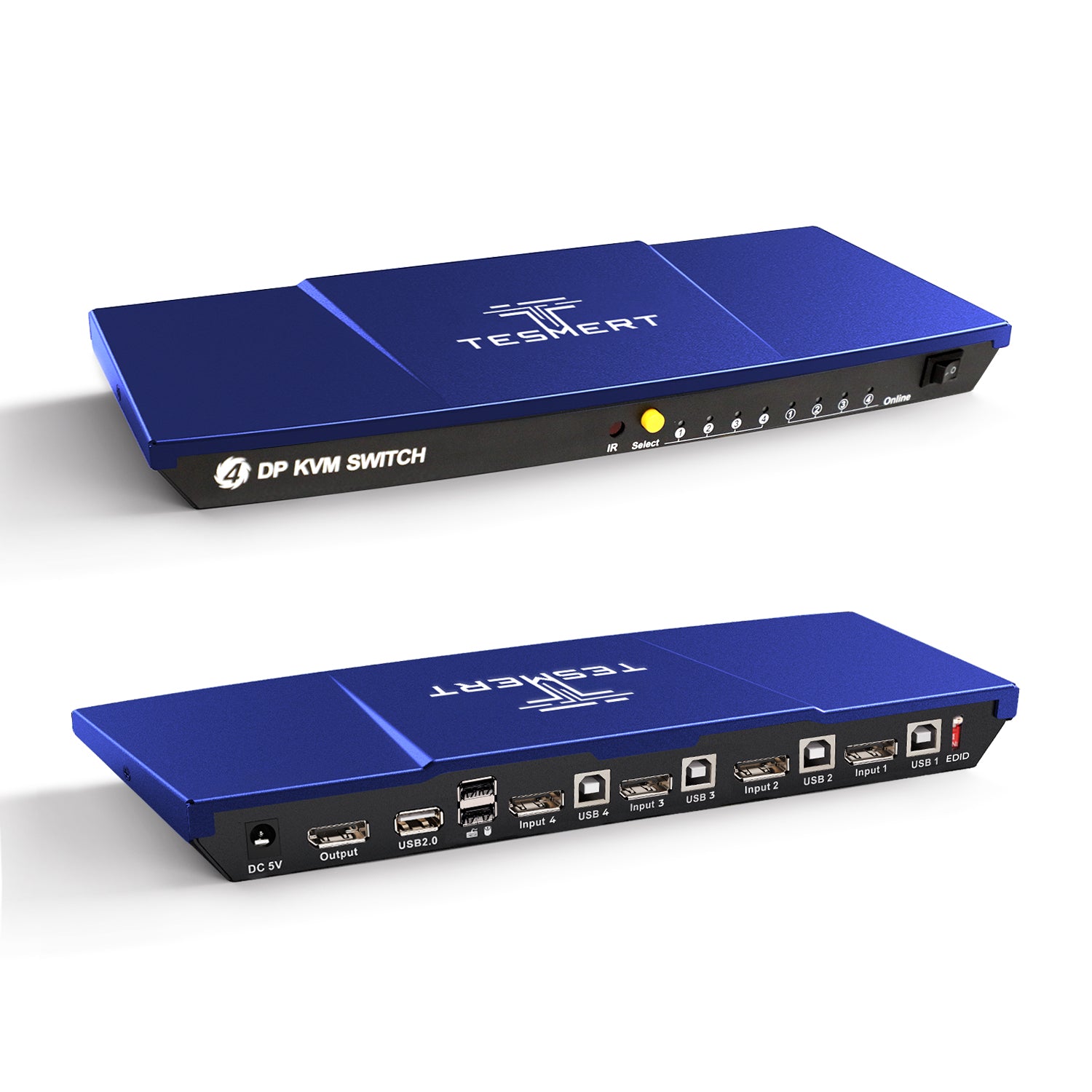
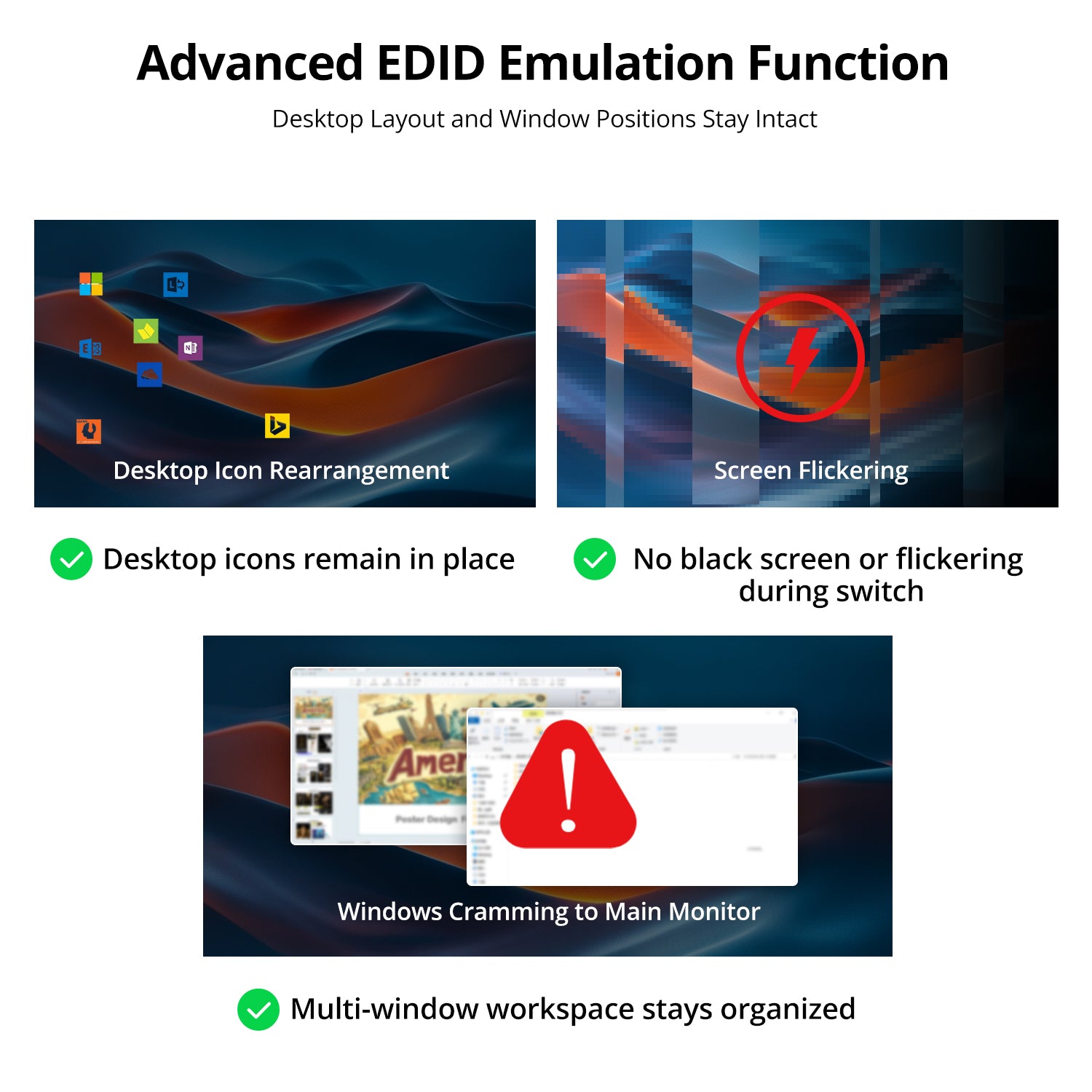
• Switchable EDID Emulation: Built-in EDID emulators help keep display information active for each connected computer, reducing window rearrangement and display re-detection when switching. EDID can be enabled or disabled with the dedicated rear-panel switch.
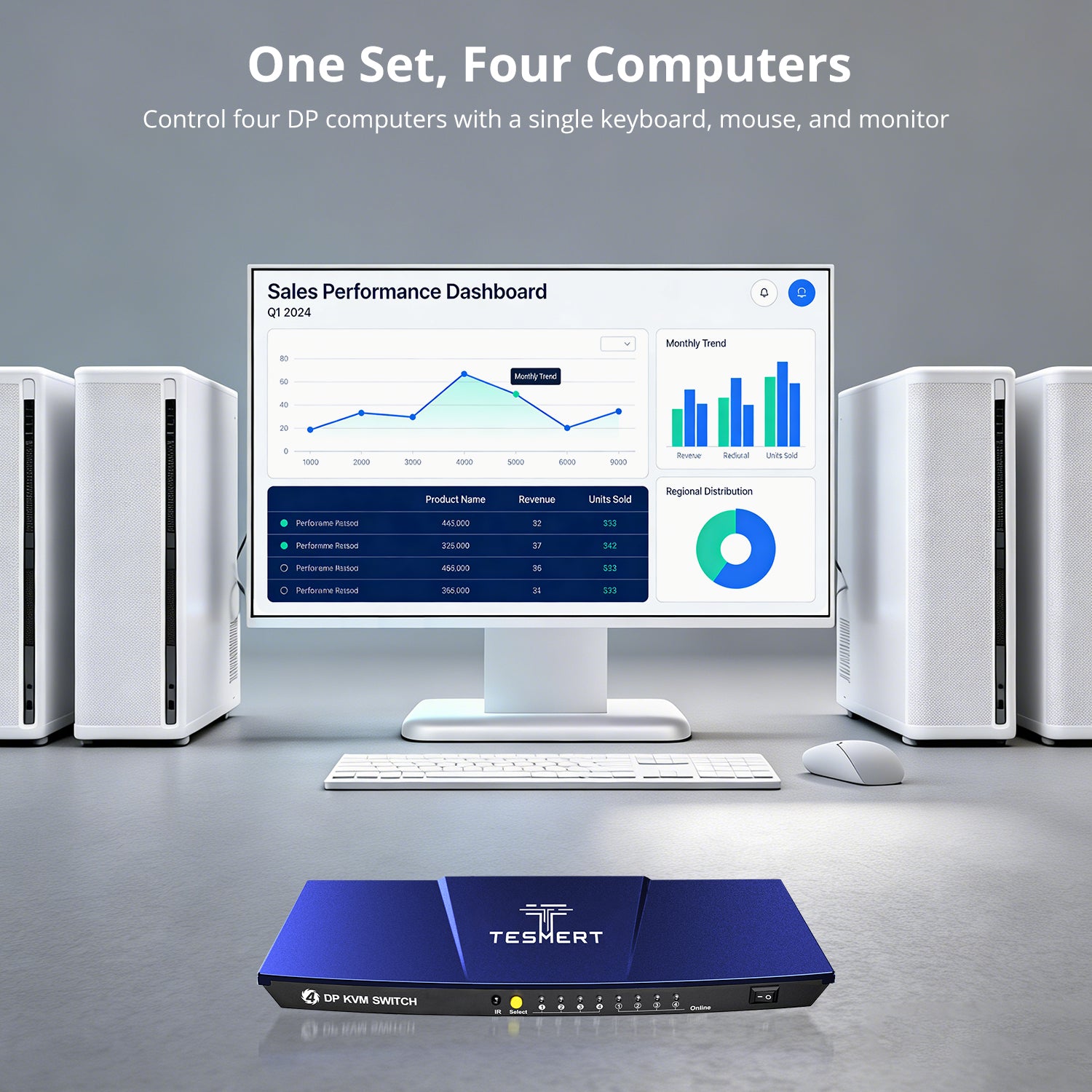
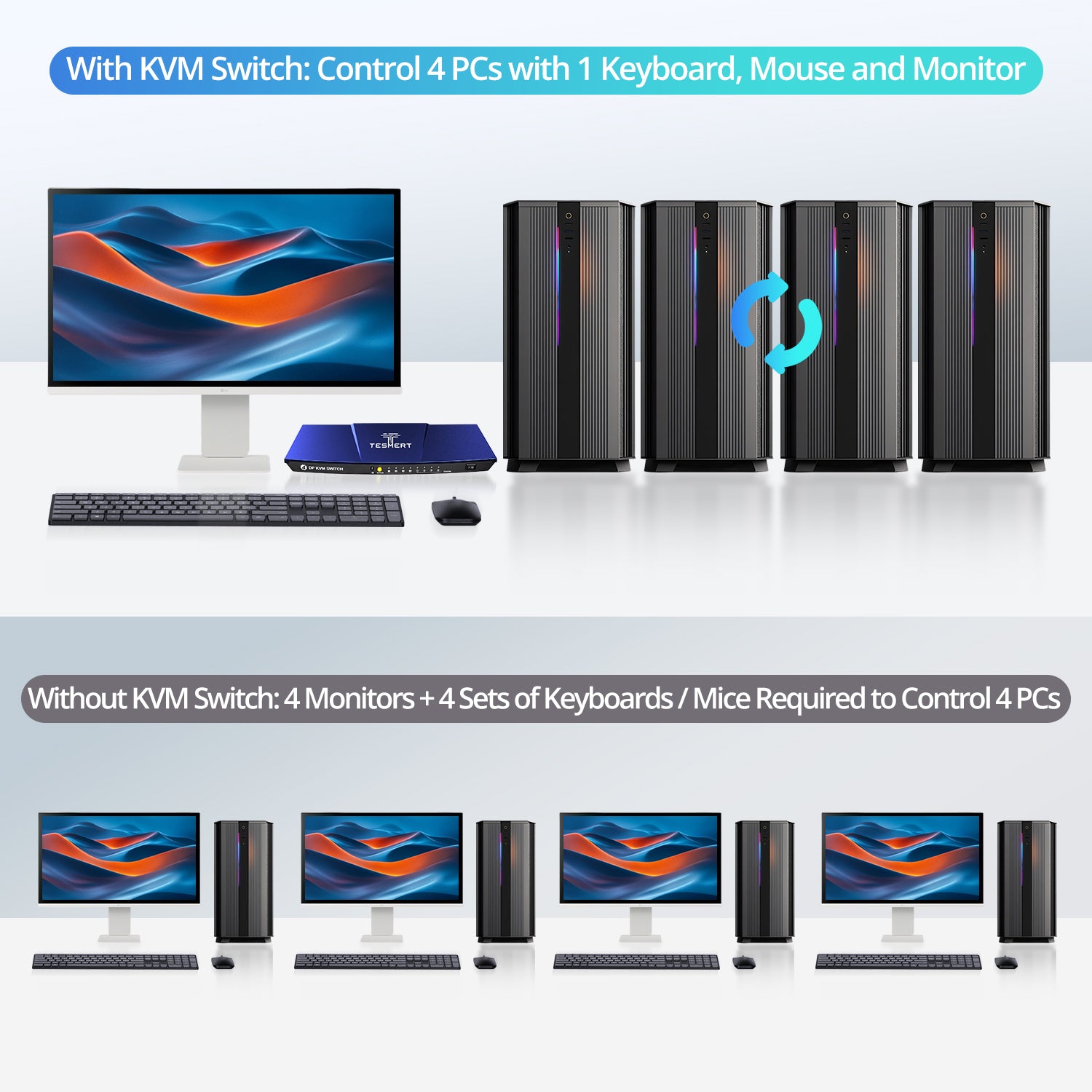
• 4 Computers, One Workstation: Control four DisplayPort computers from one monitor and one keyboard-and-mouse setup for simpler multi-PC management.
• 4K@144Hz High-Refresh Display: Supports high-resolution, high-refresh DisplayPort output for smoother visuals and responsive performance.
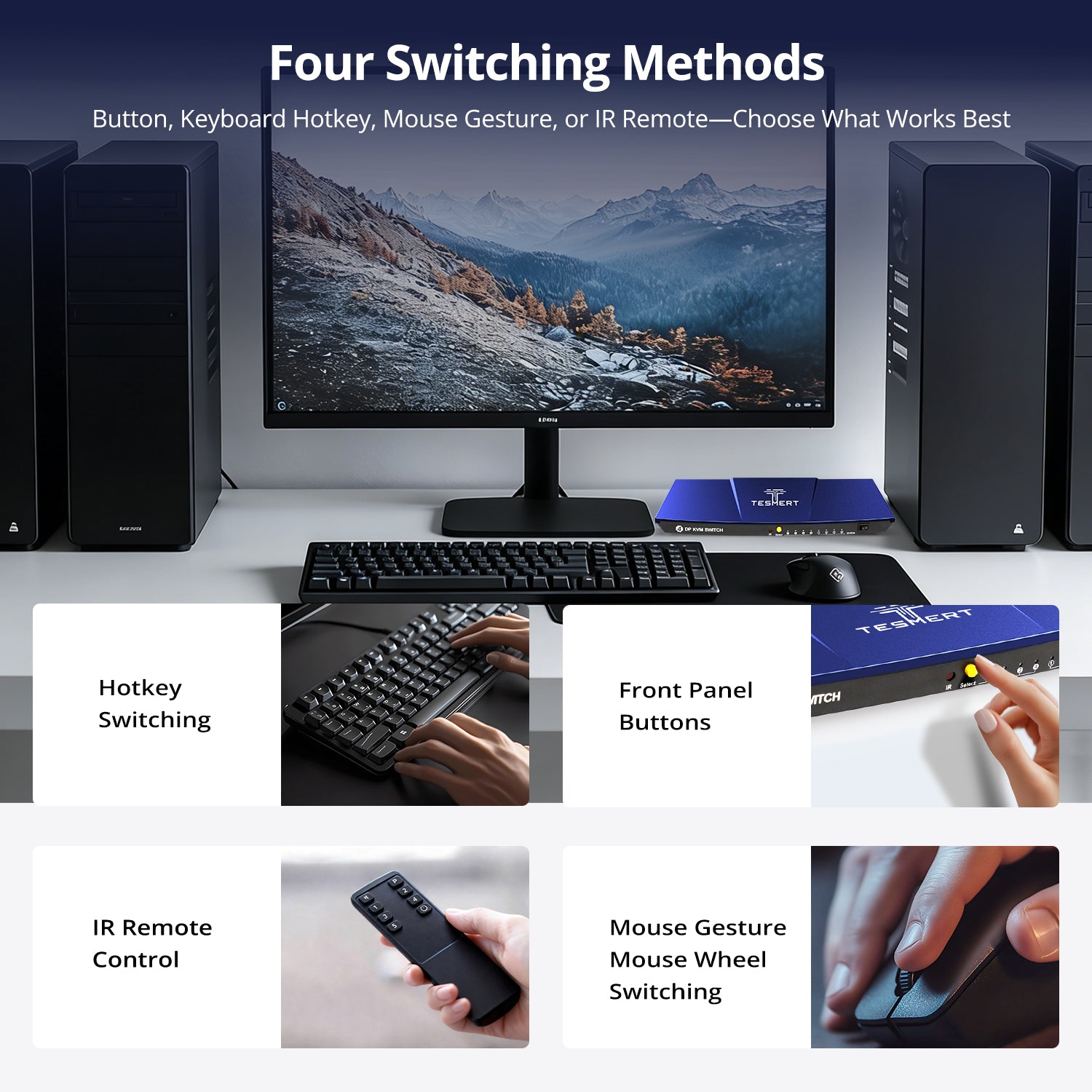
• Flexible Switching & Auto Scan: Switch using the front-panel button, included IR remote, keyboard hotkeys, or mouse-gesture control, with Auto Scan for automatic source cycling.
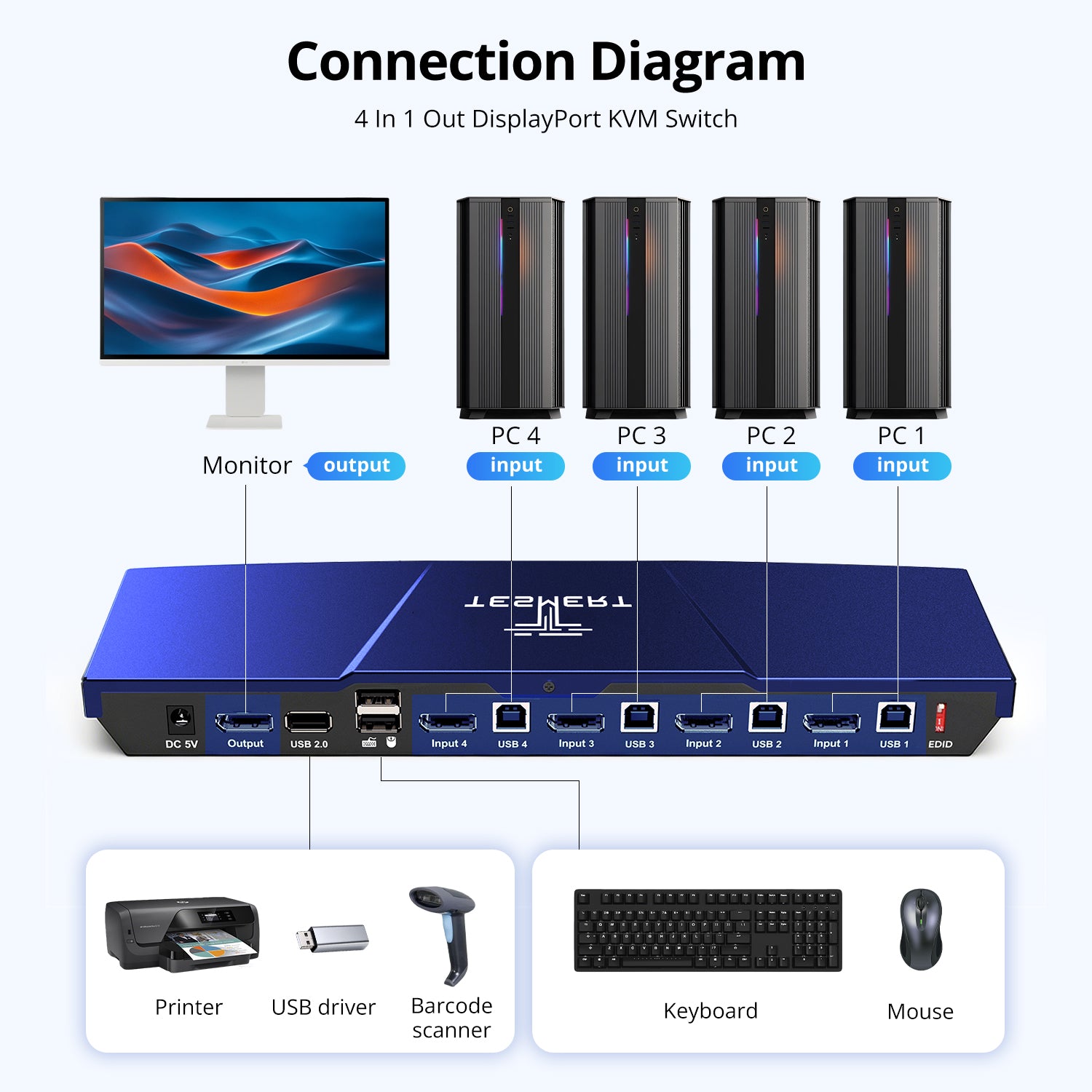
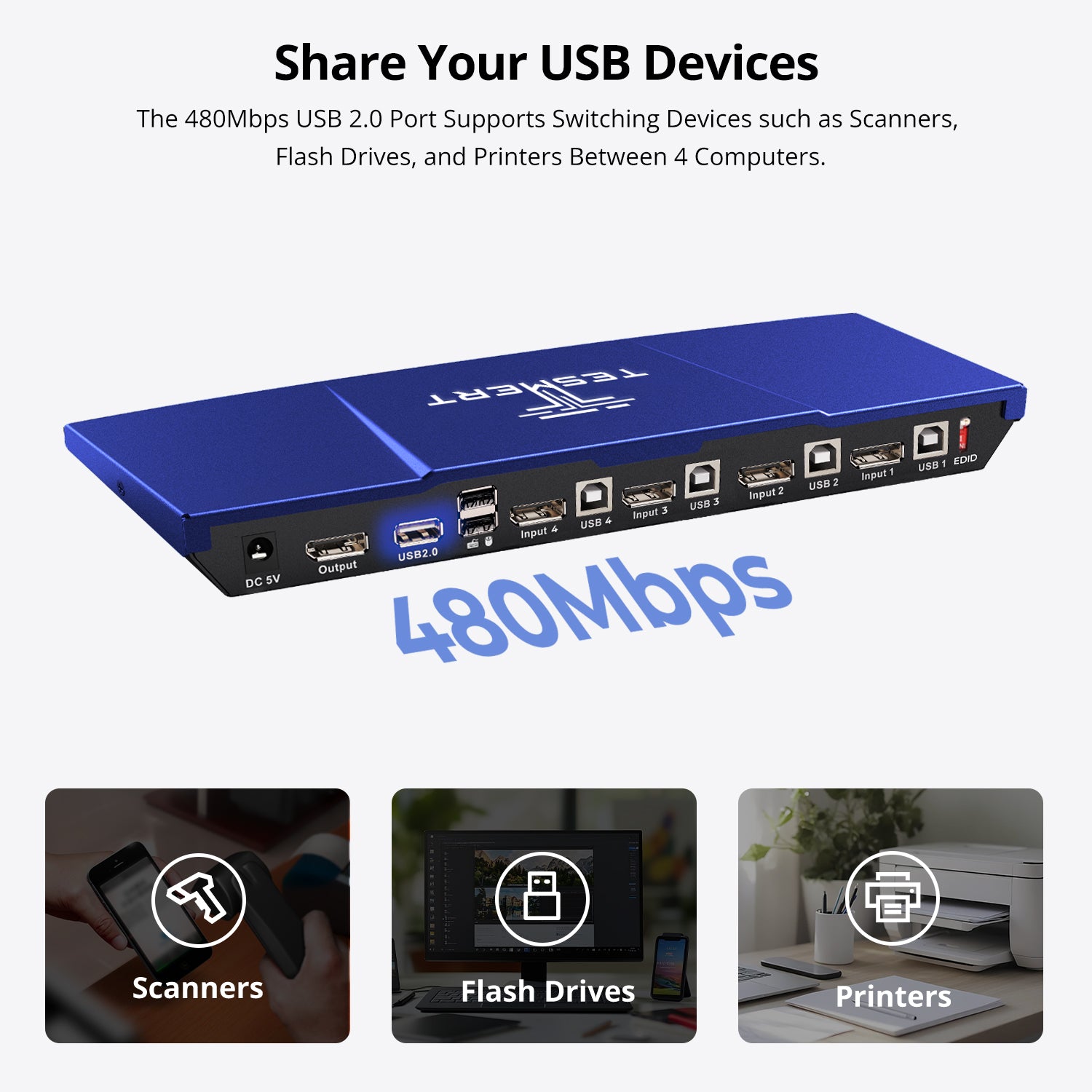
• Shared USB 2.0: Share USB peripherals such as USB drives, printers, and barcode scanners between connected computers.
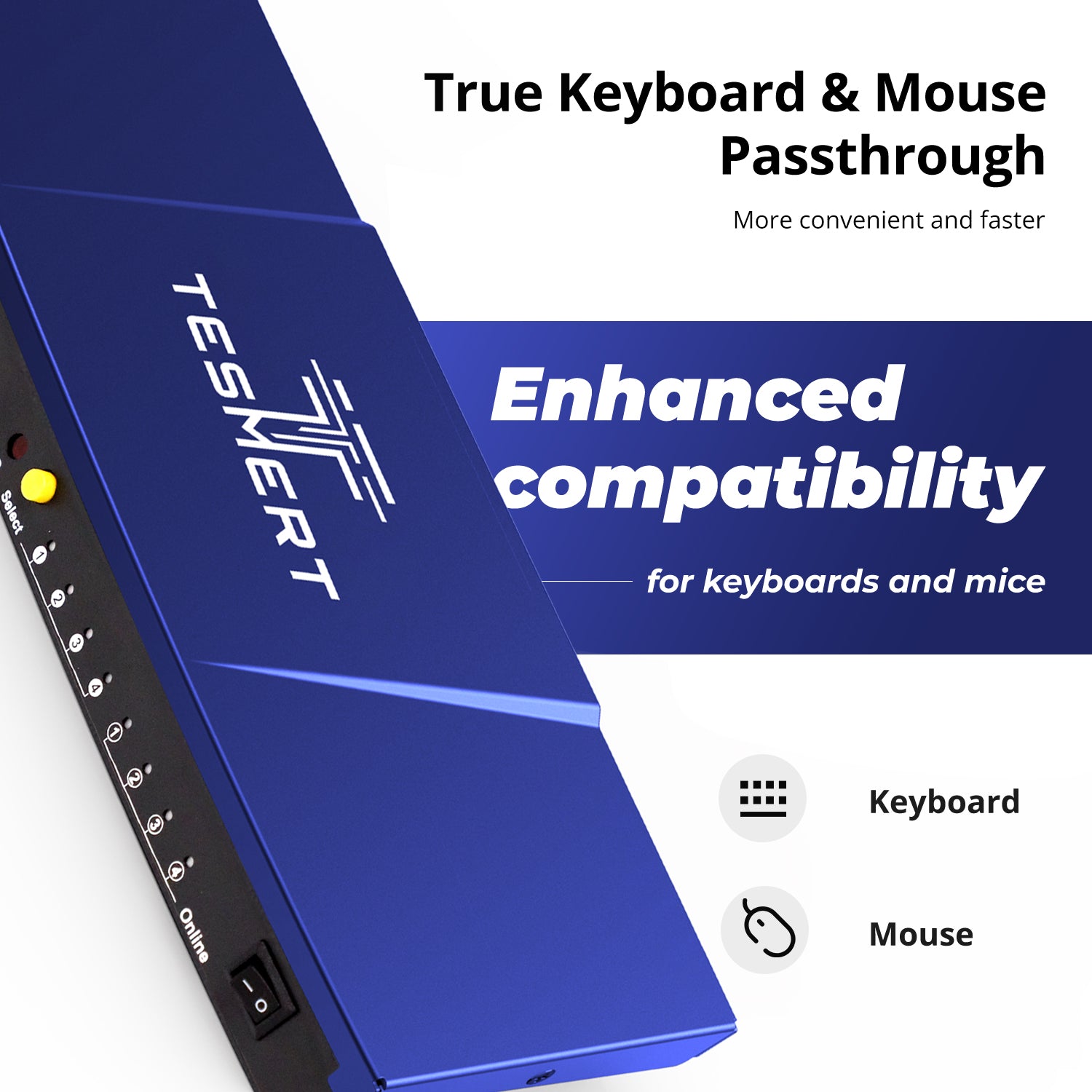
• Keyboard & Mouse Pass-through: Supports wired USB keyboards and mice and wireless models using a USB receiver. Pass-through Mode improves compatibility; Bluetooth keyboards and mice are not supported.
*Need a different power plug? Contact us.
Pairs well with
Free US Shipping! Ships within 3-7 business days.
30-Day Hassle-Free Returns & Purchase Guarantee
1-Year Warranty
Secure Payment
4K@144Hz 4-Port DisplayPort KVM Switch for 4 Computers & 1 Monitor
If you have any questions, you are always welcome to contact us. We'll get back to you as soon as possible, within 24 hours on weekdays.
-
Free US Shipping · Fast Delivery
Delivery typically arrives in 5–7 business days.
Details are available in our Shipping Policy. -
30-Day Returns · Quality Guaranteed
Returns are accepted within 30 days for peace of mind.
See our Returns & Warranty Policy for details. -
Secure & Trusted Payments
All transactions are protected with industry-standard security.
-
Customer Support
Questions about your order? Feel free to Contact Us.
Overview
Designed for users who need high-performance switching between multiple computers, this 4-in-1-out DisplayPort KVM switch allows four computers to share one monitor, keyboard, mouse, and USB peripherals from a single workstation. Ideal for development environments, gaming setups, creative workflows, and professional workstations.
- Up to 4K@144Hz Display Performance
Take advantage of DisplayPort 1.4 bandwidth for high-refresh-rate monitors. Enjoy smoother motion, improved responsiveness, and sharper visuals for work and entertainment. - Share USB Peripherals
Connect and share essential USB devices such as flash drives, printers, barcode scanners, and other USB peripherals between four computers while reducing desk clutter. - 5 Ways to Switch
Switch computers using the front-panel button, keyboard hotkeys, mouse wheel gestures, IR remote control, or Auto Scan mode—no software installation required. - Flexible EDID Management
Built-in EDID emulation helps maintain display information and reduce monitor re-detection during switching. A dedicated hardware switch allows EDID to be enabled or disabled based on your setup requirements. - Enhanced Keyboard & Mouse Compatibility
Keyboard and mouse pass-through technology improves compatibility with a wider range of wired, wireless, gaming, and specialty input devices for a more seamless switching experience.
Technical Details
Specifications
Connections
- Computer Inputs
• 4 × DisplayPort 1.4 + USB-B - Display Output
• 1 × DisplayPort 1.4 - Shared Connections
• 2 × Dedicated USB Ports for Keyboard and Mouse
• 1 × USB 2.0 Hub Port
Display Support
- 3840 × 2160 @ 144Hz
- 3840 × 2160 @ 120Hz
- 3840 × 2160 @ 60Hz
- Supports HDR10
- Supports Dolby Vision
System Compatibility
Windows, macOS, Linux (including Ubuntu, Debian, and Fedora), Raspberry Pi OS.
Other Features
- Plug and Play
- Customizable Hotkeys
Physical Specifications
- Aluminum Alloy Top Cover + Steel Base
- Dimensions: 290 × 120 × 30 mm
- Weight: 500 g
Power
DC 5V Power Adapter
Notes
For the best compatiblity, it is better to turn on keyboard and mouse pass through mode. In this mode, the keyboard and mouse are dynamically mapped to computer, so you are able to use special keyboard and mouse that with multimedia keys or other customized keys.
Included in the Box

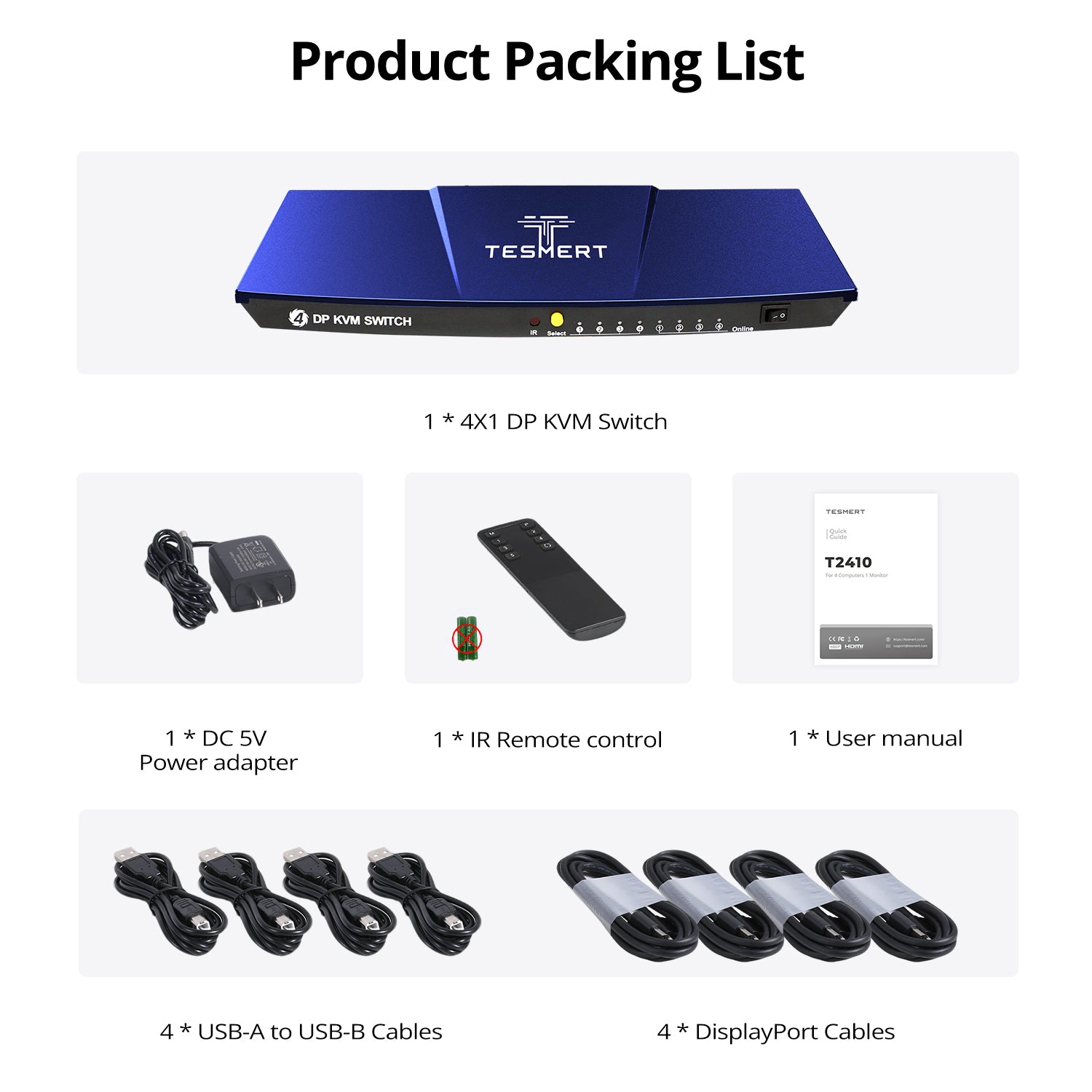
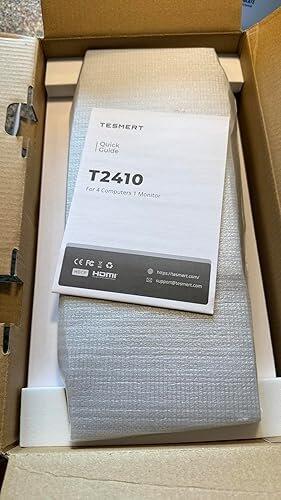
1 * T2410 KVM Switch

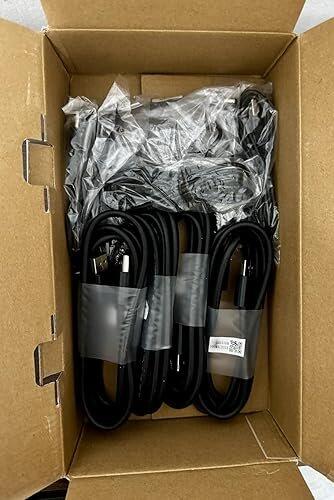
4 * DisplayPort 1.4 Cables (1.8m)

4 * USB-A to USB-B Cables (1.5m)

IR Remote Control

DC 5V Power Adapter

User Manual


Customers praise this DisplayPort KVM switch for delivering true 4K@144Hz performance with stable, flicker-free video. Shoppers highlighted "instant switching" between computers, responsive USB peripherals, and robust EDID emulation that prevents screen rearrangement. Build quality is solid with metal housing. Setup is straightforward, though cable management can be extensive.
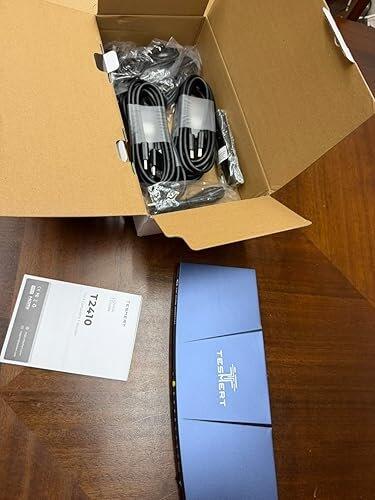
The first noticeable thing about this KVM switch out of the (plain white) box is that the overall build quality is excellent for the price range. The unit feels solid, all ports are firmly mounted and cables connect and disconnect cleanly.
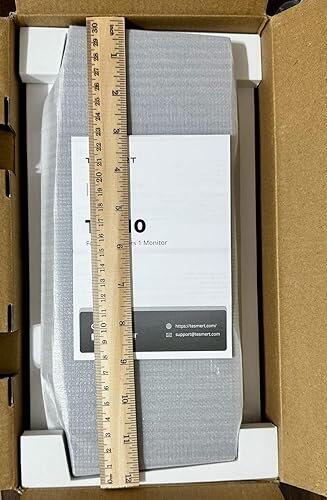
The supplied cable lengths (pulled reasonably straight and excluding connectors and power brick) are:
USB cable 56", DP cable 66", power cable 57"
The setup process was easy, but does require some room for arranging all the cables. The KVM case has some weight to it which helps it stay in place, ventilation cutouts for air flow via the base, and 4 rubber-like feet to raise it slightly, assist air flow and avoid damage to a desk or surface.
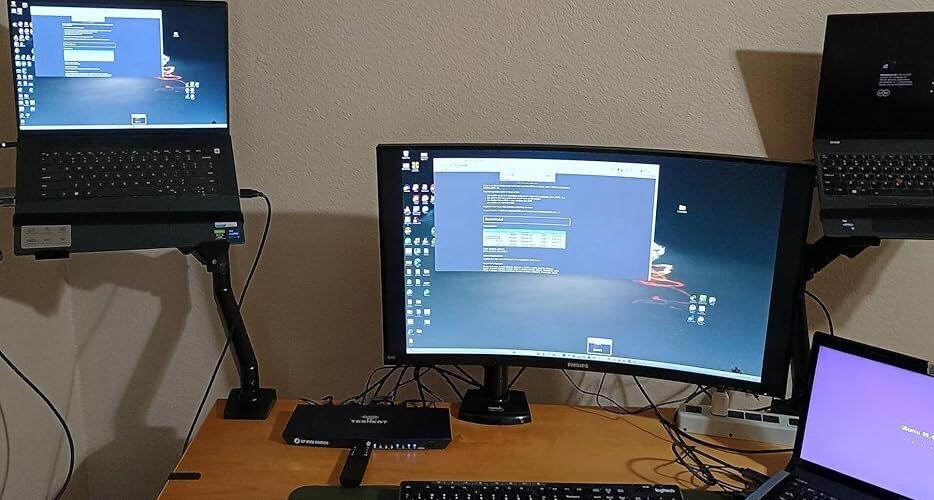
Everything tested so far has performed well. For the most part it is connected to 2 Dell laptops running Windows 11 Pro, and a third Dell or HP running Fedora or Ubuntu depending on needs at the time. Window resolution and layout retention has been flawless, switching is quick - mostly using the remote or the switches. 4k resolution is working perfectly. Adding and removing portable USB drives has worked with no issues. Mouse and keyboard are currently Logitech and work exactly as expected. Although currently using three computers in this setup, all four connections have been tested and no faults found on any ports. Put simply, it just works.
After using the switch for two weeks solidly, in use every day, it has been trouble free since setup. I'll update the review if unexpected problems arise, however judging from the overall build quality durability should be good - nothing is flimsy or loose. For a four computer setup or for future expansion, this switch is currently proving itself to be very good value and worth serious consideration.
I’ve gone through quite a few KVM switches over the years, and the TESMERT 4K@144Hz DisplayPort 1.4 KVM is one of the few that actually delivers what it promises—especially if you’re running high-end monitors and multiple systems.
The standout feature is the ability to handle true 4K at 144Hz over DisplayPort 1.4. That’s where most KVMs fall apart, either limiting refresh rates or introducing flicker and signal instability. This one holds a stable connection with no noticeable degradation in image quality. If you’re used to 4K@60 KVMs, the jump in smoothness is immediately noticeable, particularly for gaming or any kind of motion-heavy work.
Switching between four computers is straightforward and reliable. Whether using the front panel or keyboard hotkeys, transitions are quick with minimal delay. You don’t get the long black screens or renegotiation issues that are common with cheaper switches. It feels responsive enough that you can move between systems without breaking your workflow.
USB performance is also solid. Keyboard and mouse inputs feel immediate with no lag, and connected peripherals stay consistently recognized. That’s a big deal because many KVMs handle video fine but struggle with USB stability—this one doesn’t seem to have that issue.
Build quality is better than expected. It has a more professional, durable feel rather than the lightweight plastic you see in lower-end units. Ports are snug, connections feel secure, and once everything is set up, it just stays stable.
Another major advantage is proper EDID handling. This keeps your display settings consistent across all machines, so you don’t deal with windows resizing, resolution drops, or monitors disconnecting every time you switch inputs. If you’ve used a KVM without good EDID management, you’ll appreciate how much smoother this makes daily use.
There are a couple of things to be aware of. Setup can get cable-heavy since you’re connecting up to four systems, and to fully take advantage of 4K@144Hz you’ll need high-quality DisplayPort cables across the board. It’s also priced higher than basic KVMs, but that’s expected given the bandwidth and reliability it offers.
Overall, this is a high-performance KVM built for people who actually need it—multi-system users, developers, IT setups, or anyone running a high-refresh 4K display. Once it’s installed, it’s extremely consistent and eliminates a lot of the friction that comes with managing multiple computers. Made well, good quality materials - recommend - good value!
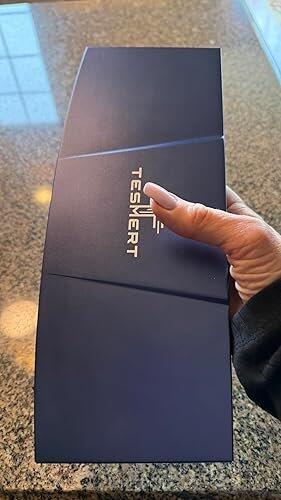
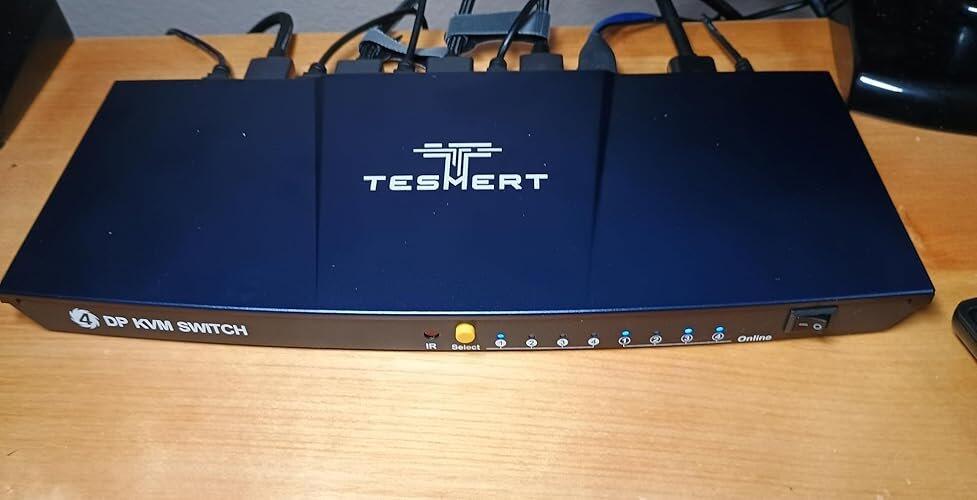
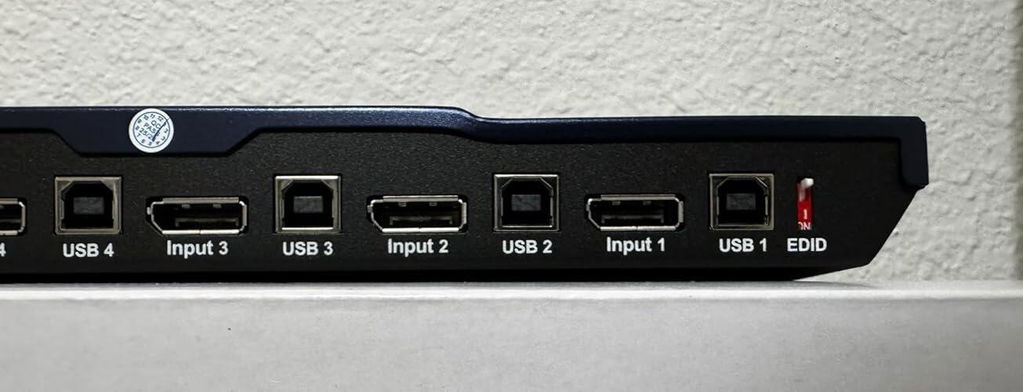
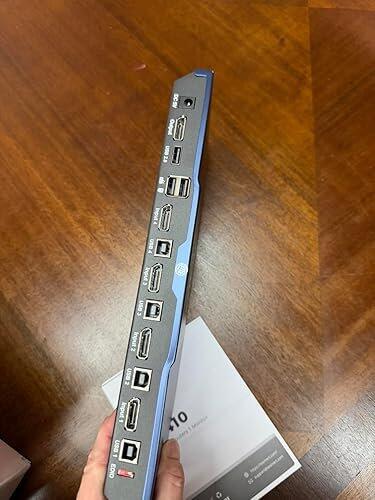
I evaluated the TESMERT DisplayPort KVM switch designed for connecting four computers to a single monitor. The unit has a solid metal housing with a smooth matte finish and a compact rectangular shape. The DisplayPort and USB ports are aligned cleanly on the rear panel, and each port is labeled clearly. The front buttons have a firm, tactile click and respond consistently when pressed. The included DisplayPort cables appear well‑made, with snug‑fitting connectors and strain‑relief ends. The power adapter connects securely, and the indicator lights on the front panel illuminate clearly to show the active input. The bottom of the unit has rubber pads that keep it stable on a desk without sliding.
Switching between systems is immediate from the button panel, and the device maintains a stable signal to the monitor during transitions. The unit supports high‑resolution output as labeled, and the DisplayPort connection remains steady without flicker during use. USB peripherals such as keyboard and mouse transfer cleanly between systems when switching. Overall, the device has a sturdy build, clear labeling, and reliable switching behavior suitable for multi‑computer desk setups.
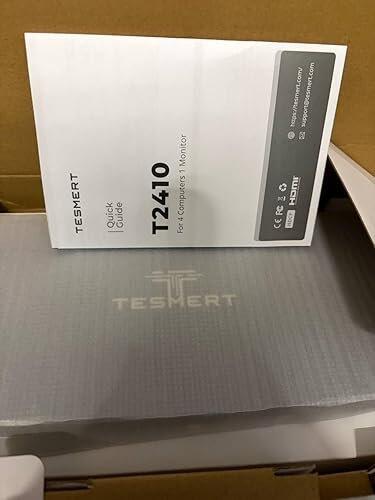
High-Res KVM for Smooth Multi-PC Setup
I received this DisplayPort KVM switch and it has completely cleaned up my desk by letting four different computers share one monitor, keyboard, and mouse without any hassle. The 4K at 144Hz support looks sharp and feels super responsive whether I'm working or gaming, and everything switches over quickly with the hotkeys or remote. No drivers needed, just plug in the cables and it works right away with Windows and everything else I tried.
The build feels solid with metal housing, and the extra USB port is handy for a scanner or extra drive. Daisy chaining and HDR worked great too, plus the auto scan mode is nice when I want it to cycle through systems on its own. Hot-swapping devices without restarting is a real time-saver during busy days.
Switching is instant with zero lag on the keyboard and mouse, making it feel like everything is directly connected. It's been reliable so far and makes multitasking across machines way easier. 👍🖥️
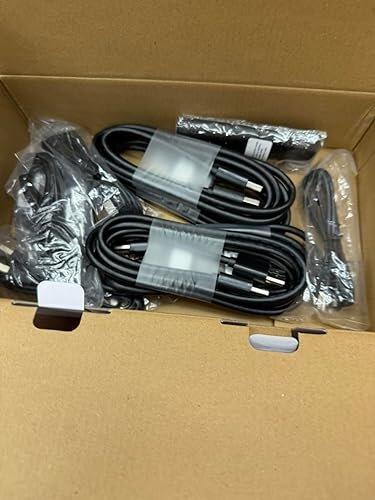
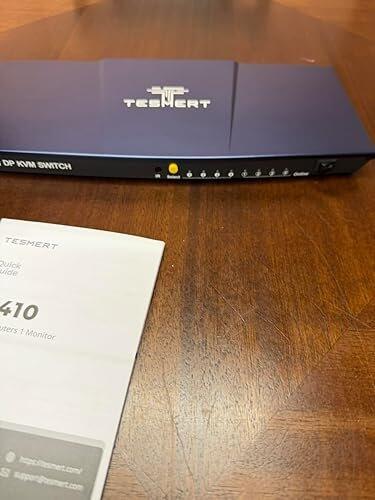
I've had this running for several weeks with four DisplayPort desktops, and it hasn't missed a beat. Video stays stable, USB devices reconnect quickly, and I appreciate having multiple switching options depending on what I'm doing. It's one of those products you install once and then forget because it just works.
I use the same monitor for gaming and work, so keeping 144Hz was a must. This KVM delivered exactly what I wanted. My keyboard, mouse, and USB headset all switch over without any hassle, and the hotkeys make moving between systems really easy. Everything feels responsive. Even though I only connected two computers...
This has been a great addition to my workstation. I switch between development machines all day, and the EDID feature keeps my monitor settings intact, so I don't have to deal with windows getting rearranged every time. Setup was simple, and it's been rock solid ever since.
I almost bought a much more expensive KVM, and I'm glad I gave this one a shot first. It handles my 4K 144Hz monitor without any issues, and switching between four PCs is quick and seamless. Honestly, it performs like a premium product while costing much less. Incredible value for the money.
I honestly wasn't expecting much at this price, but this thing completely exceeded my expectations. Finding a reliable DisplayPort 1.4 KVM with true 4K 144Hz support usually means spending a lot more. My monitor runs at full refresh rate, switching is smooth, and I haven't seen any flickering or signal drops. Definitely one of the best tech purchases I've made this year.
As a director and editor working across multiple systems, a reliable KVM switch can dramatically improve workflow efficiency by eliminating constant cable swapping and monitor reconfiguration. This TESMERT DisplayPort KVM switch is clearly designed for high-performance multi-computer setups, especially for users working with high refresh rate displays, creative applications, gaming systems, or professional workstation environments.
One of the standout features is the ability to maintain true 4K at 144Hz over DisplayPort 1.4 while preserving smooth switching and stable monitor behavior. The EDID emulation is especially valuable because it helps prevent screen rearranging, resolution resets, and display disconnect issues that are common with lower-end KVM switches. The multiple switching methods, including hotkeys, remote control, front-panel buttons, and auto-switching, also make daily operation much more flexible depending on the workspace setup.
Pros
• Supports true 4K@144Hz performance with smooth stable signal handling
• EDID emulation helps preserve monitor layouts and resolution settings
• Multiple switching methods improve workflow flexibility and convenience
• Solid metal construction and included cables create a more premium setup experience
Cons
• Large multi-system setups can become cable-heavy during installation
• Premium performance features come at a higher price than basic KVM switches
• USB configuration may require some adjustment for advanced peripherals
The pass-through keyboard and mouse support works especially well for gaming peripherals and productivity devices where latency or compatibility issues can become frustrating. For creators, developers, streamers, IT environments, or users balancing multiple computers on a single desk, this type of setup can significantly streamline workspace organization and day-to-day workflow efficiency.
Final Thoughts
This TESMERT DisplayPort KVM switch delivers an impressive combination of high-refresh video performance, reliable switching stability, strong build quality, and professional-grade workflow functionality. The support for 4K@144Hz, EDID emulation, HDR compatibility, multiple switching options, and responsive USB passthrough help it stand out from many lower-end KVM solutions that struggle with stability or signal consistency. For power users managing multiple systems who want a smoother, cleaner, and more efficient desktop setup without sacrificing display performance, this offers excellent overall value.
I've been really happy with this KVM since installing it about 3 weeks ago. It works seamlessly--mostly just plug and play. I currently have three compute devices connected to it and use it to bounce between them when working or playing games or whatever else so that I don't have to have extra monitors for each and can consolidate into just a few. The unit has some heft to it, which prevents it from moving around much when running cables or if stuff bumps it. It's easy to alternate between devices with multiple options for doing so and I've noticed no degradation of video quality or any type of input latency from my mouse/keyboard. The price point is fair for the quality of product you're receiving. You can definitely find cheaper if input lag or video quality isn't as important for you, but if they are this is a very solid offering!
I always hesitate to write a review right after I install an electronic device especially it is associated with computers, but I'll make an exception here and if my opinion changes in the future, I promise to revise it. As you can see, I gave this five stars. The product went in smoothly and easily with no connection problems. It is connected to a Dell ultrawide display and four desktop PCs all running Win11. It's easy to use. The hotkey switching works quickly (you can use the keyboard or the mouse for fast efficient switching). It's IDID emulation is perfect. I've tried other switches costing over $500 that I had to return because of faulty performance and/or overly complex installation and operation. This device has been a dream so far and I heartily recommend it to anyone with similar needs.
This TESmert 4K@144Hz DisplayPort KVM switch exceeded my expectations in every way. Setup was quick and straightforward, and everything worked right out of the box with zero headaches. The biggest win for me is the true 4K @ 144Hz performance because there is no lag, no flickering, and crystal-clear visuals. If you’re running high-end monitors or doing anything that demands smooth refresh rates (gaming, trading, multitasking), this handles it effortlessly. The G-Sync/FreeSync compatibility is a huge bonus and works flawlessly.
Switching between multiple PCs is instant and smooth. The hotkey function and IR remote make it incredibly convenient, especially when managing several systems at once. I also appreciate the EDID emulator, which keeps everything stable, meaning no screen rearranging or resolution issues when switching. Build quality feels solid, cables included are a nice touch, and the daisy chain capability makes this future-proof if you want to expand your setup.
Bottom line:
If you’re serious about a multi-PC setup and want top-tier performance without compromise, this KVM is absolutely worth it. Clean, fast, reliable and exactly what a premium switch should be. Definitely recommended!
Product comparison
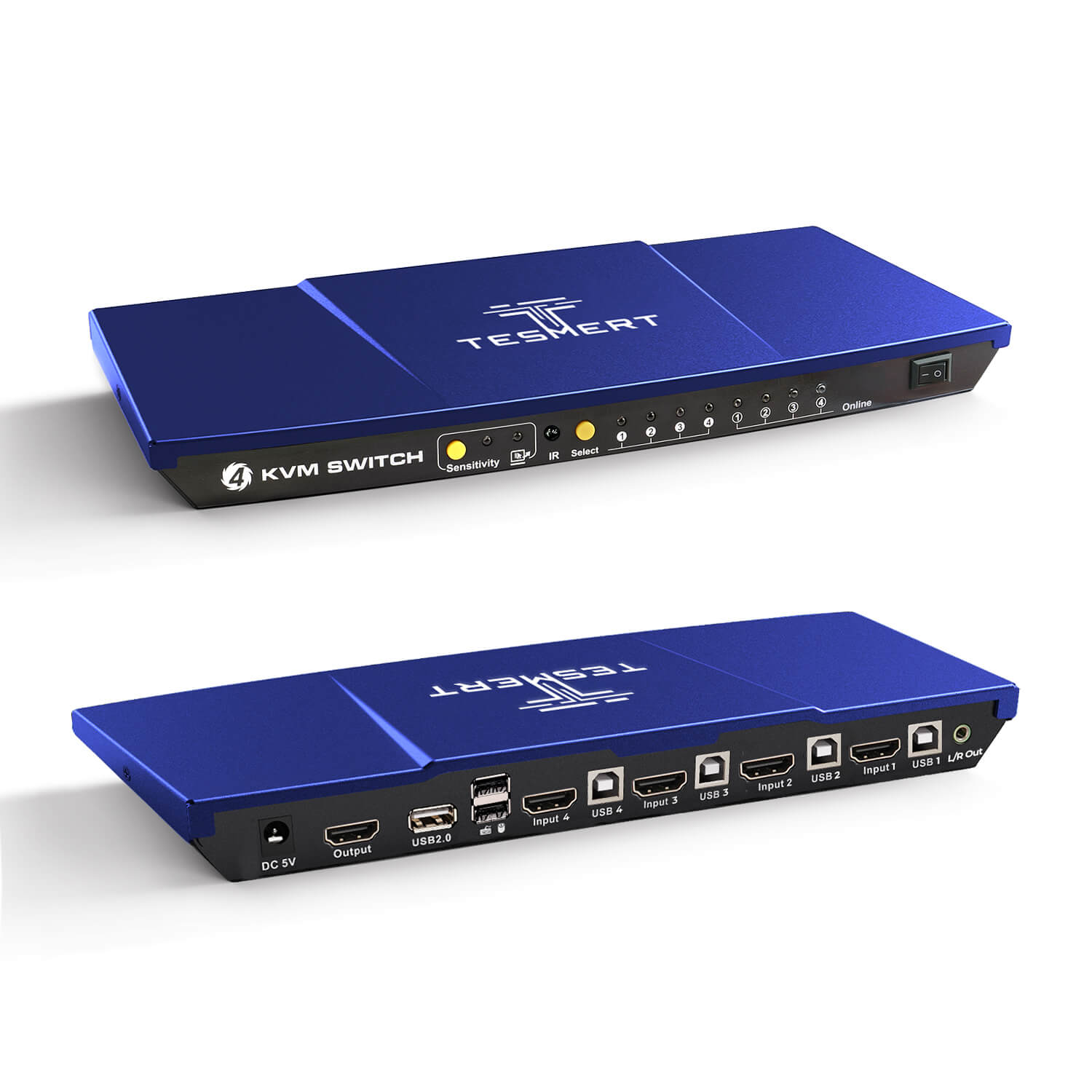
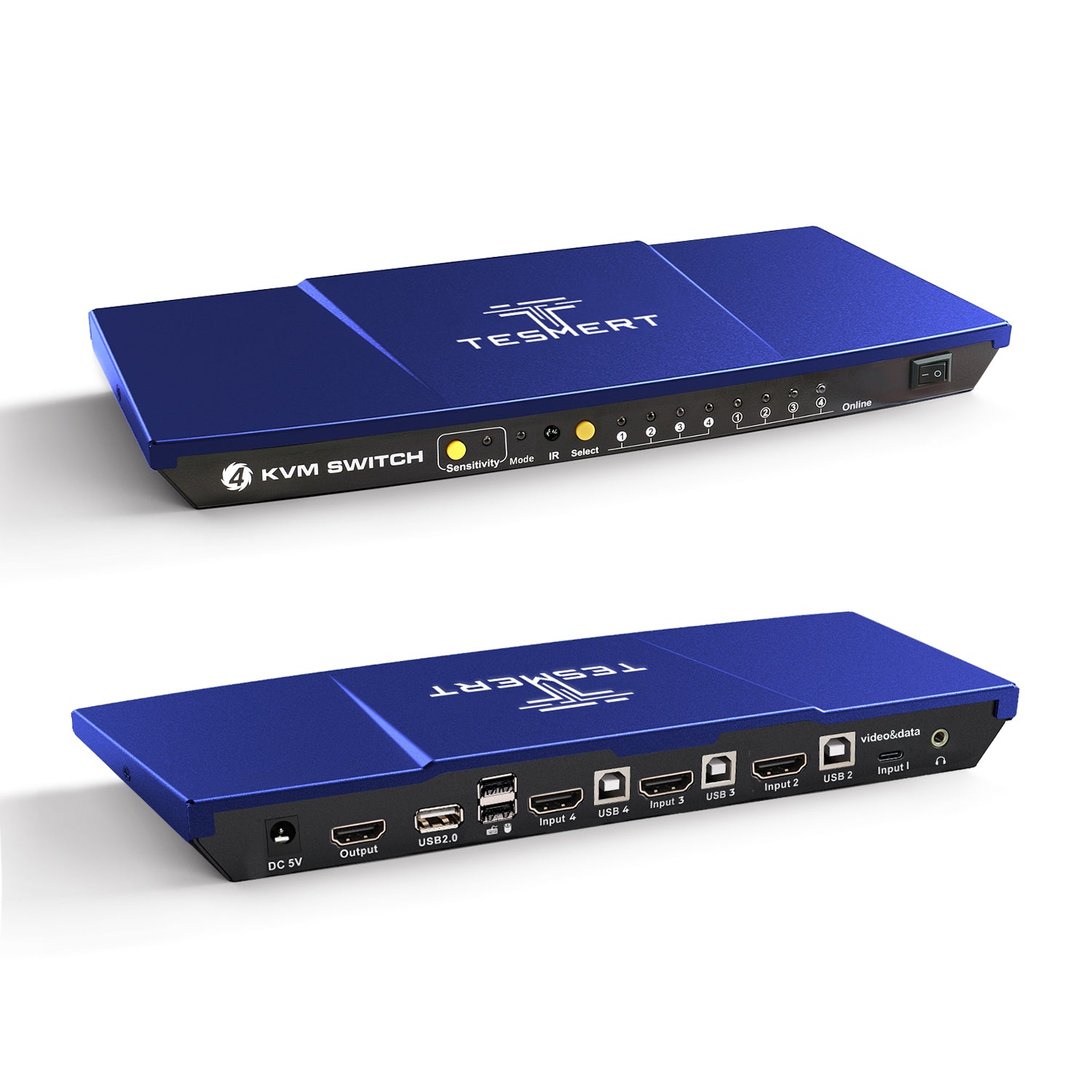
Amount of Computers
4
Amount of Computers
4
Amount of Computers
4
Amount of Monitors
1
Amount of Monitors
1
Amount of Monitors
1
Video Type
DisplayPort 1.4
Video Type
HDMI 2.0
Video Type
HDMI2.0 + USB-C
Max Resolution
5K120Hz/4K144Hz
Max Resolution
4K60Hz
Max Resolution
4K60Hz
EDID Emulation
YES
EDID Emulation
YES
EDID Emulation
YES
Special Features
USB-A 2.0 Sharing Port * 1
Hot Plug
Passthrough Mode
Special Features
USB-A 2.0 Sharing Port * 1
Hot Plug
Passthrough Mode
L/R Out
Special Features
USB-A 2.0 Sharing Port * 1
Hot Plug
Passthrough Mode
L/R Out
FAQs
Please read our FAQs page to find out more.
Will my windows and display settings stay in place when I switch computers?
Yes. T2410-V2 includes built-in EDID emulation for each computer input. With EDID enabled, the connected computers continue to detect the monitor even when they are not the active source. This helps prevent resolution changes, desktop resizing, and application windows moving after you switch computers.
EDID is enabled by default, and we recommend keeping it enabled for normal use. If you experience an unusual display compatibility issue, you can temporarily disable it using the EDID switch on the rear panel.
Does T2410-V2 support 4K at 144Hz and 5K at 120Hz?
Yes. T2410-V2 supports resolutions up to 3840 × 2160 at 144Hz and 5120 × 2880 at 120Hz through DisplayPort 1.4, provided that your computers, graphics cards, monitor, and DisplayPort cables all support the required resolution and refresh rate.
It also supports HDR10 and Dolby Vision. For the most reliable high-resolution, high-refresh-rate performance, use direct DisplayPort connections and certified DisplayPort 1.4 cables. Adapters, docking stations, or lower-bandwidth cables may reduce the available resolution or refresh rate.
Will my gaming keyboard, programmable mouse, or wireless receiver work?
T2410-V2 works with most standard wired keyboards, mice, and 2.4GHz wireless USB receivers. Its built-in Pass-Through Mode improves compatibility by allowing the keyboard and mouse to behave more like devices connected directly to the computer. This can provide better support for multimedia keys, programmable buttons, macros, and other advanced functions.
For normal hotkey operation, connect the keyboard and mouse to the dedicated keyboard and mouse ports. If a specialty keyboard does not work correctly through the dedicated port, try connecting it to the shared USB 2.0 port instead.
Bluetooth keyboards and mice that do not use a USB receiver cannot connect through the KVM.
How can I switch between the four computers?
T2410-V2 offers several switching methods:
- Front-panel button
- Keyboard hotkeys
- IR remote control
- Mouse gesture
- Mouse wheel
- Auto Scan mode
The default hotkey trigger is Right Ctrl, and it can be changed to Scroll Lock. Keyboard hotkeys only work when the keyboard is connected to the dedicated keyboard and mouse port.
Which USB devices can I share between the four computers?
T2410-V2 includes one shared USB 2.0 port that follows the selected computer. It is suitable for everyday USB peripherals such as:
- USB flash drives
- Printers
- Barcode scanners
- Basic USB audio devices
- Standard USB receivers
- Other USB 2.0 accessories.
The USB 2.0 connection supports up to 480Mbps in theory. For external SSDs, capture cards, high-resolution webcams, or other bandwidth-heavy devices, connect them directly to the computer or use a separate high-speed USB hub.
Can I connect laptops or computers without a full-size DisplayPort output?
Yes, provided the computer can output a compatible DisplayPort video signal.
A USB-C laptop can be connected using a USB-C to DisplayPort cable or adapter, but the laptop's USB-C port must support video output through DisplayPort Alt Mode. You will still need a separate USB connection between the laptop and the KVM for keyboard, mouse, and shared USB control.
For HDMI-only computers, an active HDMI-to-DisplayPort converter may be required. Passive cables are not always suitable because HDMI-to-DisplayPort conversion is directional, and adapters may reduce the maximum available resolution or refresh rate.
Also note that T2410-V2 is a four-computer, one-monitor KVM. It does not provide four monitor outputs or a separate monitor for each computer.
Are the required cables included, and is setup complicated?
No software or drivers are required. Each computer connects to the KVM using:
- One DisplayPort cable for video,
- One USB-A-to-USB-B cable for keyboard, mouse, and shared USB control
The package includes:
- T2410-V2 KVM switch
- Four DisplayPort cables
- Four USB-A to USB-B cables
- IR remote control
- DC 5V power adapter
- User manual
The included cables make the initial setup easier, but connecting four computers creates a large number of cables. Leave enough space behind the unit and label each DisplayPort and USB cable by computer before installation.