
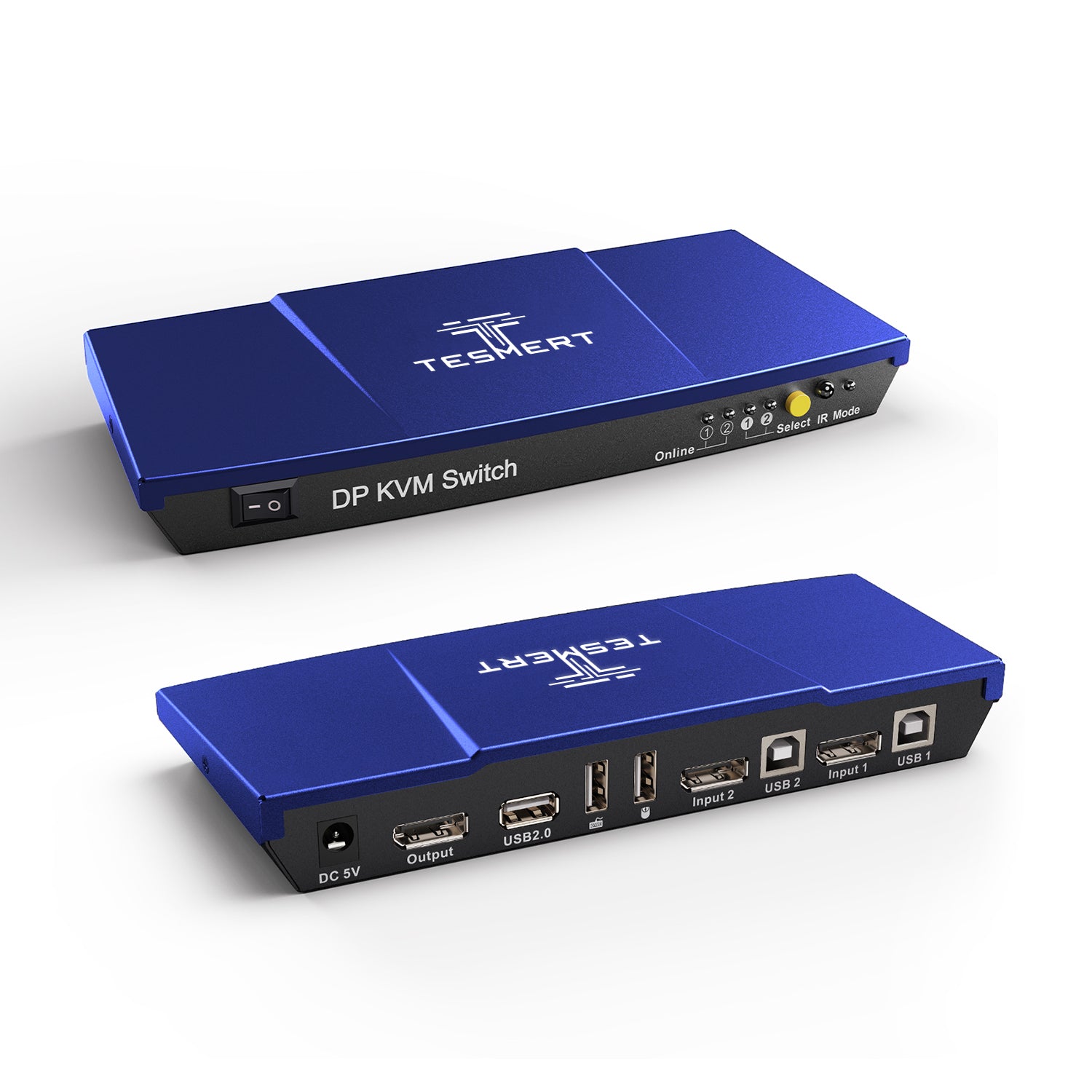

Model: T2210-USRB
2-Port DisplayPort KVM Switch for 2 Computers & 1 Monitor
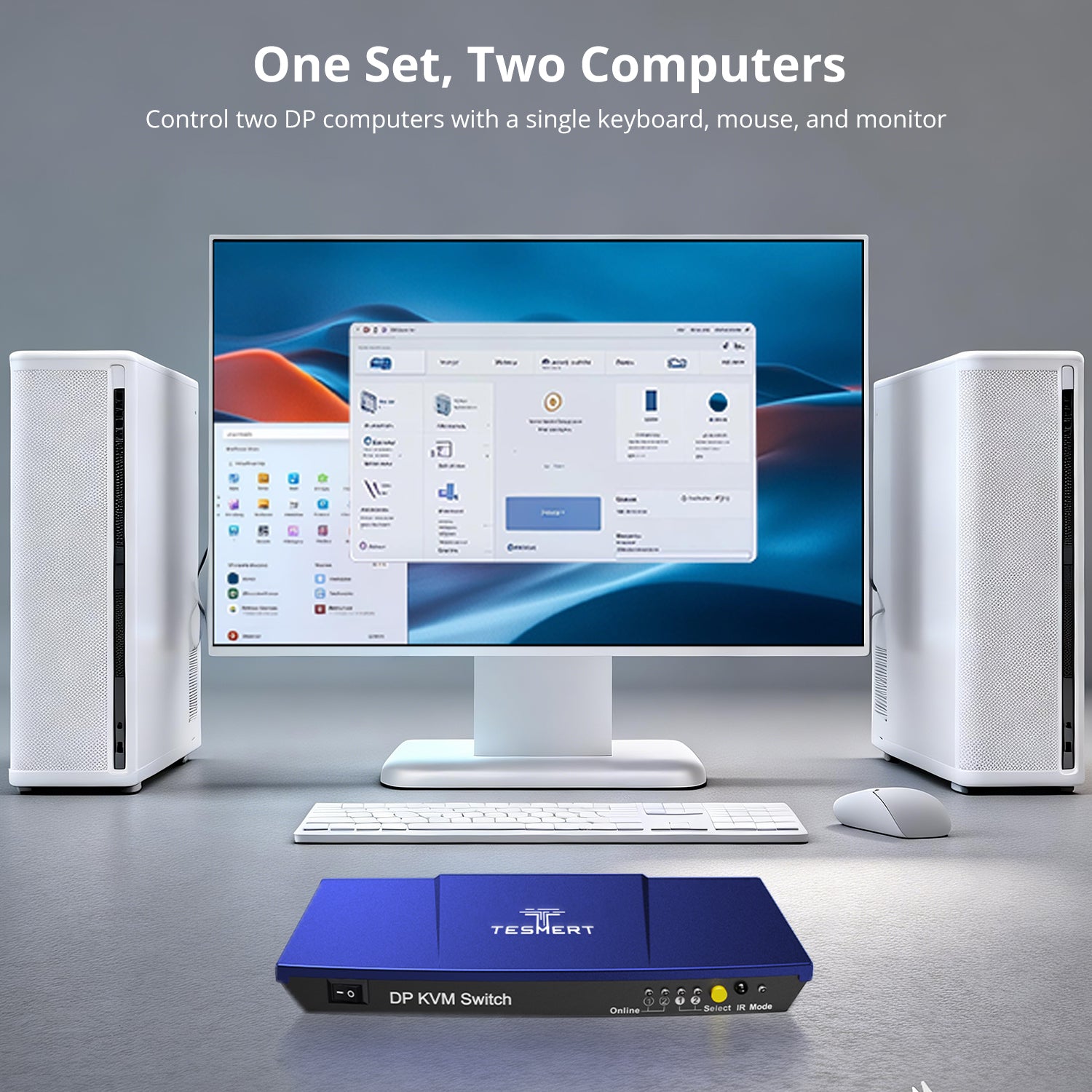
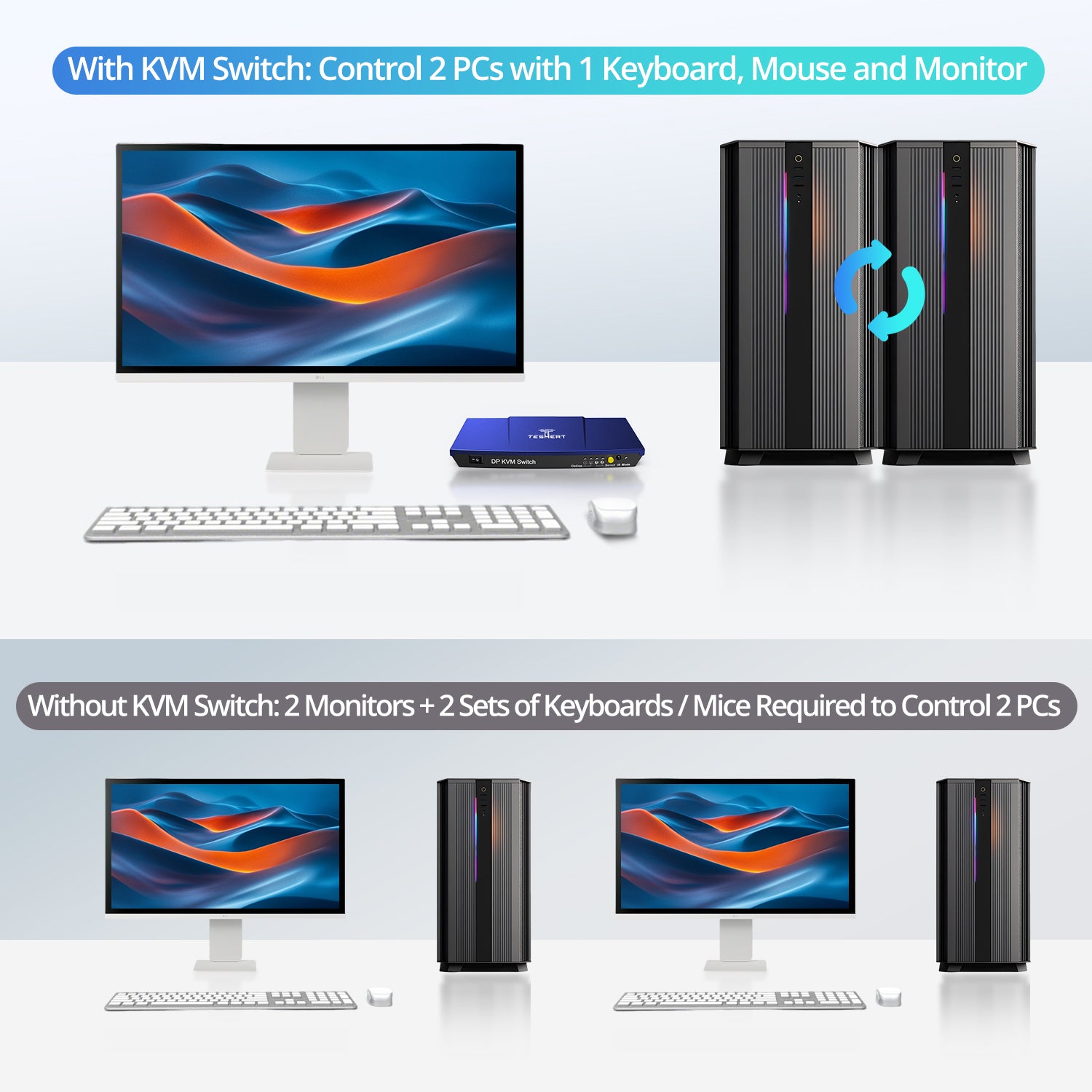
Control two DisplayPort computers from one monitor, keyboard, and mouse while sharing USB 2.0 peripherals through one streamlined workstation.
• 2 Computers, One Workstation: Control two DisplayPort computers from one monitor and one keyboard-and-mouse setup for simpler multi-PC management.
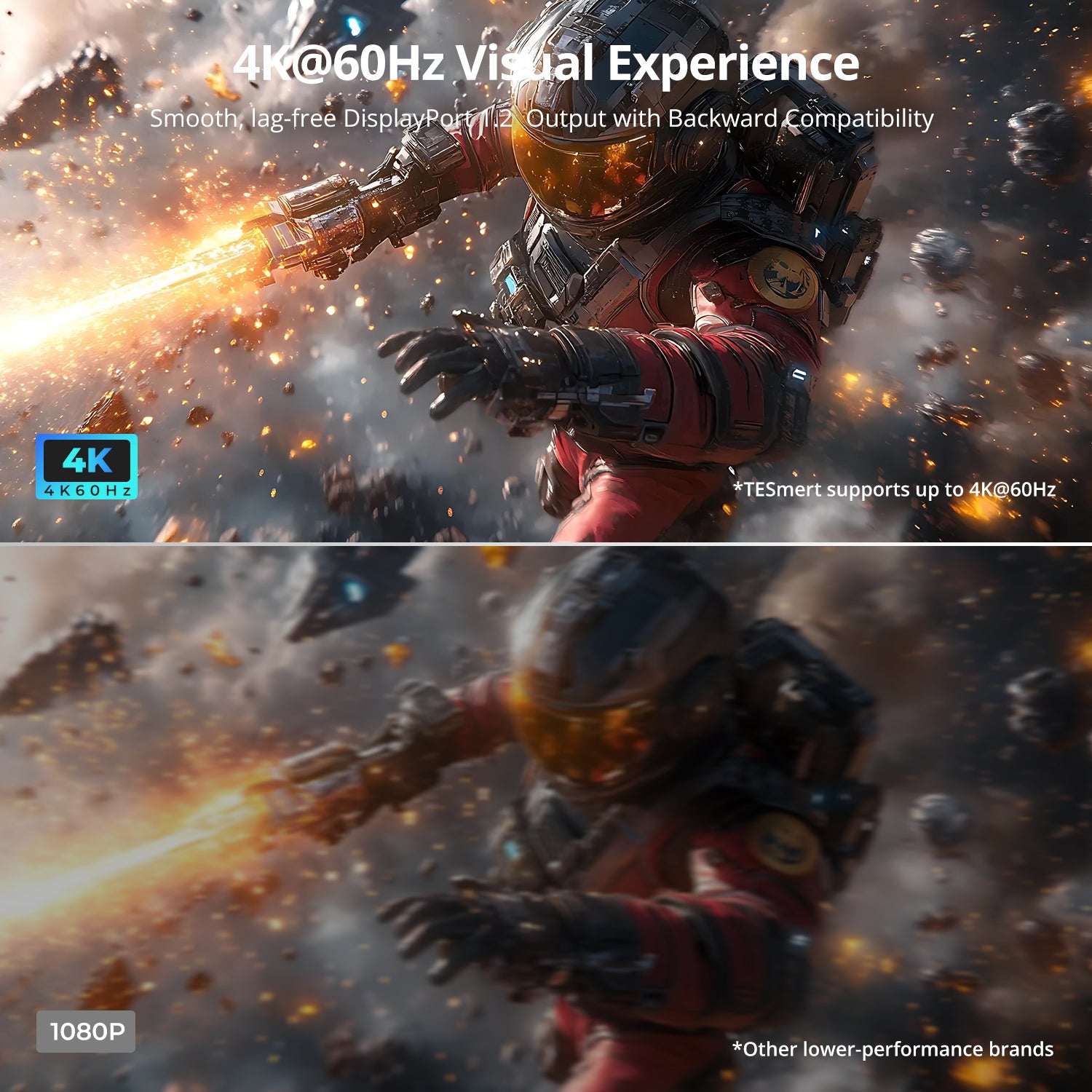
• Up to 4K@60Hz: Supports up to 3840 × 2160 @ 60Hz for clear, detailed DisplayPort video output.
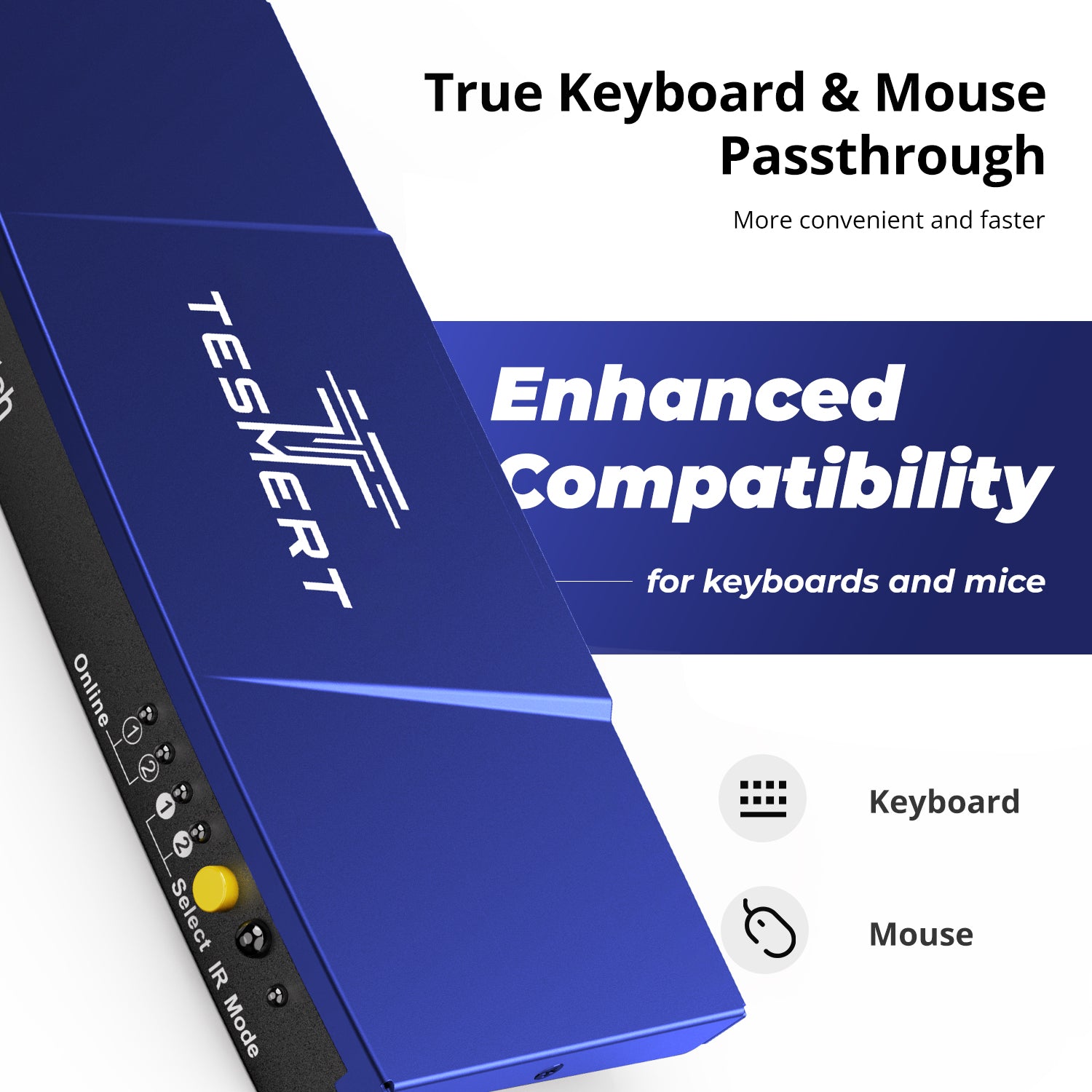
• Keyboard & Mouse Pass-through: Pass-through Mode improves keyboard and mouse compatibility for more reliable operation across connected computers.
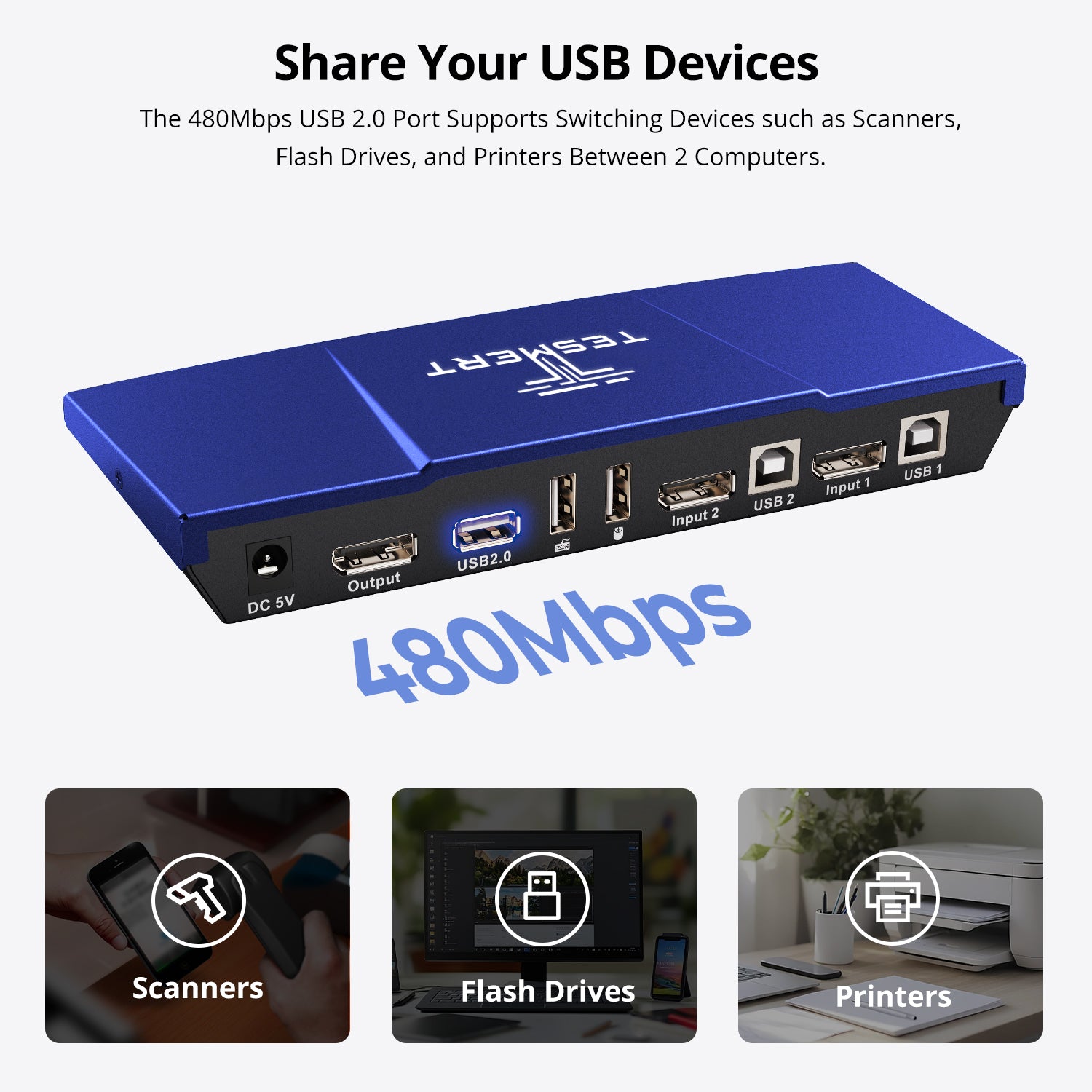
• Shared USB 2.0: Share USB peripherals such as USB drives, printers, and barcode scanners between connected computers.
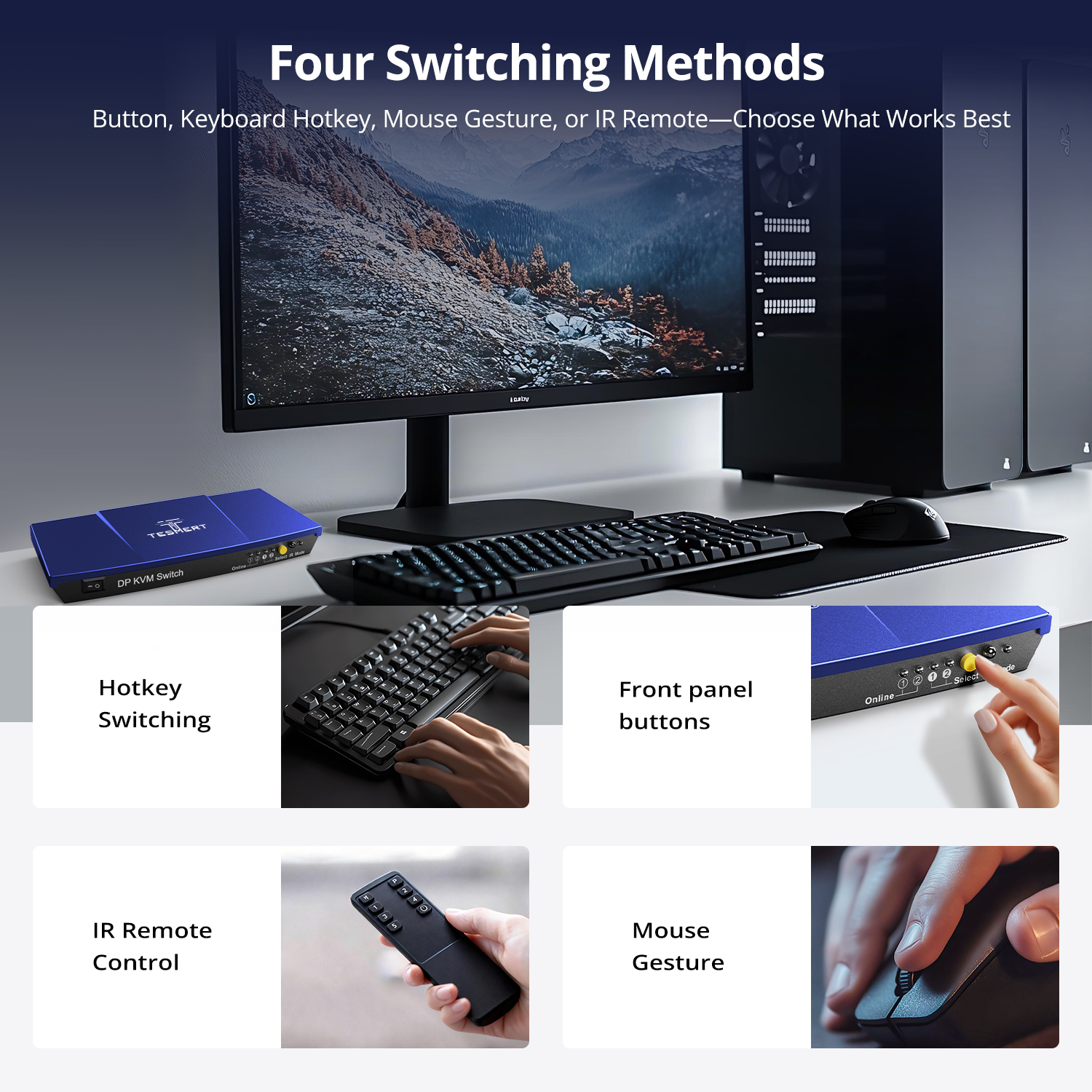
• Flexible Switching & Auto Scan: Switch using the front-panel button, included IR remote, keyboard hotkeys, or mouse-gesture control, with Auto Scan for automatic source cycling.
*Need a different power plug? Contact us.
Pairs well with
Free US Shipping! Ships within 3-7 business days.
30-Day Hassle-Free Returns & Purchase Guarantee
1-Year Warranty
Secure Payment
2-Port DisplayPort KVM Switch for 2 Computers & 1 Monitor
If you have any questions, you are always welcome to contact us. We'll get back to you as soon as possible, within 24 hours on weekdays.
-
Free US Shipping · Fast Delivery
Delivery typically arrives in 5–7 business days.
Details are available in our Shipping Policy. -
30-Day Returns · Quality Guaranteed
Returns are accepted within 30 days for peace of mind.
See our Returns & Warranty Policy for details. -
Secure & Trusted Payments
All transactions are protected with industry-standard security.
-
Customer Support
Questions about your order? Feel free to Contact Us.
Overview
Designed for everyday dual-computer workspaces, this 2-in-1-out DisplayPort KVM switch lets two DisplayPort computers share one monitor, keyboard, mouse, and USB peripheral—all from a single workstation. Perfect for home offices, work-and-personal PC setups, and compact workspaces.
- Up to 4K@60Hz Resolution
Enjoy sharp text, clear images, and smooth performance for everyday work. From spreadsheets and web browsing to video meetings and daily tasks, T2210 delivers a reliable 4K viewing experience. - Share Essential USB Devices
Keep your workspace organized by sharing a keyboard, mouse, and USB peripheral between two computers. Connect devices such as USB drives, printers, barcode scanners, and other USB accessories while reducing cable clutter. - 5 Ways to Switch
Switch computers the way you prefer using the front-panel button, keyboard hotkeys, mouse gestures, IR remote control, or Auto Scan mode—no software installation required. - Enhanced Keyboard & Mouse Compatibility
Keyboard and mouse pass-through technology supports a wider range of wired, wireless, gaming, and specialty input devices for a smoother switching experience. - Plug and Play Convenience
No drivers or software required. Simply connect your devices and start switching between computers instantly.
Technical Details
Specifications
Connections
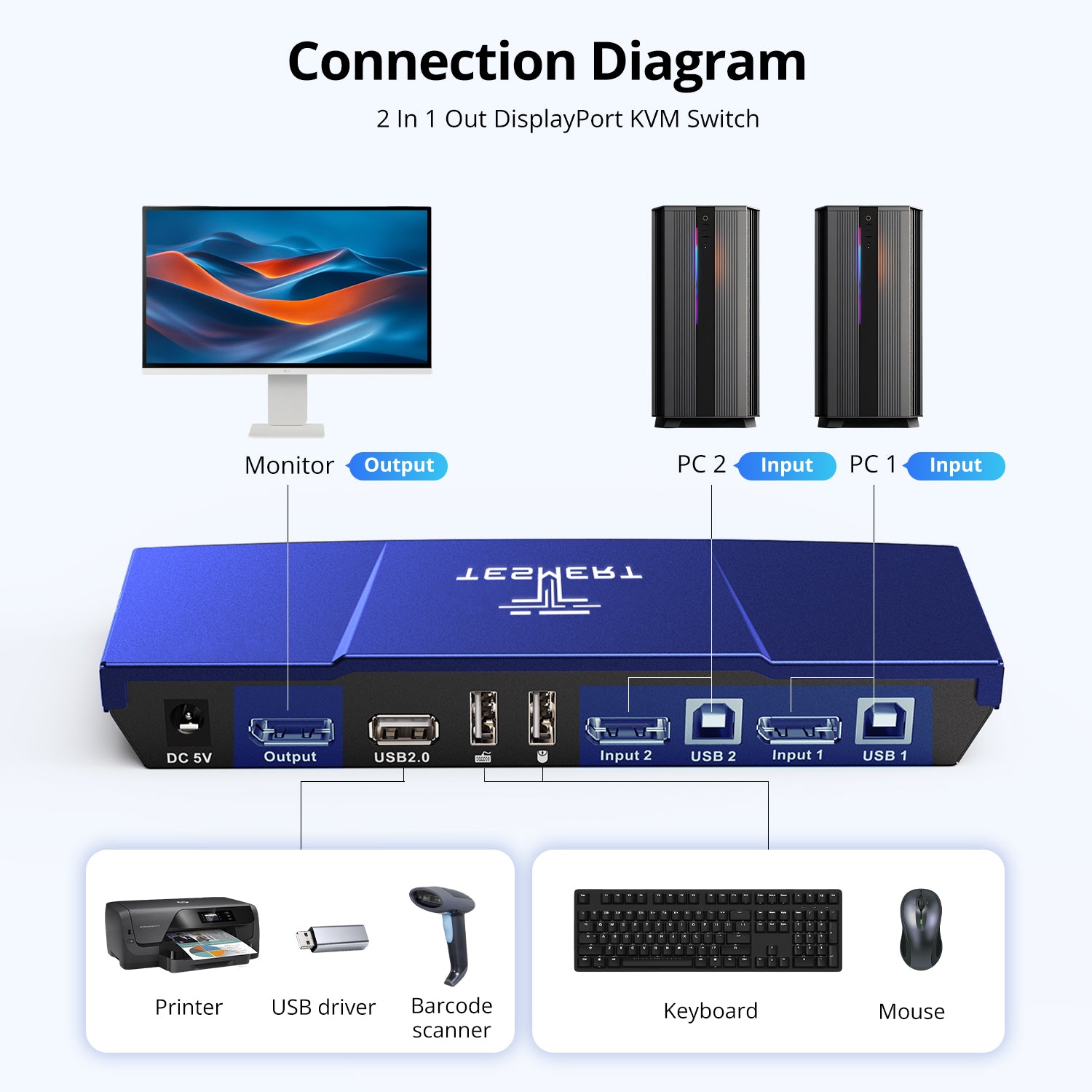
- Computer Inputs
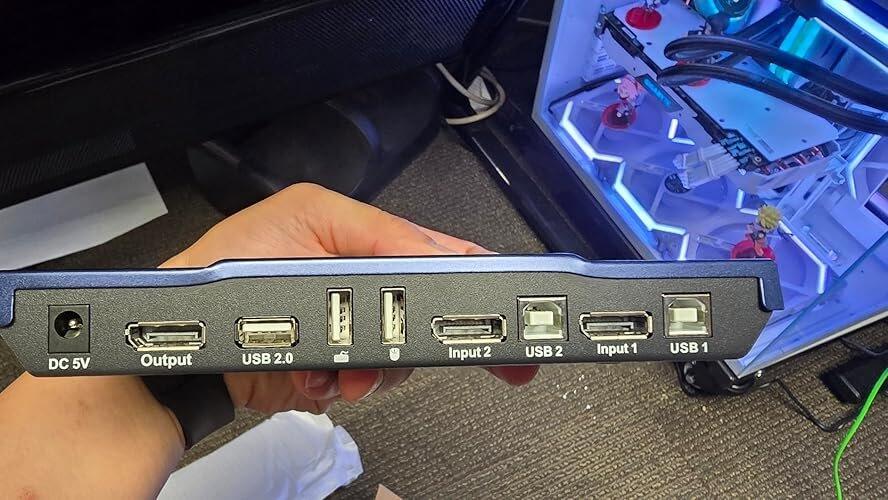
• 2 × DisplayPort 1.2 + USB-B - Display Output
• 1 × DisplayPort 1.2 - Shared Connections
• 2 × Dedicated USB Ports for Keyboard and Mouse
• 1 × USB 2.0 Hub Port
Display Support
- 3840 × 2160 @ 60Hz
- 2560 × 1440 @ 120Hz
- 1920 × 1080 @ 240Hz
System Compatibility
Windows, macOS, Linux (including Ubuntu, Debian, and Fedora), Raspberry Pi OS.
Other Features
- Plug and Play
- Customizable Hotkeys
Physical Specifications
- Aluminum Alloy Top Cover + Steel Base
- Dimensions: 195 × 85 × 30 mm
- Weight: 250 g
Power
DC 5V Power Adapter
Notes
For the best compatiblity, it is better to turn on keyboard and mouse pass through mode. In this mode, the keyboard and mouse are dynamically mapped to computer, so you are able to use special keyboard and mouse that with multimedia keys or other customized keys.
Included in the Box

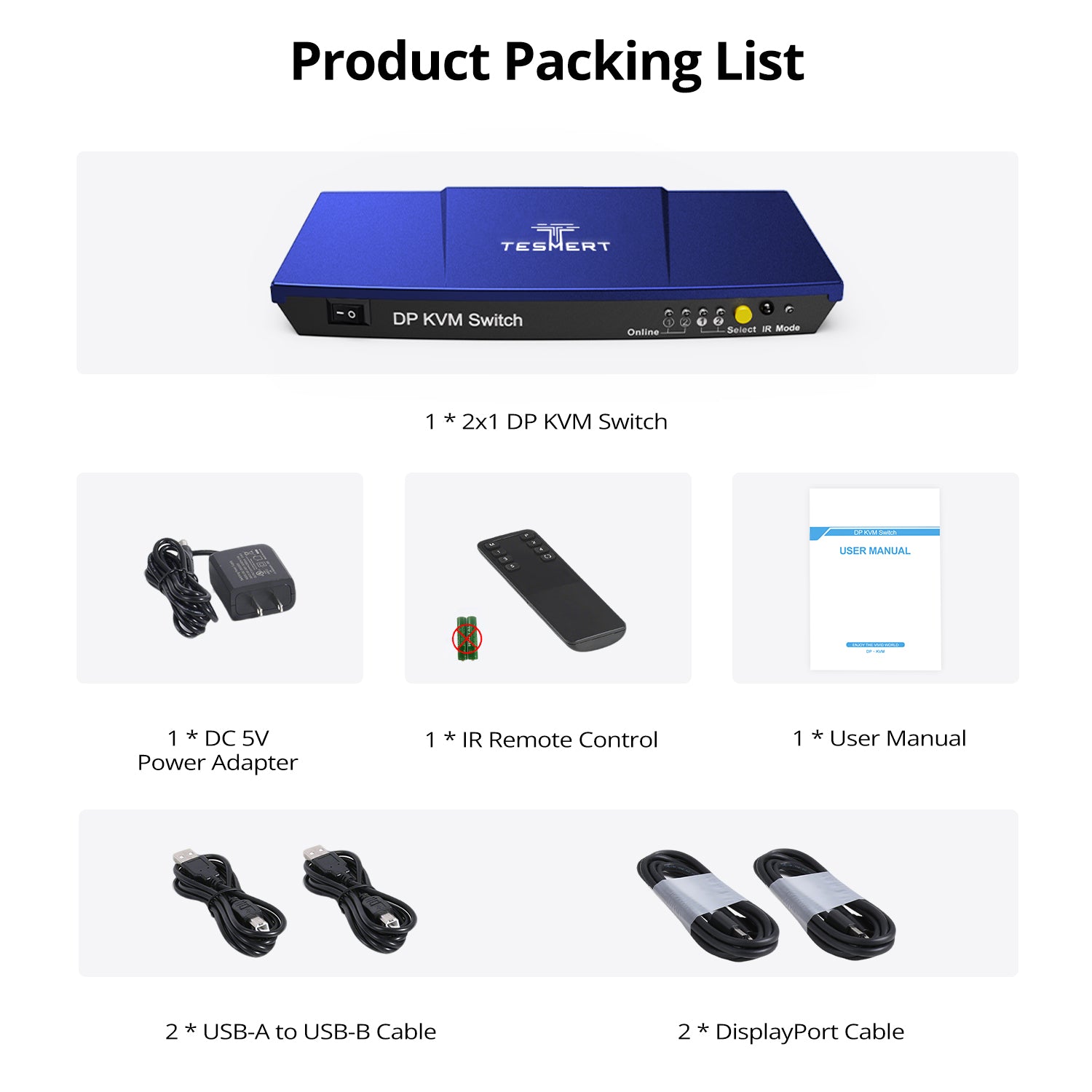
1 * T2210 KVM Switch

2 * DisplayPort Cables (1.8m)

2 * USB-A to USB-B Cables (1.5m)

IR Remote Control

DC 5V Power Adapter

User Manual


This DisplayPort KVM switch enables seamless control of 2 computers with 1 monitor, keyboard, and mouse. Customers praised the "stable 4K@60Hz" output, quick setup, solid metal build, and multiple switching options (hotkey, button, remote). Includes necessary cables. Brief reconnection delay when switching between systems.
Very well built KVM switch. It allows flawless transition from one computer to another. I don't need to switch out my mouse and keyboard anymore when switching PCs. I fix and test PCs a lot and this makes it easier to do. With a plug of a cable I am able to quickly jump in to diagnose a PC with having to hook and unhook all my peripherals.
It comes with 2 display cables, 1 printer cable, AC cord, and a remote control in the event you have to hide the KVM switch.
Highly recommended if you have multiple computers and little space as this allows for easy transition from one PC to another.
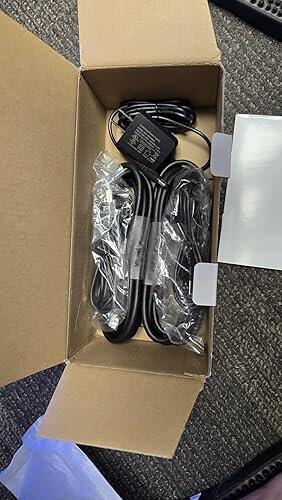
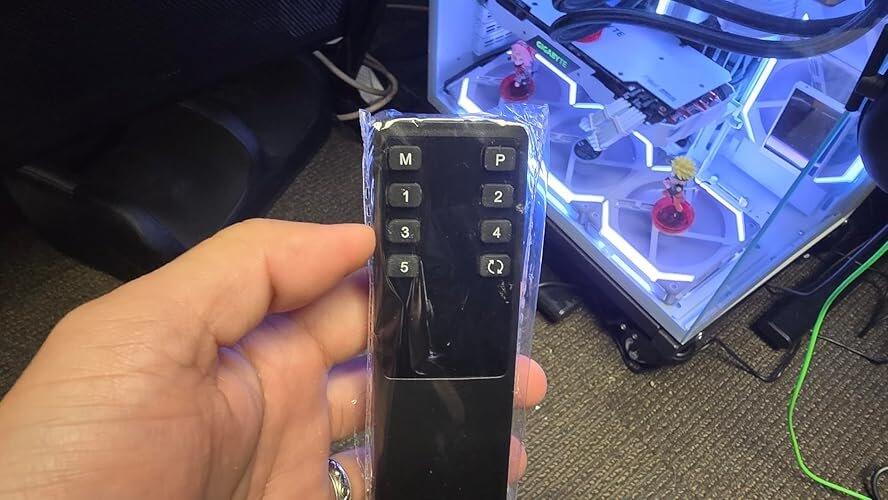
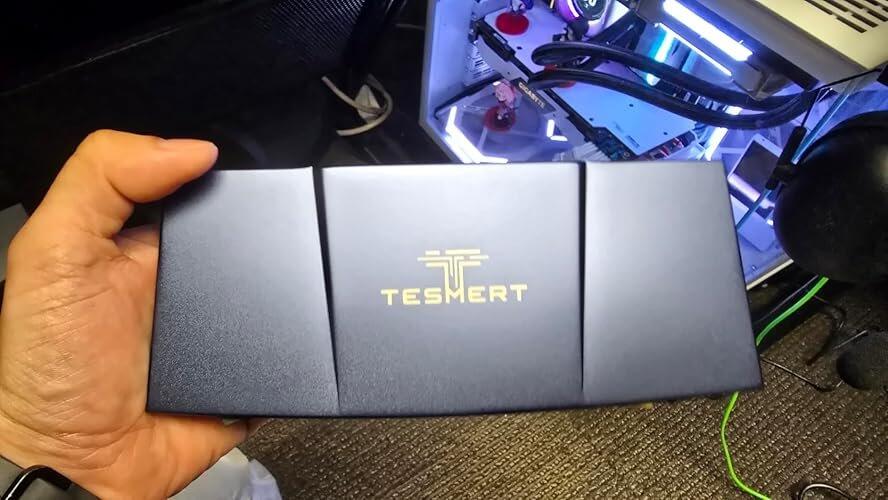
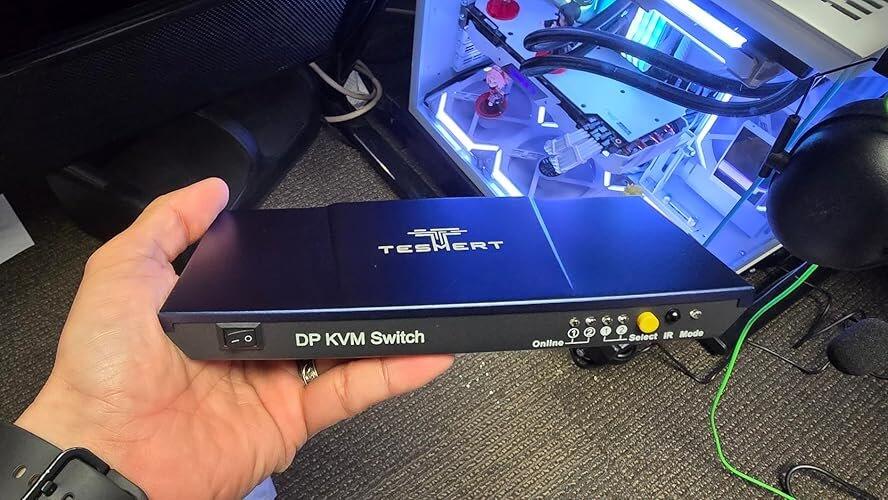
I’m really impressed with the build quality of this HDMI switch. I had a different brand before that was made of cheap plastic and it just stopped working, so holding this one feels like a massive upgrade. It’s heavy, robust, and feels cold to the touch like aluminum, which is great for heat dissipation. It comes with all the cables included, so you don’t have to hunt for extras, which is a huge plus. Operating it is as simple as pressing a button to swap between devices. It does come with a remote control, but honestly, the manual button is so responsive and convenient that I don't even feel the need to use the remote in my setup. Everything is working perfectly right now, but I’ll make sure to update this review later on to see how it holds up over time. If you’re tired of cheap plastic switches that fail, this one feels like it’s built to last.
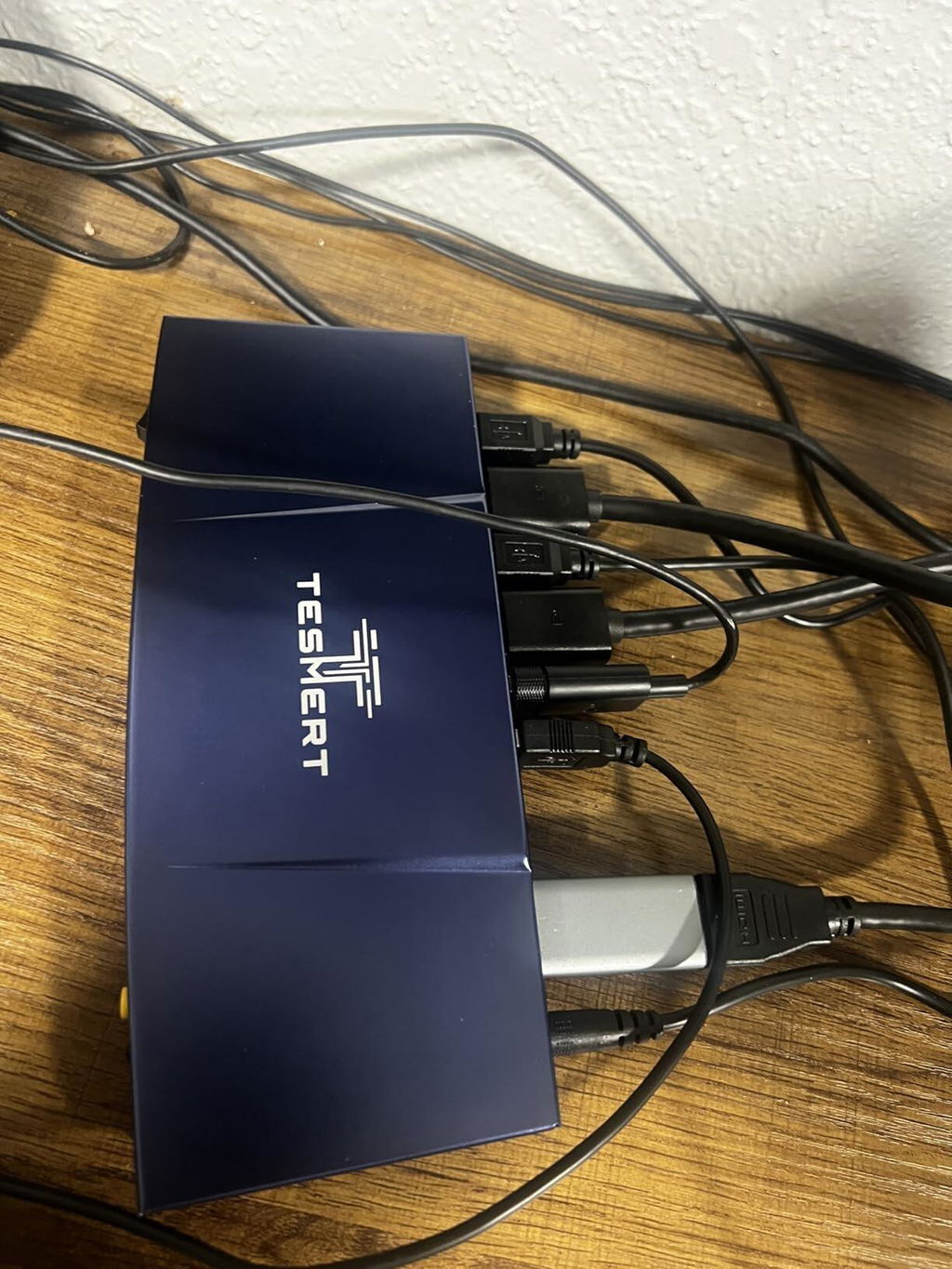
I wasn't expecting much from a budget DisplayPort KVM, but this one really impressed me. The video signal stays stable at 4K, switching feels smooth, and everything just works. Sometimes the best products are the ones you never have to think about after setting them up, and this is one of them.
For under $80, this KVM is a steal. I was worried I'd run into compatibility issues with my mechanical keyboard and gaming mouse, but both worked perfectly without any tweaking. Switching is quick, and the DisplayPort connection has been rock solid.
This cleaned up my desk more than I expected. Instead of having two keyboards and two mice, I only need one set now. The hotkeys are easy to remember, and the remote is handy when I don't want to reach for the unit. Simple, practical, and well worth the money.
I've been using this every day for work, and it's been completely reliable. No flickering, no random disconnects, and no display issues after switching between computers. It does exactly what it's supposed to do, which is honestly all I wanted.
Exactly what I was looking for. I have a work PC and a personal desktop, and now I can switch between them with a simple hotkey instead of constantly moving cables around. Setup took less than 10 minutes, and everything worked right away. Couldn't ask for more.
I recently received the DisplayPort 4K KVM Switch to manage two computers with one monitor, and I must say, it has simplified my setup a lot. The installation was straightforward, and I appreciated that it supports 4K resolution, which means I’m getting great picture quality without any compromise. Switching between the two computers is seamless; I hardly notice any lag.
One feature I really like is the ability to switch using a button on the device or a keyboard shortcut, which adds to the convenience. The build quality feels solid, and I haven’t experienced any connectivity issues so far. Overall, it's a reliable tool for anyone needing to manage multiple systems without cluttering up their workspace.
I’ve been using this KVM switch to share one monitor keyboard and mouse between two computers and it has made my desk setup much easier to manage. The compact size fits nicely without taking up much room and the metal housing feels solid and durable. Setup was surprisingly quick since it includes the needed Displayport and USB cables right in the box. Connectivity has been reliable so far, with stable video output and responsive keyboard and mouse performance after switching between systems. I also tested it with both Windows and Mac devices and compatibility was much better than expected with no major issues getting everything recognized properly. Once connected, everything worked almost immediately with no driver installation or complicated setup process. The 4K at 60Hz output looks sharp and stable with no noticeable flickering or signal loss while switching between systems. I also liked having multiple switching options, including the front button hotkeys and remote control, depending on what was most convenient at the time. The transitions are smooth with only a small delay when changing computers, which is normal for this type of device. Compared to constantly unplugging cables, this feels much more efficient and keeps the workspace looking cleaner. Considering the functionality included and the dependable performance, this feels like a worthwhile upgrade for anyone juggling a work computer and personal PC on the same desk. This product is best for office productivity programming or general multitasking setups though competitive gamers wanting very high refresh rates may want something more advanced.
I am extremely happy with this purchase. From the moment I opened the package, everything about this product felt well made, thoughtfully designed, and easy to use. One of the things I appreciated most was how simple the setup process was. I was honestly expecting to spend a bunch of time trying to figure things out, reading complicated instructions, or troubleshooting random issues like so many products seem to require these days, but this was the complete opposite. The setup was quick, straightforward, and very user-friendly.
Within just a few minutes, everything was up and running exactly as described in the listing. No confusion, no missing steps, and no surprises. It worked perfectly right out of the box and performed exactly the way it was advertised. That alone deserves five stars because apparently “works as intended” has become some kind of luxury achievement in modern consumer electronics.
The overall quality exceeded my expectations. Everything feels reliable and solid, and you can tell attention was put into the design and functionality. I’ve used similar products before that either overpromise or end up being frustrating after a few days, but this one has been smooth and dependable from the start.
Another thing I really liked was how intuitive everything felt. Even someone who is not very technical could easily get this set up and running without any issues. The instructions were clear, the process was simple, and there was no need to waste time searching online for answers or watching random 17-minute YouTube tutorials filmed in a garage with dramatic background music.
Performance has been excellent so far. It does exactly what I needed it to do, and it does it consistently. No glitches, no weird behavior, and no unnecessary complications. It’s refreshing to buy something that actually lives up to the product description instead of turning into a part-time troubleshooting project.
The DisplayPort 4K@60Hz KVM Switch 1 Monitor 2 Computers is a very practical solution if you work with multiple computers but want to keep a single monitor, keyboard, and mouse setup. After using it for a while, I found it to be a convenient way to switch between two systems without constantly reconnecting cables.
Setup was straightforward. The package includes two DisplayPort and USB cables, so most of what you need is already in the box. Once connected, both computers recognized the monitor and peripherals without any complicated configuration. Switching between the systems is quick and can be done using the hotkey command, the included IR remote, or the button on the unit, which makes it flexible depending on how your desk is arranged.
The 4K@60Hz DisplayPort support is an important feature. The video output looks sharp and stable on a 4K monitor with no noticeable lag or flicker during normal work. For productivity tasks like spreadsheets, programming, or general office work, the display quality remains consistent when switching between computers.
Another benefit is the extra USB ports, which allow you to share peripherals like external drives or printers between the two computers. That makes this device especially useful for a home office where both a work computer and personal PC need to use the same accessories.
The auto-scan feature can cycle between computers automatically if needed, which is helpful in certain monitoring setups, though most people will probably rely on manual switching.
Pros:
Allows two computers to share one monitor, keyboard, and mouse
Supports 4K resolution at 60Hz via DisplayPort
Includes DisplayPort and USB cables, reducing extra purchases
Multiple switching options: button, hotkey, or IR remote
Extra USB ports for peripherals like drives or printers
Cons:
Requires careful cable management since multiple cables connect to the unit
Switching takes a brief moment while the monitor reconnects
Overall:
This DisplayPort KVM switch is a very useful device for anyone managing two computers at the same desk. It simplifies a workspace, reduces cable swapping, and keeps everything connected to one set of peripherals. If you want an efficient way to control two systems with one monitor and input setup, this KVM switch performs well and is easy to integrate into a home or office workspace.
Switching between my two workstations is seamless with using a hot key or remote, and auto-scan all works well.
4K@60Hz comes through clean with no signal degradation. The included cables are a decent length and good quality.
Setup was simple, no software needed!
Reliable DisplayPort KVM Switch for Easily Controlling Two Computers with One Setup
The DisplayPort 4K@60Hz KVM Switch 1 Monitor 2 Computers is a very practical solution if you work with multiple computers but want to keep a single monitor, keyboard, and mouse setup. After using it for a while, I found it to be a convenient way to switch between two systems without constantly reconnecting cables.
Setup was straightforward. The package includes two DisplayPort and USB cables, so most of what you need is already in the box. Once connected, both computers recognized the monitor and peripherals without any complicated configuration. Switching between the systems is quick and can be done using the hotkey command, the included IR remote, or the button on the unit, which makes it flexible depending on how your desk is arranged.
The 4K@60Hz DisplayPort support is an important feature. The video output looks sharp and stable on a 4K monitor with no noticeable lag or flicker during normal work. For productivity tasks like spreadsheets, programming, or general office work, the display quality remains consistent when switching between computers.
Another benefit is the extra USB ports, which allow you to share peripherals like external drives or printers between the two computers. That makes this device especially useful for a home office where both a work computer and personal PC need to use the same accessories.
The auto-scan feature can cycle between computers automatically if needed, which is helpful in certain monitoring setups, though most people will probably rely on manual switching.
Pros:
Allows two computers to share one monitor, keyboard, and mouse
Supports 4K resolution at 60Hz via DisplayPort
Includes DisplayPort and USB cables, reducing extra purchases
Multiple switching options: button, hotkey, or IR remote
Extra USB ports for peripherals like drives or printers
Cons:
Requires careful cable management since multiple cables connect to the unit
Switching takes a brief moment while the monitor reconnects
Overall:
This DisplayPort KVM switch is a very useful device for anyone managing two computers at the same desk. It simplifies a workspace, reduces cable swapping, and keeps everything connected to one set of peripherals. If you want an efficient way to control two systems with one monitor and input setup, this KVM switch performs well and is easy to integrate into a home or office workspace.
Product comparison
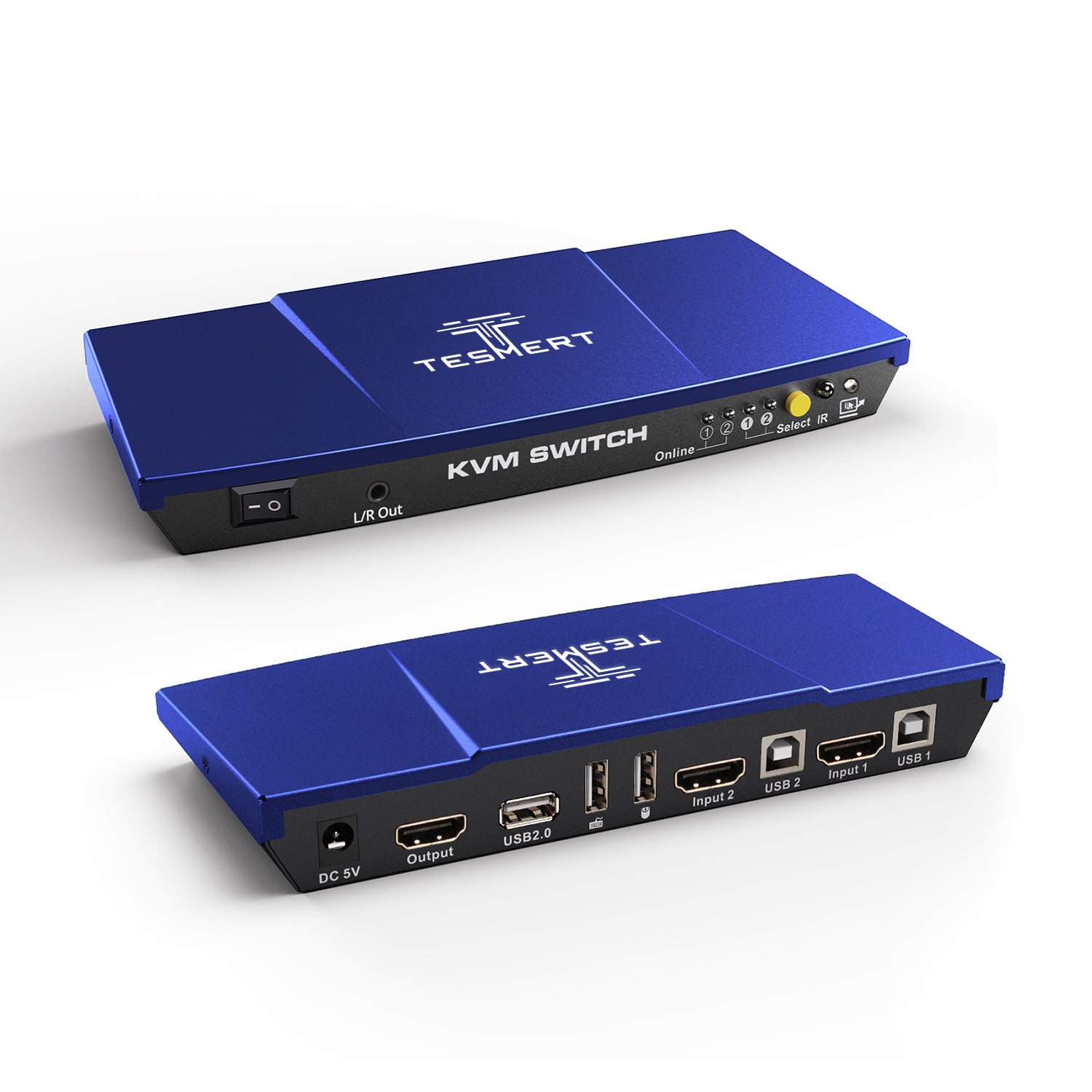
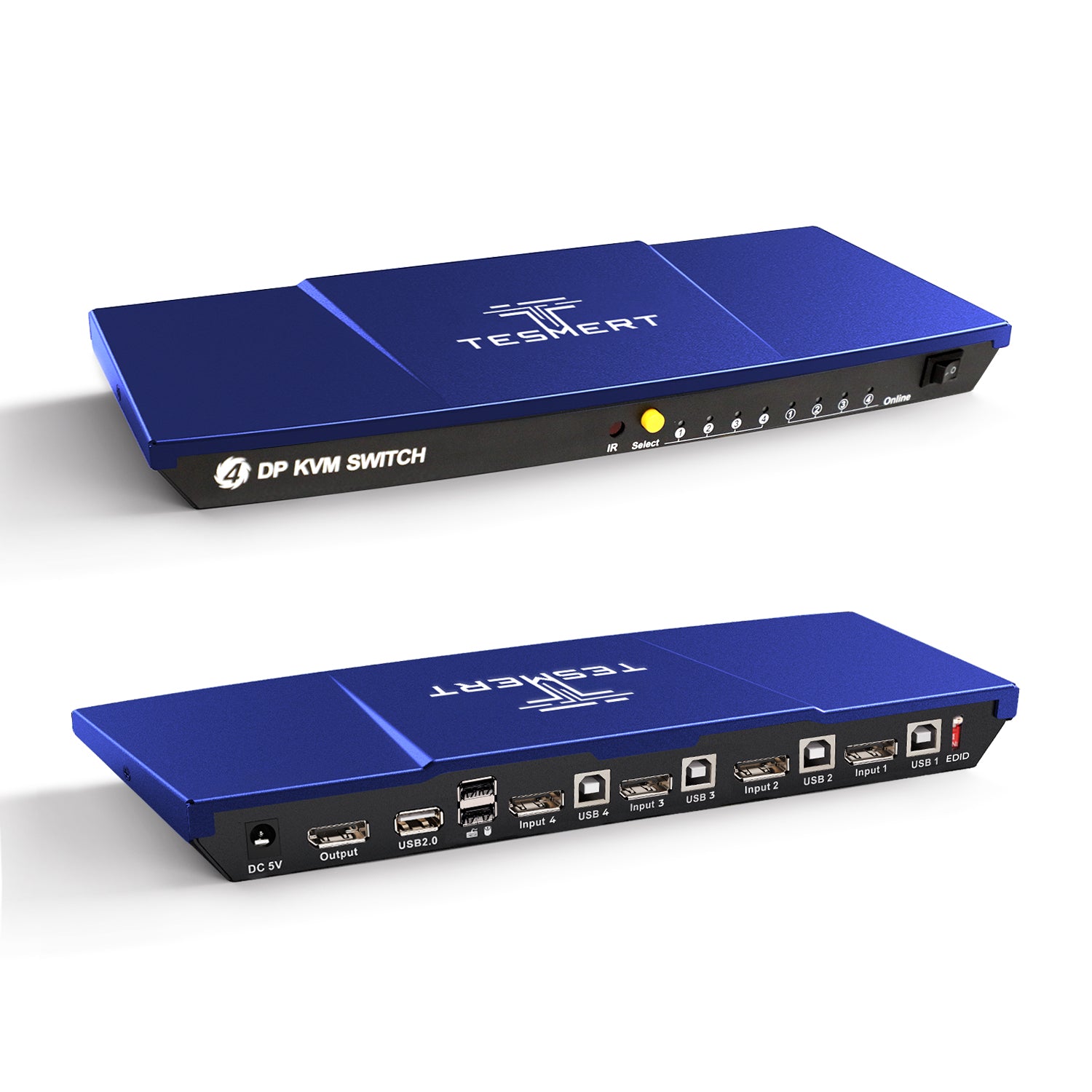
Amount of Computers
2
Amount of Computers
2
Amount of Computers
4
Amount of Monitors
1
Amount of Monitors
1
Amount of Monitors
1
Video Type
DisplayPort 1.2
Video Type
HDMI 2.0
Video Type
DisplayPort 1.4
Max Resolution
4K60Hz
Max Resolution
4K60Hz
Max Resolution
5K120Hz/4K144Hz
EDID Emulation
NO
EDID Emulation
YES
EDID Emulation
YES
Special Features
USB-A 2.0 Sharing Port * 1
Hot Plug
Passthrough Mode
Special Features
USB-A 2.0 Sharing Port * 1
Hot Plug
Passthrough Mode
L/R Out
Special Features
USB-A 2.0 Sharing Port * 1
Hot Plug
Passthrough Mode
Will switching between computers move my windows or briefly disconnect the monitor?
T2210 does not include EDID emulation, so your monitor will briefly resync when you switch computers. A short black screen or display reconnection is normal, and switching time may vary depending on the monitor, graphics card, and operating system.
Because the inactive computer may detect that the monitor has been disconnected, some systems may resize or rearrange open windows after switching. Buyers who specifically need persistent display detection should choose a KVM model with EDID emulation.
Does T2210 support 4K monitors and high refresh rates?
Yes. T2210 supports DisplayPort resolutions up to:
- 3840 × 2160 at 60Hz
- 2560 × 1440 at 120Hz
- 1920 × 1080 at 240Hz
Your computers, graphics cards, monitor, and DisplayPort cables must all support the selected resolution and refresh rate. For the most reliable connection, use the included cables or certified DisplayPort cables rated for the required bandwidth.
Will my keyboard, mouse, and wireless receiver work?
T2210 is compatible with a wide range of standard wired keyboards, mice, and 2.4 GHz USB receivers. For the best compatibility with different types of peripherals, the pass-through function helps ensure more reliable operation with a wider variety of devices.
Some specialty peripherals, built-in USB hubs, proprietary drivers, or unusual HID protocols may still have limited functionality. Bluetooth devices without a USB receiver cannot connect through the KVM.
Which USB devices can I share between the two computers?
T2210 includes one shared USB 2.0 port, suitable for lower-bandwidth peripherals such as:
- Printers
- Barcode scanners
- USB flash drives
- Basic USB audio devices
- Other standard USB 2.0 accessories
USB 2.0 supports up to 480Mbps in theory, but real-world speed is lower. External SSDs, capture cards, high-resolution webcams, and other bandwidth-heavy devices are better connected directly to the computer or through a separate high-speed USB hub.
Can I connect a laptop, USB-C computer, or HDMI device?
T2210 is designed for computers with DisplayPort video output. Each computer also needs a USB connection to share the keyboard, mouse, and USB peripheral.
A USB-C laptop can be used with a USB-C-to-DisplayPort adapter or dock, provided the USB-C port supports DisplayPort Alt Mode. HDMI devices require an active HDMI-to-DisplayPort converter; a basic passive cable may not work because HDMI-to-DisplayPort conversion is directional.
Adapters may also affect the maximum supported resolution or refresh rate, so a direct DisplayPort connection is recommended whenever possible.
Is everything needed for setup included, and do I need to install software?
No software or drivers are required. T2210 works through standard DisplayPort and USB connections and supports Windows, macOS, Linux, and other commonly used operating systems. The package includes:
- T2210 KVM switch
- Two DisplayPort cables
- Two USB-A to USB-B cables
- IR remote control
- DC 5V power adapter
- User manual
Connect each computer with one DisplayPort cable and one USB cable, then connect your monitor, keyboard, and mouse to the KVM. Keyboard hotkeys only work when the keyboard is connected to the dedicated keyboard port.